n8n

n8n

n8n

Getting Started: n8n

This wiki provides a comprehensive guide to the n8n automation platform, covering everything from the user interface and basic node configuration to creating AI agents and advanced workflow efficiency techniques.

1. Introduction to Agentic AI with n8n

The Age of Agentic Automation

The last decade belonged to workflow automation. The next decade belongs to agentic automation, where systems can reason, retrieve information, and act with intelligence. Many organisations are moving rapidly to adopt AI agents, AI copilots, and retrieval-based intelligence, while others still depend on static documentation, spreadsheets, and manual interventions to support core audit, compliance, and operational processes.

The challenge today is not only about automating tasks. The real challenge is enabling teams to create intelligent agents that can read, interpret, compare, and act using the full context of internal knowledge. Teams must also ensure that these systems operate consistently, transparently, and safely.

What Is n8n

N8n is an open-source automation and integration platform that allows users to connect systems, orchestrate processes, and build intelligent workflows without requiring deep engineering expertise. At its core, n8n provides a visual, node-based environment where business logic, data movement, and automated decisions can be designed with clarity and transparency. What sets n8n apart from traditional automation tools is its hybrid flexibility. Users who prefer a purely visual approach can build complete workflows through drag and drop, while more technical professionals can extend these workflows with custom JavaScript, API calls, and modular components.

In the context of AI and agentic automation, n8n becomes even more powerful. It functions as the execution layer for agents, enabling them to use tools, call APIs, retrieve information, read documents, and trigger actions across an entire ecosystem. It also manages credentials, schedules, logging, and monitoring in a structured environment, which allows intelligent agents to operate safely and consistently within enterprise standards. Because n8n integrates seamlessly with language models and retrieval pipelines, it becomes a natural foundation for deploying RAG systems, enterprise knowledge assistants, and autonomous digital auditors. In practical terms, n8n provides both the intelligence layer and the operational backbone required to build systems that can think, retrieve, and act with precision.

Why n8n for Agents and RAG

N8n sits in a unique position between automation, data connectivity, and AI orchestration. Where standard AI tools can only generate text, n8n provides the structure needed for intelligence to connect with real-world actions. It allows you to build systems that can read, decide, and act across your ecosystem.

With n8n, you can build RAG systems, agents, and multi-step reasoning flows without deploying complex infrastructure or writing extensive code. Agents become useful because they can rely on n8n to perform tasks such as:

  • Calling Application Programming Interfaces (APIs)

  • Reading documents

  • Writing to databases

  • Triggering business processes

  • Executing conditional logic

  • Creating, retrieving, and analysing context

  • Storing and reusing knowledge

  • Applying safety and policy gates

This combination turns n8n into a practical foundation for enterprise-grade agentic automation.

From Workflows to Agents

Traditional automation follows a fixed sequence. You decide every step in advance. Agents follow a different approach. They receive a goal, interpret what tools are available, decide what to do, and execute intermediate steps independently.

However, agents still require structure, governance, and real-world integration points. This is what n8n provides. It gives agents the tools to take action, along with the controls needed to ensure reliability, transparency, and traceability.

Why RAG Matters

AI agents are only as strong as the information they can understand. Retrieval Augmented Generation, or RAG, connects AI reasoning with your organisation’s internal policies, historical findings, evidence repositories, and operational documentation. This capability is transformative for audit, compliance, risk, operations, and financial oversight. RAG systems built with n8n can:

  • Retrieve relevant policy sections

  • Match evidence to control descriptions

  • Detect misalignments

  • Draft findings using real organisational context

  • Validate exceptions

  • Support continuous monitoring

  • Prepare and store audit evidence

  • Trigger alerts based on reasoning with cited sources

Instead of relying on memorised model knowledge, your AI systems reference the documents that matter.

Who This Guide Is For

This guide is designed for professionals who are ready to move beyond static automation and towards intelligent, self-improving systems. It is particularly relevant for internal auditors, external auditors, SOX and compliance teams, risk and financial control functions, and operational leaders responsible for maintaining oversight across complex environments. Automation specialists and AI transformation teams will also find this guide valuable, especially when seeking practical ways to deploy agentic systems within existing infrastructures.

Regardless of your background, the objective is the same. You want to automate evidence collection, reduce repetitive work, and create workflows capable of reasoning with organisational knowledge. Whether your goal is to build a simple retrieval assistant or a fully autonomous digital auditor, this guide provides the foundation to design agentic systems that operate with reliability and governance.

The Art of the Possible with n8n Agents

Combining agentic intelligence with n8n’s orchestration capabilities unlocks a range of new possibilities that extend far beyond traditional workflow automation. For example, an agent can interpret policy requirements, perform live control tests, and raise exceptions based on evidence retrieved from multiple systems. A RAG-enhanced assistant can assemble audit documentation automatically by extracting relevant wording from internal repositories and mapping it to evidence already collected.

Reconciliation agents can compare data from several sources and resolve differences without human intervention. Daily SOX evidence bots can run quietly in the background, preparing complete documentation packs long before a control owner requests them. Even governance-focused agents can validate business decisions before execution, ensuring alignment with internal standards.

These capabilities fundamentally reshape the relationship between human judgement and system automation. Instead of replacing human insight, n8n agents elevate it. Routine work is delegated to the system, while auditors and analysts focus on interpretation, investigation, and strategic oversight.

Building a Culture of Agentic Thinking

The purpose of this guide extends beyond teaching n8n’s technical features. It aims to help teams adopt a mindset built around intelligent systems that can reason and act on their behalf. This requires thinking in terms of goals rather than individual steps and structuring knowledge in a way that agents can access and retrieve with precision. It involves providing agents with safe and clearly defined tools, supported by guardrails that ensure consistent and policy-aligned outcomes.

Teams must also learn to create reusable automation components that support autonomy, rather than building narrowly scoped workflows that cannot adapt or expand. Finally, designing systems that learn from organisational knowledge is essential, ensuring that agents grow more capable as documentation, processes, and policies evolve. By embracing these principles, organisations can transition from manual, task-oriented work to intelligent, proactive systems that enhance every aspect of operational assurance and audit oversight.

As you move into the next chapters, you will learn how to design and govern AI agents and RAG systems using n8n. These capabilities will allow your team to modernise processes, reduce manual effort, and strengthen oversight through intelligent automation.

1. Introduction to Agentic AI with n8n

The Age of Agentic Automation

The last decade belonged to workflow automation. The next decade belongs to agentic automation, where systems can reason, retrieve information, and act with intelligence. Many organisations are moving rapidly to adopt AI agents, AI copilots, and retrieval-based intelligence, while others still depend on static documentation, spreadsheets, and manual interventions to support core audit, compliance, and operational processes.

The challenge today is not only about automating tasks. The real challenge is enabling teams to create intelligent agents that can read, interpret, compare, and act using the full context of internal knowledge. Teams must also ensure that these systems operate consistently, transparently, and safely.

What Is n8n

N8n is an open-source automation and integration platform that allows users to connect systems, orchestrate processes, and build intelligent workflows without requiring deep engineering expertise. At its core, n8n provides a visual, node-based environment where business logic, data movement, and automated decisions can be designed with clarity and transparency. What sets n8n apart from traditional automation tools is its hybrid flexibility. Users who prefer a purely visual approach can build complete workflows through drag and drop, while more technical professionals can extend these workflows with custom JavaScript, API calls, and modular components.

In the context of AI and agentic automation, n8n becomes even more powerful. It functions as the execution layer for agents, enabling them to use tools, call APIs, retrieve information, read documents, and trigger actions across an entire ecosystem. It also manages credentials, schedules, logging, and monitoring in a structured environment, which allows intelligent agents to operate safely and consistently within enterprise standards. Because n8n integrates seamlessly with language models and retrieval pipelines, it becomes a natural foundation for deploying RAG systems, enterprise knowledge assistants, and autonomous digital auditors. In practical terms, n8n provides both the intelligence layer and the operational backbone required to build systems that can think, retrieve, and act with precision.

Why n8n for Agents and RAG

N8n sits in a unique position between automation, data connectivity, and AI orchestration. Where standard AI tools can only generate text, n8n provides the structure needed for intelligence to connect with real-world actions. It allows you to build systems that can read, decide, and act across your ecosystem.

With n8n, you can build RAG systems, agents, and multi-step reasoning flows without deploying complex infrastructure or writing extensive code. Agents become useful because they can rely on n8n to perform tasks such as:

  • Calling Application Programming Interfaces (APIs)

  • Reading documents

  • Writing to databases

  • Triggering business processes

  • Executing conditional logic

  • Creating, retrieving, and analysing context

  • Storing and reusing knowledge

  • Applying safety and policy gates

This combination turns n8n into a practical foundation for enterprise-grade agentic automation.

From Workflows to Agents

Traditional automation follows a fixed sequence. You decide every step in advance. Agents follow a different approach. They receive a goal, interpret what tools are available, decide what to do, and execute intermediate steps independently.

However, agents still require structure, governance, and real-world integration points. This is what n8n provides. It gives agents the tools to take action, along with the controls needed to ensure reliability, transparency, and traceability.

Why RAG Matters

AI agents are only as strong as the information they can understand. Retrieval Augmented Generation, or RAG, connects AI reasoning with your organisation’s internal policies, historical findings, evidence repositories, and operational documentation. This capability is transformative for audit, compliance, risk, operations, and financial oversight. RAG systems built with n8n can:

  • Retrieve relevant policy sections

  • Match evidence to control descriptions

  • Detect misalignments

  • Draft findings using real organisational context

  • Validate exceptions

  • Support continuous monitoring

  • Prepare and store audit evidence

  • Trigger alerts based on reasoning with cited sources

Instead of relying on memorised model knowledge, your AI systems reference the documents that matter.

Who This Guide Is For

This guide is designed for professionals who are ready to move beyond static automation and towards intelligent, self-improving systems. It is particularly relevant for internal auditors, external auditors, SOX and compliance teams, risk and financial control functions, and operational leaders responsible for maintaining oversight across complex environments. Automation specialists and AI transformation teams will also find this guide valuable, especially when seeking practical ways to deploy agentic systems within existing infrastructures.

Regardless of your background, the objective is the same. You want to automate evidence collection, reduce repetitive work, and create workflows capable of reasoning with organisational knowledge. Whether your goal is to build a simple retrieval assistant or a fully autonomous digital auditor, this guide provides the foundation to design agentic systems that operate with reliability and governance.

The Art of the Possible with n8n Agents

Combining agentic intelligence with n8n’s orchestration capabilities unlocks a range of new possibilities that extend far beyond traditional workflow automation. For example, an agent can interpret policy requirements, perform live control tests, and raise exceptions based on evidence retrieved from multiple systems. A RAG-enhanced assistant can assemble audit documentation automatically by extracting relevant wording from internal repositories and mapping it to evidence already collected.

Reconciliation agents can compare data from several sources and resolve differences without human intervention. Daily SOX evidence bots can run quietly in the background, preparing complete documentation packs long before a control owner requests them. Even governance-focused agents can validate business decisions before execution, ensuring alignment with internal standards.

These capabilities fundamentally reshape the relationship between human judgement and system automation. Instead of replacing human insight, n8n agents elevate it. Routine work is delegated to the system, while auditors and analysts focus on interpretation, investigation, and strategic oversight.

Building a Culture of Agentic Thinking

The purpose of this guide extends beyond teaching n8n’s technical features. It aims to help teams adopt a mindset built around intelligent systems that can reason and act on their behalf. This requires thinking in terms of goals rather than individual steps and structuring knowledge in a way that agents can access and retrieve with precision. It involves providing agents with safe and clearly defined tools, supported by guardrails that ensure consistent and policy-aligned outcomes.

Teams must also learn to create reusable automation components that support autonomy, rather than building narrowly scoped workflows that cannot adapt or expand. Finally, designing systems that learn from organisational knowledge is essential, ensuring that agents grow more capable as documentation, processes, and policies evolve. By embracing these principles, organisations can transition from manual, task-oriented work to intelligent, proactive systems that enhance every aspect of operational assurance and audit oversight.

As you move into the next chapters, you will learn how to design and govern AI agents and RAG systems using n8n. These capabilities will allow your team to modernise processes, reduce manual effort, and strengthen oversight through intelligent automation.

1. Introduction to Agentic AI with n8n

The Age of Agentic Automation

The last decade belonged to workflow automation. The next decade belongs to agentic automation, where systems can reason, retrieve information, and act with intelligence. Many organisations are moving rapidly to adopt AI agents, AI copilots, and retrieval-based intelligence, while others still depend on static documentation, spreadsheets, and manual interventions to support core audit, compliance, and operational processes.

The challenge today is not only about automating tasks. The real challenge is enabling teams to create intelligent agents that can read, interpret, compare, and act using the full context of internal knowledge. Teams must also ensure that these systems operate consistently, transparently, and safely.

What Is n8n

N8n is an open-source automation and integration platform that allows users to connect systems, orchestrate processes, and build intelligent workflows without requiring deep engineering expertise. At its core, n8n provides a visual, node-based environment where business logic, data movement, and automated decisions can be designed with clarity and transparency. What sets n8n apart from traditional automation tools is its hybrid flexibility. Users who prefer a purely visual approach can build complete workflows through drag and drop, while more technical professionals can extend these workflows with custom JavaScript, API calls, and modular components.

In the context of AI and agentic automation, n8n becomes even more powerful. It functions as the execution layer for agents, enabling them to use tools, call APIs, retrieve information, read documents, and trigger actions across an entire ecosystem. It also manages credentials, schedules, logging, and monitoring in a structured environment, which allows intelligent agents to operate safely and consistently within enterprise standards. Because n8n integrates seamlessly with language models and retrieval pipelines, it becomes a natural foundation for deploying RAG systems, enterprise knowledge assistants, and autonomous digital auditors. In practical terms, n8n provides both the intelligence layer and the operational backbone required to build systems that can think, retrieve, and act with precision.

Why n8n for Agents and RAG

N8n sits in a unique position between automation, data connectivity, and AI orchestration. Where standard AI tools can only generate text, n8n provides the structure needed for intelligence to connect with real-world actions. It allows you to build systems that can read, decide, and act across your ecosystem.

With n8n, you can build RAG systems, agents, and multi-step reasoning flows without deploying complex infrastructure or writing extensive code. Agents become useful because they can rely on n8n to perform tasks such as:

  • Calling Application Programming Interfaces (APIs)

  • Reading documents

  • Writing to databases

  • Triggering business processes

  • Executing conditional logic

  • Creating, retrieving, and analysing context

  • Storing and reusing knowledge

  • Applying safety and policy gates

This combination turns n8n into a practical foundation for enterprise-grade agentic automation.

From Workflows to Agents

Traditional automation follows a fixed sequence. You decide every step in advance. Agents follow a different approach. They receive a goal, interpret what tools are available, decide what to do, and execute intermediate steps independently.

However, agents still require structure, governance, and real-world integration points. This is what n8n provides. It gives agents the tools to take action, along with the controls needed to ensure reliability, transparency, and traceability.

Why RAG Matters

AI agents are only as strong as the information they can understand. Retrieval Augmented Generation, or RAG, connects AI reasoning with your organisation’s internal policies, historical findings, evidence repositories, and operational documentation. This capability is transformative for audit, compliance, risk, operations, and financial oversight. RAG systems built with n8n can:

  • Retrieve relevant policy sections

  • Match evidence to control descriptions

  • Detect misalignments

  • Draft findings using real organisational context

  • Validate exceptions

  • Support continuous monitoring

  • Prepare and store audit evidence

  • Trigger alerts based on reasoning with cited sources

Instead of relying on memorised model knowledge, your AI systems reference the documents that matter.

Who This Guide Is For

This guide is designed for professionals who are ready to move beyond static automation and towards intelligent, self-improving systems. It is particularly relevant for internal auditors, external auditors, SOX and compliance teams, risk and financial control functions, and operational leaders responsible for maintaining oversight across complex environments. Automation specialists and AI transformation teams will also find this guide valuable, especially when seeking practical ways to deploy agentic systems within existing infrastructures.

Regardless of your background, the objective is the same. You want to automate evidence collection, reduce repetitive work, and create workflows capable of reasoning with organisational knowledge. Whether your goal is to build a simple retrieval assistant or a fully autonomous digital auditor, this guide provides the foundation to design agentic systems that operate with reliability and governance.

The Art of the Possible with n8n Agents

Combining agentic intelligence with n8n’s orchestration capabilities unlocks a range of new possibilities that extend far beyond traditional workflow automation. For example, an agent can interpret policy requirements, perform live control tests, and raise exceptions based on evidence retrieved from multiple systems. A RAG-enhanced assistant can assemble audit documentation automatically by extracting relevant wording from internal repositories and mapping it to evidence already collected.

Reconciliation agents can compare data from several sources and resolve differences without human intervention. Daily SOX evidence bots can run quietly in the background, preparing complete documentation packs long before a control owner requests them. Even governance-focused agents can validate business decisions before execution, ensuring alignment with internal standards.

These capabilities fundamentally reshape the relationship between human judgement and system automation. Instead of replacing human insight, n8n agents elevate it. Routine work is delegated to the system, while auditors and analysts focus on interpretation, investigation, and strategic oversight.

Building a Culture of Agentic Thinking

The purpose of this guide extends beyond teaching n8n’s technical features. It aims to help teams adopt a mindset built around intelligent systems that can reason and act on their behalf. This requires thinking in terms of goals rather than individual steps and structuring knowledge in a way that agents can access and retrieve with precision. It involves providing agents with safe and clearly defined tools, supported by guardrails that ensure consistent and policy-aligned outcomes.

Teams must also learn to create reusable automation components that support autonomy, rather than building narrowly scoped workflows that cannot adapt or expand. Finally, designing systems that learn from organisational knowledge is essential, ensuring that agents grow more capable as documentation, processes, and policies evolve. By embracing these principles, organisations can transition from manual, task-oriented work to intelligent, proactive systems that enhance every aspect of operational assurance and audit oversight.

As you move into the next chapters, you will learn how to design and govern AI agents and RAG systems using n8n. These capabilities will allow your team to modernise processes, reduce manual effort, and strengthen oversight through intelligent automation.

2. The n8n User Interface

When you first open n8n, the interface is designed to give you a clear view of your workflow canvas, execution history, and essential tools. The layout is simple, visual, and focused on helping you build and evaluate workflows efficiently. The screenshot you shared contains several core components, which are described below.
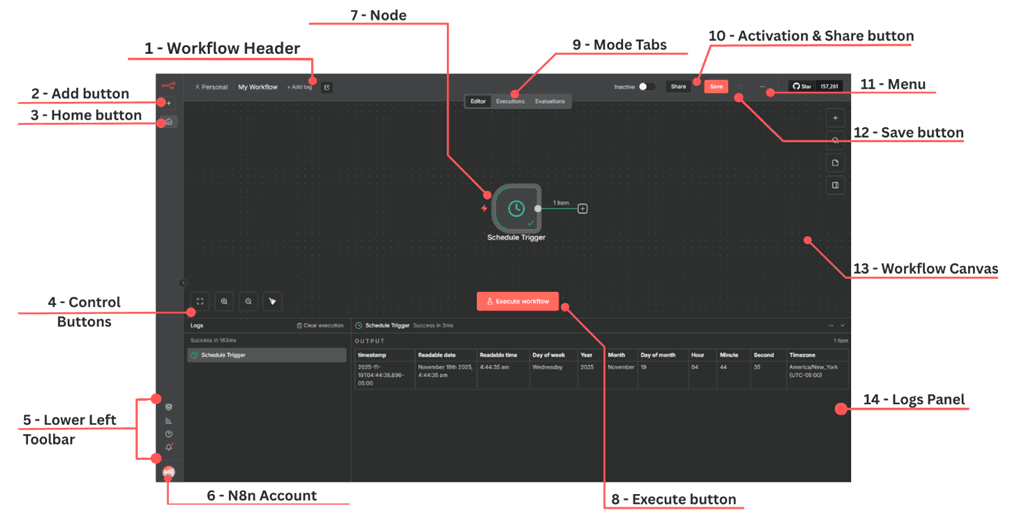
Figure 3.0 — General n8n Workflow Edit User Interface

Workflow Header (Top Bar) Located at the top of the screen.

What it contains:

  • Workspace Location (e.g., Personal)

  • Workflow Name (default: “My Workflow”)

  • Tag Controls (Add tag)

  • Mode Tabs:

    • Editor: Build and edit workflow logic

    • Executions: View past workflow runs

    • Evaluations: View AI model-related evaluations (for agent or LLM workflows)

  • Activation Toggle: Switch the workflow between inactive and active

  • Share Button: Share the workflow or collaboration settings

  • Save Indicator: Shows whether your workflow has been saved

  • Menu (···): Additional workflow options such as versioning, exports, and settings

This bar controls workflow identity, viewing modes, activation, and general workflow settings.

Add Button The plus symbol on the right-side toolbar.
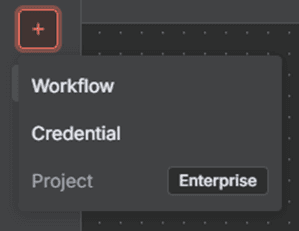
Figure 3.1 — Add button menu options

Opens the node selector so you can create a new workflow, add new credentials, or even create a new project (only available in the enterprise version of n8n).

Home Button Located on the left vertical toolbar, it returns you to the main n8n home area where you can browse your workflows, view templates, or switch workspaces.

Control Buttons (Below Start Block) Three small buttons below the left block. They help you navigate and organise the workflow visually. These include:

  • Fit to Screen (expanding arrows icon) Adjusts the zoom so the full workflow is in view. Press one (1) on your keyboard as a shortcut.

  • Zoom In Increases magnification for detailed editing. Press the plus sign (+) on your keyboard as a shortcut.

  • Zoom Out Decreases magnification to see more of the workflow. Press the minus sign (+) on your keyboard as a shortcut.

  • Toggle Grid or Snap Behaviour (third icon in some layouts)Helps with aligning nodes neatly. Press shift ( ) + Alt + T on your keyboard as a shortcut.

Figure 3.2 — Control buttons

Lower Left Toolbar The vertical set of icons on the left side of the interface. What it contains:

  • Templates

  • Insights

  • Help

  • What’s new?

Provides quick global navigation across all n8n areas.

n8n Account The circular icon with user initials at the bottom-left of the screen. Opens user account settings, workspace preferences, profile details, and other personal configuration options.

Node The central circular element shown on the canvas, for example a Schedule Trigger. Nodes represent the individual steps of your workflow. Each node performs a specific action such as retrieving data, transforming information, triggering a schedule, or invoking an AI model. Nodes are the building blocks from which complete automations and agent chains are constructed.

When you click the + button to add a node, you will see a lot of options that might suit the workflow you want to build.
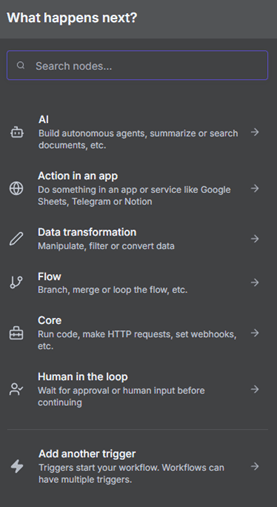
Figure 3.3 — Adding a new node

  • Execute Button Located directly below the node.Runs the workflow manually. This is essential for testing and validating each step before the workflow is activated.

  • Mode Tabs Located in the workflow header just above the canvas which contains:

  • Editor: The design view where you build workflows

  • Executions: A list of past workflow runs
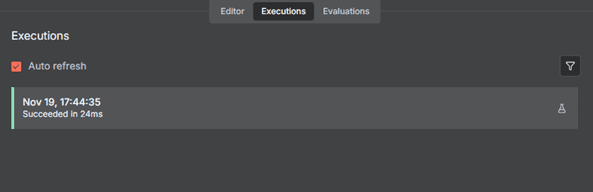
Figure 3.4 — Executions page

Evaluations: A review space for LLM or agent-related outputs
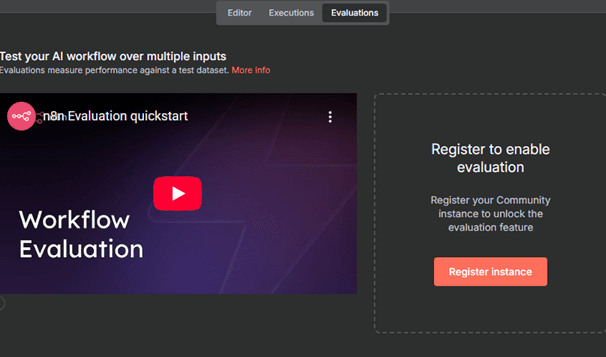
Figure 3.5 — Evaluations page

These tabs allow you to move between designing your workflow, viewing past behaviour, and evaluating model responses.

Activation and Share Button Found on the right side of the header. The activation toggle enables or disables the workflow so it can respond to triggers. The share button allows you to collaborate with others or manage access.

Menu Located beside the share and save controls. It has options for duplication, exporting, version history, and workflow settings.
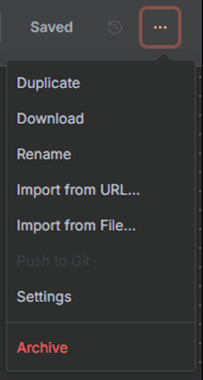
Figure 3.6 — Menu button options

The Menu provides advanced configuration options for managing the workflow at a structural level.

  • Save Button Located in the header next to the share button. Confirms and stores changes made to the workflow. Even though n8n saves frequently, this button is used to ensure updates are committed explicitly.

  • Workflow Canvas The central dotted area of the interface where the node appears. The canvas is where workflows are designed. Nodes are added, positioned, and connected to form the automation logic. The visual layout allows you to understand how information flows through your workflow.

  • Logs Panel The large section at the bottom of the screen.

Figure 3.7 — Log Panel Display Example for Schedule Trigger node

Displays results and outputs from workflow execution. This includes timestamps, retrieved data, errors, conditional paths, and detailed node behaviour. For agent workflows, it may also show reasoning traces and AI decisions.

Summary Table

UI Element

Description

1. Workflow Header (Top Bar)

Located at the top of the screen. Contains the workspace location, workflow name, tag controls, mode tabs (Editor, Executions, Evaluations), activation toggle, share button, save indicator, and the menu. Controls workflow identity, viewing modes, activation, and general workflow settings.

2. Add Button

The plus symbol on the right-side toolbar. Opens the node selector where you can create a new workflow, add credentials, or create a new project (available in the enterprise version). See Figure 3.1 for menu options.

3. Home Button

Located on the left vertical toolbar. Returns you to the main n8n home area where you can browse your workflows, access templates, or switch workspaces.

4. Control Buttons

Found below the initial node block. Used to navigate and organise the canvas. Includes Fit to Screen (shortcut: 1), Zoom In (shortcut: +), Zoom Out (shortcut: -), and Toggle Grid/Snap (shortcut: Shift + Alt + T). See Figure 3.2 for control button icons.

5. Lower Left Toolbar

Vertical set of icons on the far-left side. Contains Templates, Insights, Help, and What’s New. Provides global navigation across all n8n areas.

6. n8n Account

Circular icon with user initials at the bottom-left corner. Opens account settings, profile information, workspace preferences, and organisation-related options.

7. Node

The circular element displayed on the canvas, for example a Schedule Trigger. Represents a step in the workflow. Each node performs a specific action such as retrieving data, applying logic, triggering schedules, or invoking AI. Forms the basic building blocks of automations and agent chains.

8. Execute Button

Located directly below the selected node. Runs the workflow manually, which is essential during testing and validation before activation.

9. Mode Tabs

Displayed in the workflow header just above the canvas. Includes Editor (design view), Executions (past run history), and Evaluations (LLM and agent output review). Allows smooth movement between workflow design, past behaviour, and model assessment.

10. Activation and Share Button

Positioned on the right side of the header. Activation turns the workflow on or off. Sharing allows collaboration and access control.

11. Menu

Located beside the share and save controls. Includes options for duplication, exporting, version history, environment settings, and other workflow configuration tools.

12. Save Button

Found next to the share button. Confirms and stores workflow changes. Although n8n autosaves frequently, this button ensures explicit commit of edits.

13. Workflow Canvas

The dotted central area where nodes are placed. This is where workflows are designed, arranged, and connected. The canvas visually represents the logic and flow of automation.

14. Logs Panel

The large bottom section of the interface. Displays execution results including timestamps, outputs, errors, and decision paths. For agent workflows, may also include reasoning traces and AI evaluation details.

The n8n Management Views: Credentials, Executions, and Data Tables Beyond the workflow editor, n8n provides several dedicated management views that support automation, agent workflows, and RAG systems at an operational level. Each of these areas serves a specific purpose, helping you control the security, monitoring, and data persistence associated with your workflows. The sections below describe the key components visible in the screenshots and explain their roles within the broader automation environment.

Credentials View

The Credentials view is where all connection details for external services are created and maintained. These credentials allow workflows to authenticate securely with APIs, databases, email servers, vector stores, and AI model providers. It filters the interface to show only the credentials you own or have access to. It separates authentication assets from workflows and execution logs.

  • Search Bar Allows you to find credentials quickly by name. This becomes essential when working with large automation environments where dozens of authenticated connections may exist.

  • Sort Dropdown Sorts credentials by criteria such as last updated, creation date, or alphabetical order. This helps maintain order and supports security audits by showing which credentials were updated recently.

  • Filter Button Opens filtering options to narrow down credential sets. Particularly useful when working across multiple environments or departments.

  • Credential Cards Each card represents a single credential, such as SMTP, OpenAI, Baserow, or Gemini.

Each card contains:

  • Credential name

  • Provider or service type

  • Last updated date

  • Creation date

  • Workspace ownership

These cards help you understand at a glance how recently credentials were updated and which services they connect to. This is especially important for agent workflows that rely on model APIs, database connections, or RAG document stores.

Create Credential Button Located in the top right corner. Opens the credential creation window. You can configure API keys, OAuth details, or other authentication parameters. This is one of the most important controls for expanding your automation ecosystem safely.

Executions View

The Executions view is essential for understanding how workflows behave over time. It provides a complete audit trail of every run, showing input conditions, outcomes, and performance. This is where you inspect workflow failures, validate success rates, and confirm that agent behaviour is consistent.

Filter Button Lets you filter execution logs by workflow name, status, time range, or other criteria. This is especially useful in environments where many workflows run frequently.

Execution Table Displays key details for every execution:

  • Workflow name

  • Status (such as Success or Error)

  • Start time

  • Run time

  • Execution ID

This table provides operational visibility. It helps identify issues such as timeouts, unexpected logic paths, slow-running nodes, or errors produced by AI agents.

Auto Refresh Toggle When enabled, this automatically updates the execution list without refreshing the page. This is useful when monitoring live agent workflows or scheduled tasks.

Create Workflow Button

Allows you to start a new automation directly from this view. Helps streamline operations when you notice inefficiencies in execution data.

Data Tables View

Data tables allow you to store, retrieve, and share data across workflows. They are particularly important for RAG pipelines, agent memory, historical tracking, and storing evaluation metrics. This tab is often used by users building advanced automations that need to keep state or store structured information between workflow runs.

Empty State Panel

In your screenshot, no data tables are present yet. The panel explains the purpose of data tables:

  • Persist execution results

  • Share data across workflows

  • Store metrics for later evaluation This is crucial for agent systems that need to remember earlier outputs, store retrieval results, or maintain long-term context.

Create Data Table Button

Opens a wizard for creating a new table. You specify the schema, columns, and data types. Data tables become especially useful when:

  • Building RAG indexing pipelines

  • Storing embeddings

  • Recording audit logs

  • Capturing evaluation metrics for LLM behaviour

  • Saving intermediate results for multi-step agent workflows

Why These Views Matter

Together, Credentials, Executions, and Data Tables form the operational backbone of intelligent automation.

  • Credentials provide safe, controlled access to external systems and model providers.

  • Executions offer complete visibility into automation performance and agent behaviour.

  • Data Tables enable persistence, memory, and context for advanced workflows and RAG pipelines.

These areas ensure that workflows operate reliably, securely, and transparently, which is essential in environments involving audit, compliance, and any form of agentic automation.

2. The n8n User Interface

When you first open n8n, the interface is designed to give you a clear view of your workflow canvas, execution history, and essential tools. The layout is simple, visual, and focused on helping you build and evaluate workflows efficiently. The screenshot you shared contains several core components, which are described below.

Figure 3.0 — General n8n Workflow Edit User Interface

Workflow Header (Top Bar) Located at the top of the screen.

What it contains:

  • Workspace Location (e.g., Personal)

  • Workflow Name (default: “My Workflow”)

  • Tag Controls (Add tag)

  • Mode Tabs:

    • Editor: Build and edit workflow logic

    • Executions: View past workflow runs

    • Evaluations: View AI model-related evaluations (for agent or LLM workflows)

  • Activation Toggle: Switch the workflow between inactive and active

  • Share Button: Share the workflow or collaboration settings

  • Save Indicator: Shows whether your workflow has been saved

  • Menu (···): Additional workflow options such as versioning, exports, and settings

This bar controls workflow identity, viewing modes, activation, and general workflow settings.

Add Button The plus symbol on the right-side toolbar.

Figure 3.1 — Add button menu options

Opens the node selector so you can create a new workflow, add new credentials, or even create a new project (only available in the enterprise version of n8n).

Home Button Located on the left vertical toolbar, it returns you to the main n8n home area where you can browse your workflows, view templates, or switch workspaces.

Control Buttons (Below Start Block) Three small buttons below the left block. They help you navigate and organise the workflow visually. These include:

  • Fit to Screen (expanding arrows icon) Adjusts the zoom so the full workflow is in view. Press one (1) on your keyboard as a shortcut.

  • Zoom In Increases magnification for detailed editing. Press the plus sign (+) on your keyboard as a shortcut.

  • Zoom Out Decreases magnification to see more of the workflow. Press the minus sign (+) on your keyboard as a shortcut.

  • Toggle Grid or Snap Behaviour (third icon in some layouts)Helps with aligning nodes neatly. Press shift ( ) + Alt + T on your keyboard as a shortcut.

Figure 3.2 — Control buttons

Lower Left Toolbar The vertical set of icons on the left side of the interface. What it contains:

  • Templates

  • Insights

  • Help

  • What’s new?

Provides quick global navigation across all n8n areas.

n8n Account The circular icon with user initials at the bottom-left of the screen. Opens user account settings, workspace preferences, profile details, and other personal configuration options.

Node The central circular element shown on the canvas, for example a Schedule Trigger. Nodes represent the individual steps of your workflow. Each node performs a specific action such as retrieving data, transforming information, triggering a schedule, or invoking an AI model. Nodes are the building blocks from which complete automations and agent chains are constructed.

When you click the + button to add a node, you will see a lot of options that might suit the workflow you want to build.

Figure 3.3 — Adding a new node

  • Execute Button Located directly below the node.Runs the workflow manually. This is essential for testing and validating each step before the workflow is activated.

  • Mode Tabs Located in the workflow header just above the canvas which contains:

  • Editor: The design view where you build workflows

  • Executions: A list of past workflow runs

Figure 3.4 — Executions page

Evaluations: A review space for LLM or agent-related outputs

Figure 3.5 — Evaluations page

These tabs allow you to move between designing your workflow, viewing past behaviour, and evaluating model responses.

Activation and Share Button Found on the right side of the header. The activation toggle enables or disables the workflow so it can respond to triggers. The share button allows you to collaborate with others or manage access.

Menu Located beside the share and save controls. It has options for duplication, exporting, version history, and workflow settings.

Figure 3.6 — Menu button options

The Menu provides advanced configuration options for managing the workflow at a structural level.

  • Save Button Located in the header next to the share button. Confirms and stores changes made to the workflow. Even though n8n saves frequently, this button is used to ensure updates are committed explicitly.

  • Workflow Canvas The central dotted area of the interface where the node appears. The canvas is where workflows are designed. Nodes are added, positioned, and connected to form the automation logic. The visual layout allows you to understand how information flows through your workflow.

  • Logs Panel The large section at the bottom of the screen.

Figure 3.7 — Log Panel Display Example for Schedule Trigger node

Displays results and outputs from workflow execution. This includes timestamps, retrieved data, errors, conditional paths, and detailed node behaviour. For agent workflows, it may also show reasoning traces and AI decisions.

Summary Table

UI Element

Description

1. Workflow Header (Top Bar)

Located at the top of the screen. Contains the workspace location, workflow name, tag controls, mode tabs (Editor, Executions, Evaluations), activation toggle, share button, save indicator, and the menu. Controls workflow identity, viewing modes, activation, and general workflow settings.

2. Add Button

The plus symbol on the right-side toolbar. Opens the node selector where you can create a new workflow, add credentials, or create a new project (available in the enterprise version). See Figure 3.1 for menu options.

3. Home Button

Located on the left vertical toolbar. Returns you to the main n8n home area where you can browse your workflows, access templates, or switch workspaces.

4. Control Buttons

Found below the initial node block. Used to navigate and organise the canvas. Includes Fit to Screen (shortcut: 1), Zoom In (shortcut: +), Zoom Out (shortcut: -), and Toggle Grid/Snap (shortcut: Shift + Alt + T). See Figure 3.2 for control button icons.

5. Lower Left Toolbar

Vertical set of icons on the far-left side. Contains Templates, Insights, Help, and What’s New. Provides global navigation across all n8n areas.

6. n8n Account

Circular icon with user initials at the bottom-left corner. Opens account settings, profile information, workspace preferences, and organisation-related options.

7. Node

The circular element displayed on the canvas, for example a Schedule Trigger. Represents a step in the workflow. Each node performs a specific action such as retrieving data, applying logic, triggering schedules, or invoking AI. Forms the basic building blocks of automations and agent chains.

8. Execute Button

Located directly below the selected node. Runs the workflow manually, which is essential during testing and validation before activation.

9. Mode Tabs

Displayed in the workflow header just above the canvas. Includes Editor (design view), Executions (past run history), and Evaluations (LLM and agent output review). Allows smooth movement between workflow design, past behaviour, and model assessment.

10. Activation and Share Button

Positioned on the right side of the header. Activation turns the workflow on or off. Sharing allows collaboration and access control.

11. Menu

Located beside the share and save controls. Includes options for duplication, exporting, version history, environment settings, and other workflow configuration tools.

12. Save Button

Found next to the share button. Confirms and stores workflow changes. Although n8n autosaves frequently, this button ensures explicit commit of edits.

13. Workflow Canvas

The dotted central area where nodes are placed. This is where workflows are designed, arranged, and connected. The canvas visually represents the logic and flow of automation.

14. Logs Panel

The large bottom section of the interface. Displays execution results including timestamps, outputs, errors, and decision paths. For agent workflows, may also include reasoning traces and AI evaluation details.

The n8n Management Views: Credentials, Executions, and Data Tables Beyond the workflow editor, n8n provides several dedicated management views that support automation, agent workflows, and RAG systems at an operational level. Each of these areas serves a specific purpose, helping you control the security, monitoring, and data persistence associated with your workflows. The sections below describe the key components visible in the screenshots and explain their roles within the broader automation environment.

Credentials View

The Credentials view is where all connection details for external services are created and maintained. These credentials allow workflows to authenticate securely with APIs, databases, email servers, vector stores, and AI model providers. It filters the interface to show only the credentials you own or have access to. It separates authentication assets from workflows and execution logs.

  • Search Bar Allows you to find credentials quickly by name. This becomes essential when working with large automation environments where dozens of authenticated connections may exist.

  • Sort Dropdown Sorts credentials by criteria such as last updated, creation date, or alphabetical order. This helps maintain order and supports security audits by showing which credentials were updated recently.

  • Filter Button Opens filtering options to narrow down credential sets. Particularly useful when working across multiple environments or departments.

  • Credential Cards Each card represents a single credential, such as SMTP, OpenAI, Baserow, or Gemini.

Each card contains:

  • Credential name

  • Provider or service type

  • Last updated date

  • Creation date

  • Workspace ownership

These cards help you understand at a glance how recently credentials were updated and which services they connect to. This is especially important for agent workflows that rely on model APIs, database connections, or RAG document stores.

Create Credential Button Located in the top right corner. Opens the credential creation window. You can configure API keys, OAuth details, or other authentication parameters. This is one of the most important controls for expanding your automation ecosystem safely.

Executions View

The Executions view is essential for understanding how workflows behave over time. It provides a complete audit trail of every run, showing input conditions, outcomes, and performance. This is where you inspect workflow failures, validate success rates, and confirm that agent behaviour is consistent.

Filter Button Lets you filter execution logs by workflow name, status, time range, or other criteria. This is especially useful in environments where many workflows run frequently.

Execution Table Displays key details for every execution:

  • Workflow name

  • Status (such as Success or Error)

  • Start time

  • Run time

  • Execution ID

This table provides operational visibility. It helps identify issues such as timeouts, unexpected logic paths, slow-running nodes, or errors produced by AI agents.

Auto Refresh Toggle When enabled, this automatically updates the execution list without refreshing the page. This is useful when monitoring live agent workflows or scheduled tasks.

Create Workflow Button

Allows you to start a new automation directly from this view. Helps streamline operations when you notice inefficiencies in execution data.

Data Tables View

Data tables allow you to store, retrieve, and share data across workflows. They are particularly important for RAG pipelines, agent memory, historical tracking, and storing evaluation metrics. This tab is often used by users building advanced automations that need to keep state or store structured information between workflow runs.

Empty State Panel

In your screenshot, no data tables are present yet. The panel explains the purpose of data tables:

  • Persist execution results

  • Share data across workflows

  • Store metrics for later evaluation This is crucial for agent systems that need to remember earlier outputs, store retrieval results, or maintain long-term context.

Create Data Table Button

Opens a wizard for creating a new table. You specify the schema, columns, and data types. Data tables become especially useful when:

  • Building RAG indexing pipelines

  • Storing embeddings

  • Recording audit logs

  • Capturing evaluation metrics for LLM behaviour

  • Saving intermediate results for multi-step agent workflows

Why These Views Matter

Together, Credentials, Executions, and Data Tables form the operational backbone of intelligent automation.

  • Credentials provide safe, controlled access to external systems and model providers.

  • Executions offer complete visibility into automation performance and agent behaviour.

  • Data Tables enable persistence, memory, and context for advanced workflows and RAG pipelines.

These areas ensure that workflows operate reliably, securely, and transparently, which is essential in environments involving audit, compliance, and any form of agentic automation.

2. The n8n User Interface

When you first open n8n, the interface is designed to give you a clear view of your workflow canvas, execution history, and essential tools. The layout is simple, visual, and focused on helping you build and evaluate workflows efficiently. The screenshot you shared contains several core components, which are described below.

Figure 3.0 — General n8n Workflow Edit User Interface

Workflow Header (Top Bar) Located at the top of the screen.

What it contains:

  • Workspace Location (e.g., Personal)

  • Workflow Name (default: “My Workflow”)

  • Tag Controls (Add tag)

  • Mode Tabs:

    • Editor: Build and edit workflow logic

    • Executions: View past workflow runs

    • Evaluations: View AI model-related evaluations (for agent or LLM workflows)

  • Activation Toggle: Switch the workflow between inactive and active

  • Share Button: Share the workflow or collaboration settings

  • Save Indicator: Shows whether your workflow has been saved

  • Menu (···): Additional workflow options such as versioning, exports, and settings

This bar controls workflow identity, viewing modes, activation, and general workflow settings.

Add Button The plus symbol on the right-side toolbar.

Figure 3.1 — Add button menu options

Opens the node selector so you can create a new workflow, add new credentials, or even create a new project (only available in the enterprise version of n8n).

Home Button Located on the left vertical toolbar, it returns you to the main n8n home area where you can browse your workflows, view templates, or switch workspaces.

Control Buttons (Below Start Block) Three small buttons below the left block. They help you navigate and organise the workflow visually. These include:

  • Fit to Screen (expanding arrows icon) Adjusts the zoom so the full workflow is in view. Press one (1) on your keyboard as a shortcut.

  • Zoom In Increases magnification for detailed editing. Press the plus sign (+) on your keyboard as a shortcut.

  • Zoom Out Decreases magnification to see more of the workflow. Press the minus sign (+) on your keyboard as a shortcut.

  • Toggle Grid or Snap Behaviour (third icon in some layouts)Helps with aligning nodes neatly. Press shift ( ) + Alt + T on your keyboard as a shortcut.

Figure 3.2 — Control buttons

Lower Left Toolbar The vertical set of icons on the left side of the interface. What it contains:

  • Templates

  • Insights

  • Help

  • What’s new?

Provides quick global navigation across all n8n areas.

n8n Account The circular icon with user initials at the bottom-left of the screen. Opens user account settings, workspace preferences, profile details, and other personal configuration options.

Node The central circular element shown on the canvas, for example a Schedule Trigger. Nodes represent the individual steps of your workflow. Each node performs a specific action such as retrieving data, transforming information, triggering a schedule, or invoking an AI model. Nodes are the building blocks from which complete automations and agent chains are constructed.

When you click the + button to add a node, you will see a lot of options that might suit the workflow you want to build.

Figure 3.3 — Adding a new node

  • Execute Button Located directly below the node.Runs the workflow manually. This is essential for testing and validating each step before the workflow is activated.

  • Mode Tabs Located in the workflow header just above the canvas which contains:

  • Editor: The design view where you build workflows

  • Executions: A list of past workflow runs

Figure 3.4 — Executions page

Evaluations: A review space for LLM or agent-related outputs

Figure 3.5 — Evaluations page

These tabs allow you to move between designing your workflow, viewing past behaviour, and evaluating model responses.

Activation and Share Button Found on the right side of the header. The activation toggle enables or disables the workflow so it can respond to triggers. The share button allows you to collaborate with others or manage access.

Menu Located beside the share and save controls. It has options for duplication, exporting, version history, and workflow settings.

Figure 3.6 — Menu button options

The Menu provides advanced configuration options for managing the workflow at a structural level.

  • Save Button Located in the header next to the share button. Confirms and stores changes made to the workflow. Even though n8n saves frequently, this button is used to ensure updates are committed explicitly.

  • Workflow Canvas The central dotted area of the interface where the node appears. The canvas is where workflows are designed. Nodes are added, positioned, and connected to form the automation logic. The visual layout allows you to understand how information flows through your workflow.

  • Logs Panel The large section at the bottom of the screen.

Figure 3.7 — Log Panel Display Example for Schedule Trigger node

Displays results and outputs from workflow execution. This includes timestamps, retrieved data, errors, conditional paths, and detailed node behaviour. For agent workflows, it may also show reasoning traces and AI decisions.

Summary Table

UI Element

Description

1. Workflow Header (Top Bar)

Located at the top of the screen. Contains the workspace location, workflow name, tag controls, mode tabs (Editor, Executions, Evaluations), activation toggle, share button, save indicator, and the menu. Controls workflow identity, viewing modes, activation, and general workflow settings.

2. Add Button

The plus symbol on the right-side toolbar. Opens the node selector where you can create a new workflow, add credentials, or create a new project (available in the enterprise version). See Figure 3.1 for menu options.

3. Home Button

Located on the left vertical toolbar. Returns you to the main n8n home area where you can browse your workflows, access templates, or switch workspaces.

4. Control Buttons

Found below the initial node block. Used to navigate and organise the canvas. Includes Fit to Screen (shortcut: 1), Zoom In (shortcut: +), Zoom Out (shortcut: -), and Toggle Grid/Snap (shortcut: Shift + Alt + T). See Figure 3.2 for control button icons.

5. Lower Left Toolbar

Vertical set of icons on the far-left side. Contains Templates, Insights, Help, and What’s New. Provides global navigation across all n8n areas.

6. n8n Account

Circular icon with user initials at the bottom-left corner. Opens account settings, profile information, workspace preferences, and organisation-related options.

7. Node

The circular element displayed on the canvas, for example a Schedule Trigger. Represents a step in the workflow. Each node performs a specific action such as retrieving data, applying logic, triggering schedules, or invoking AI. Forms the basic building blocks of automations and agent chains.

8. Execute Button

Located directly below the selected node. Runs the workflow manually, which is essential during testing and validation before activation.

9. Mode Tabs

Displayed in the workflow header just above the canvas. Includes Editor (design view), Executions (past run history), and Evaluations (LLM and agent output review). Allows smooth movement between workflow design, past behaviour, and model assessment.

10. Activation and Share Button

Positioned on the right side of the header. Activation turns the workflow on or off. Sharing allows collaboration and access control.

11. Menu

Located beside the share and save controls. Includes options for duplication, exporting, version history, environment settings, and other workflow configuration tools.

12. Save Button

Found next to the share button. Confirms and stores workflow changes. Although n8n autosaves frequently, this button ensures explicit commit of edits.

13. Workflow Canvas

The dotted central area where nodes are placed. This is where workflows are designed, arranged, and connected. The canvas visually represents the logic and flow of automation.

14. Logs Panel

The large bottom section of the interface. Displays execution results including timestamps, outputs, errors, and decision paths. For agent workflows, may also include reasoning traces and AI evaluation details.

The n8n Management Views: Credentials, Executions, and Data Tables Beyond the workflow editor, n8n provides several dedicated management views that support automation, agent workflows, and RAG systems at an operational level. Each of these areas serves a specific purpose, helping you control the security, monitoring, and data persistence associated with your workflows. The sections below describe the key components visible in the screenshots and explain their roles within the broader automation environment.

Credentials View

The Credentials view is where all connection details for external services are created and maintained. These credentials allow workflows to authenticate securely with APIs, databases, email servers, vector stores, and AI model providers. It filters the interface to show only the credentials you own or have access to. It separates authentication assets from workflows and execution logs.

  • Search Bar Allows you to find credentials quickly by name. This becomes essential when working with large automation environments where dozens of authenticated connections may exist.

  • Sort Dropdown Sorts credentials by criteria such as last updated, creation date, or alphabetical order. This helps maintain order and supports security audits by showing which credentials were updated recently.

  • Filter Button Opens filtering options to narrow down credential sets. Particularly useful when working across multiple environments or departments.

  • Credential Cards Each card represents a single credential, such as SMTP, OpenAI, Baserow, or Gemini.

Each card contains:

  • Credential name

  • Provider or service type

  • Last updated date

  • Creation date

  • Workspace ownership

These cards help you understand at a glance how recently credentials were updated and which services they connect to. This is especially important for agent workflows that rely on model APIs, database connections, or RAG document stores.

Create Credential Button Located in the top right corner. Opens the credential creation window. You can configure API keys, OAuth details, or other authentication parameters. This is one of the most important controls for expanding your automation ecosystem safely.

Executions View

The Executions view is essential for understanding how workflows behave over time. It provides a complete audit trail of every run, showing input conditions, outcomes, and performance. This is where you inspect workflow failures, validate success rates, and confirm that agent behaviour is consistent.

Filter Button Lets you filter execution logs by workflow name, status, time range, or other criteria. This is especially useful in environments where many workflows run frequently.

Execution Table Displays key details for every execution:

  • Workflow name

  • Status (such as Success or Error)

  • Start time

  • Run time

  • Execution ID

This table provides operational visibility. It helps identify issues such as timeouts, unexpected logic paths, slow-running nodes, or errors produced by AI agents.

Auto Refresh Toggle When enabled, this automatically updates the execution list without refreshing the page. This is useful when monitoring live agent workflows or scheduled tasks.

Create Workflow Button

Allows you to start a new automation directly from this view. Helps streamline operations when you notice inefficiencies in execution data.

Data Tables View

Data tables allow you to store, retrieve, and share data across workflows. They are particularly important for RAG pipelines, agent memory, historical tracking, and storing evaluation metrics. This tab is often used by users building advanced automations that need to keep state or store structured information between workflow runs.

Empty State Panel

In your screenshot, no data tables are present yet. The panel explains the purpose of data tables:

  • Persist execution results

  • Share data across workflows

  • Store metrics for later evaluation This is crucial for agent systems that need to remember earlier outputs, store retrieval results, or maintain long-term context.

Create Data Table Button

Opens a wizard for creating a new table. You specify the schema, columns, and data types. Data tables become especially useful when:

  • Building RAG indexing pipelines

  • Storing embeddings

  • Recording audit logs

  • Capturing evaluation metrics for LLM behaviour

  • Saving intermediate results for multi-step agent workflows

Why These Views Matter

Together, Credentials, Executions, and Data Tables form the operational backbone of intelligent automation.

  • Credentials provide safe, controlled access to external systems and model providers.

  • Executions offer complete visibility into automation performance and agent behaviour.

  • Data Tables enable persistence, memory, and context for advanced workflows and RAG pipelines.

These areas ensure that workflows operate reliably, securely, and transparently, which is essential in environments involving audit, compliance, and any form of agentic automation.

3. Nodes

Nodes are the fundamental building blocks of every workflow in n8n. They define how information moves, how decisions are made, and how actions are executed. If the workflow canvas is the environment in which ideas take shape, then nodes are the individual components that turn those ideas into structured logic. Much like KNIME’s node-centric approach, n8n uses nodes to represent each step in a process, creating a transparent and traceable pathway from input to outcome.

Nodes allow you to design workflows in a visual way, making even complex automations easier to follow. Each node performs a distinct task. Some nodes retrieve information, others evaluate conditions, some transform or enrich data, and others connect to models, databases, or document stores. Together, they form a chain that reflects the way work is carried out within your organisation.

This is especially important for agentic automation and RAG systems. In these modern workflows, nodes do far more than simply move data from one point to another. They support retrieval, prompt construction, safety controls, vector searches, and model reasoning. They allow teams to shape intelligent behaviour without requiring extensive code. Nodes become the tools through which agents interpret information, select next actions, and apply organisational knowledge.

Understanding How Nodes Function

Each node in n8n has an internal role, which is defined by its inputs, operations, and outputs.

  • Inputs Nodes typically receive data from the previous step in the workflow. This could be a set of records, a document, an API response, or a piece of text.

  • Operations The node applies logic or executes an action based on its configuration. For example, it may filter results, call an API, create an embedding, classify a passage, or choose between alternative branches.

  • Outputs The node provides structured output that passes forward into the next step. This output may include text, arrays, metadata, embeddings, extracted values, or processed files.

This input–operation–output pattern is what gives n8n its clarity. Every transformation is visible, every action is explicit, and every decision can be traced. For audit, compliance, and assurance functions, this level of traceability is particularly valuable because it allows teams to understand exactly how evidence was evaluated or how an agent reached a conclusion.

Why Nodes Matter for RAG and Agentic Workflows

While traditional workflows rely on predictable, sequential logic, agentic workflows require systems that can:

  • Retrieve information from multiple sources

  • Analyse and compare content

  • Generate context aware decisions

  • Apply organisational policies

  • Execute multi-step reasoning

  • Integrate securely with external models

  • Nodes make each of these steps explicit and governable.

For example:

  • Retrieval nodes allow the agent to gather relevant text.

  • Transformation nodes clean and prepare the content.

  • Embedding nodes convert text into vector form for search.

  • Vector search nodes find the closest matching context.

  • LLM nodes generate structured reasoning or decisions.

  • Guardrail nodes check for quality, policy alignment, or exceptions.

By structuring these steps visually, n8n makes RAG pipelines understandable even for non-technical users. It transforms what would otherwise be hidden AI behaviour into clearly defined, auditable components.

Node Categories in n8n

Nodes in n8n can be grouped into several broad categories:

Trigger Nodes

  • Initiate the workflow. Examples include Schedule, Webhook, or Manual Trigger.

  • These are essential for timed checks, event-driven actions, or human-in-the-loop processes.

Data Acquisition Nodes

  • Retrieve information from systems such as HTTP endpoints, databases, SaaS platforms, or storage services.

  • These nodes power the retrieval side of RAG workflows.

Data Transformation Nodes

  • Modify, enrich, or restructure data.

  • Set, Function, and Item Lists are common examples.

  • These are often used to prepare prompts, combine retrieved content, or extract important fields.

Control Flow Nodes

  • Determine what happens next.

  • IF, Switch, Merge, and Split in Batches are used to shape logic paths or protect workflows with guardrails.

AI Nodes

  • Interface with language models, embedding services, vector stores, or classification engines.

  • These are the core of modern agentic automation.

File and Document Nodes

  • Handle PDFs, text files, spreadsheets, or binary content.

  • These nodes support document ingestion pipelines and RAG indexing.

Output Nodes

  • Send results to email, messaging platforms, databases, dashboards, or monitoring tools.

  • Each category serves a specific purpose, and many workflows require a combination of all seven.

Commonly used n8n nodes

To help you become familiar with the types of nodes most often used in RAG and agentic workflows, the following table summarises the nodes you will encounter most frequently and explains why they matter.


Node


Description


Why It Is Important for RAG and Agentic Systems


HTTP Request


Sends HTTP calls to external APIs and receives structured responses.


Essential for connecting to model providers, vector databases, document stores, or internal APIs. Forms the backbone of most retrieval steps and agent tool actions.


Webhook


Receives data from external systems via an incoming HTTP request.


Allows agents to respond to events, trigger RAG pipelines on demand, or process inbound documents or messages.


Edit fields/Set Node


Creates or modifies fields within an item.


Used to prepare prompts, clean retrieved text, format embeddings, or construct structured output for LLMs.


Function / Code Node


Executes custom JavaScript (or Python) for logic or data manipulation.


Enables advanced pre-processing, chunking documents for embedding, merging retrieved context, or instructing agents with dynamic logic.


IF Node


Applies conditional logic based on data.


Critical for agent behaviour control. Can enforce guardrails, validate retrieved content, detect empty results, or branch based on confidence scores.


Switch Node


Routes execution based on specific values.


Helps agents choose between multiple tools or retrieval paths, such as policy extraction vs. history lookup.


Merge Node


Combines data streams from two or more branches.


Used to unify retrieved context from multiple sources, such as combining RAG results with metadata or internal policy references.


Split In Batches


Processes large datasets in controlled chunks.


Important when embedding or parsing large document sets. Prevents token exhaustion and API rate issues.


Wait Node


Pauses workflow execution for a defined period.


Useful when coordinating asynchronous RAG jobs, spaced-out retrieval, or multi-step agent loops.


Schedule Trigger


Triggers the workflow at a scheduled interval.


Enables continuous monitoring agents, daily RAG refresh jobs, or periodic policy indexing.


Manual Trigger


Allows users to run workflows manually.


Ideal during development of RAG flows and debugging AI behaviour.


OpenAI / LLM Nodes


Interfaces with OpenAI, Anthropic, Gemini, or other model providers.


Core to generating reasoning, summarization, classification, or multi-step agent thinking. Often the final step consuming retrieved context.


Email Node


Sends emails through SMTP with optional attachments and dynamic message content.


Allows agents to communicate findings, send evidence summaries, deliver exception reports, and share RAG-derived insights automatically.


Using Nodes Together to Build Intelligent Systems

Nodes rarely operate in isolation. The strength of n8n lies in how nodes connect and pass information between one another. For example, a typical agentic or RAG workflow may involve:

  • A trigger node to start the workflow

  • An HTTP Request node to retrieve a document

  • A Function node to clean or split the text

  • An Embedding node to convert text into a vector

  • A Vector Search node to retrieve context

  • An LLM node to interpret the information

  • IF or Switch nodes to make controlled decisions

  • A storage or notification node to log results or alert stakeholders

When a red exclamation mark appears beneath a node, it signals that the node is not fully configured. You will need to complete the required fields before executing the workflow, otherwise the step will fail.

This chain-based approach allows teams to define logical, transparent, and traceable agent behaviour without needing to write a custom application.

Understanding Node Inputs and Outputs

Nodes in n8n operate by receiving data, acting on it, and passing something forward. This simple pattern is what makes workflows transparent and easy to reason about.

Inputs

Inputs are the data a node receives from the step before it. This might be text, a list of items, retrieved policy content, API responses, or extracted document sections. In RAG and agent workflows, inputs often come from retrieval steps or earlier reasoning nodes. A clear input ensures the node can run correctly and produce meaningful results.

Outputs

Outputs are the results a node produces after performing its action. These results feed directly into the next step of the workflow. Depending on the node, outputs may include transformed text, filtered items, database records, retrieved context, embeddings, or LLM-generated reasoning.

How Nodes Differ

Not every node handles data in the same way.

  • Transformation nodes (such as Set or Function) reshape content.

  • Acquisition nodes (such as HTTP Request) bring in new information.

  • Control nodes (such as IF or Switch) route data along different paths.

  • AI nodes generate reasoning or embeddings that feed the RAG process.

  • Document nodes extract or process file content.

Each node in n8n behaves slightly differently. The number of inputs, the format they accept, and the descriptions shown in the interface will vary depending on the node’s purpose. Exploration is an important part of learning n8n, and we encourage you to try different nodes to become familiar with their structure and functions.

Understanding how each type moves data forward helps you build workflows that are reliable, interpretable, and ready for more advanced agentic behaviour.

Building Confidence with creating workflows with Nodes

As you begin working with nodes, you will notice that even the most advanced workflows are built from simple, understandable steps. Each node performs a clear action, and together they create logic that is both transparent and reproducible. This structure is what allows n8n to support intelligent automation with confidence. RAG pipelines become readable. Agent reasoning becomes explicit. Decision paths become traceable. Instead of hiding logic inside code or complex scripts, n8n shows precisely how information is retrieved, transformed, evaluated, and acted upon.

For many teams, this transparency becomes the foundation for building more ambitious workflows. Once you understand how nodes behave and how they pass information from one step to the next, you can begin to design systems that reason with organisational knowledge, perform complex comparisons, or automate entire evidence-gathering processes. The learning curve becomes less about technical skill and more about thinking clearly and structuring your ideas.

3. Nodes

Nodes are the fundamental building blocks of every workflow in n8n. They define how information moves, how decisions are made, and how actions are executed. If the workflow canvas is the environment in which ideas take shape, then nodes are the individual components that turn those ideas into structured logic. Much like KNIME’s node-centric approach, n8n uses nodes to represent each step in a process, creating a transparent and traceable pathway from input to outcome.

Nodes allow you to design workflows in a visual way, making even complex automations easier to follow. Each node performs a distinct task. Some nodes retrieve information, others evaluate conditions, some transform or enrich data, and others connect to models, databases, or document stores. Together, they form a chain that reflects the way work is carried out within your organisation.

This is especially important for agentic automation and RAG systems. In these modern workflows, nodes do far more than simply move data from one point to another. They support retrieval, prompt construction, safety controls, vector searches, and model reasoning. They allow teams to shape intelligent behaviour without requiring extensive code. Nodes become the tools through which agents interpret information, select next actions, and apply organisational knowledge.

Understanding How Nodes Function

Each node in n8n has an internal role, which is defined by its inputs, operations, and outputs.

  • Inputs Nodes typically receive data from the previous step in the workflow. This could be a set of records, a document, an API response, or a piece of text.

  • Operations The node applies logic or executes an action based on its configuration. For example, it may filter results, call an API, create an embedding, classify a passage, or choose between alternative branches.

  • Outputs The node provides structured output that passes forward into the next step. This output may include text, arrays, metadata, embeddings, extracted values, or processed files.

This input–operation–output pattern is what gives n8n its clarity. Every transformation is visible, every action is explicit, and every decision can be traced. For audit, compliance, and assurance functions, this level of traceability is particularly valuable because it allows teams to understand exactly how evidence was evaluated or how an agent reached a conclusion.

Why Nodes Matter for RAG and Agentic Workflows

While traditional workflows rely on predictable, sequential logic, agentic workflows require systems that can:

  • Retrieve information from multiple sources

  • Analyse and compare content

  • Generate context aware decisions

  • Apply organisational policies

  • Execute multi-step reasoning

  • Integrate securely with external models

  • Nodes make each of these steps explicit and governable.

For example:

  • Retrieval nodes allow the agent to gather relevant text.

  • Transformation nodes clean and prepare the content.

  • Embedding nodes convert text into vector form for search.

  • Vector search nodes find the closest matching context.

  • LLM nodes generate structured reasoning or decisions.

  • Guardrail nodes check for quality, policy alignment, or exceptions.

By structuring these steps visually, n8n makes RAG pipelines understandable even for non-technical users. It transforms what would otherwise be hidden AI behaviour into clearly defined, auditable components.

Node Categories in n8n

Nodes in n8n can be grouped into several broad categories:

Trigger Nodes

  • Initiate the workflow. Examples include Schedule, Webhook, or Manual Trigger.

  • These are essential for timed checks, event-driven actions, or human-in-the-loop processes.

Data Acquisition Nodes

  • Retrieve information from systems such as HTTP endpoints, databases, SaaS platforms, or storage services.

  • These nodes power the retrieval side of RAG workflows.

Data Transformation Nodes

  • Modify, enrich, or restructure data.

  • Set, Function, and Item Lists are common examples.

  • These are often used to prepare prompts, combine retrieved content, or extract important fields.

Control Flow Nodes

  • Determine what happens next.

  • IF, Switch, Merge, and Split in Batches are used to shape logic paths or protect workflows with guardrails.

AI Nodes

  • Interface with language models, embedding services, vector stores, or classification engines.

  • These are the core of modern agentic automation.

File and Document Nodes

  • Handle PDFs, text files, spreadsheets, or binary content.

  • These nodes support document ingestion pipelines and RAG indexing.

Output Nodes

  • Send results to email, messaging platforms, databases, dashboards, or monitoring tools.

  • Each category serves a specific purpose, and many workflows require a combination of all seven.

Commonly used n8n nodes

To help you become familiar with the types of nodes most often used in RAG and agentic workflows, the following table summarises the nodes you will encounter most frequently and explains why they matter.


Node


Description


Why It Is Important for RAG and Agentic Systems


HTTP Request


Sends HTTP calls to external APIs and receives structured responses.


Essential for connecting to model providers, vector databases, document stores, or internal APIs. Forms the backbone of most retrieval steps and agent tool actions.


Webhook


Receives data from external systems via an incoming HTTP request.


Allows agents to respond to events, trigger RAG pipelines on demand, or process inbound documents or messages.


Edit fields/Set Node


Creates or modifies fields within an item.


Used to prepare prompts, clean retrieved text, format embeddings, or construct structured output for LLMs.


Function / Code Node


Executes custom JavaScript (or Python) for logic or data manipulation.


Enables advanced pre-processing, chunking documents for embedding, merging retrieved context, or instructing agents with dynamic logic.


IF Node


Applies conditional logic based on data.


Critical for agent behaviour control. Can enforce guardrails, validate retrieved content, detect empty results, or branch based on confidence scores.


Switch Node


Routes execution based on specific values.


Helps agents choose between multiple tools or retrieval paths, such as policy extraction vs. history lookup.


Merge Node


Combines data streams from two or more branches.


Used to unify retrieved context from multiple sources, such as combining RAG results with metadata or internal policy references.


Split In Batches


Processes large datasets in controlled chunks.


Important when embedding or parsing large document sets. Prevents token exhaustion and API rate issues.


Wait Node


Pauses workflow execution for a defined period.


Useful when coordinating asynchronous RAG jobs, spaced-out retrieval, or multi-step agent loops.


Schedule Trigger


Triggers the workflow at a scheduled interval.


Enables continuous monitoring agents, daily RAG refresh jobs, or periodic policy indexing.


Manual Trigger


Allows users to run workflows manually.


Ideal during development of RAG flows and debugging AI behaviour.


OpenAI / LLM Nodes


Interfaces with OpenAI, Anthropic, Gemini, or other model providers.


Core to generating reasoning, summarization, classification, or multi-step agent thinking. Often the final step consuming retrieved context.


Email Node


Sends emails through SMTP with optional attachments and dynamic message content.


Allows agents to communicate findings, send evidence summaries, deliver exception reports, and share RAG-derived insights automatically.


Using Nodes Together to Build Intelligent Systems

Nodes rarely operate in isolation. The strength of n8n lies in how nodes connect and pass information between one another. For example, a typical agentic or RAG workflow may involve:

  • A trigger node to start the workflow

  • An HTTP Request node to retrieve a document

  • A Function node to clean or split the text

  • An Embedding node to convert text into a vector

  • A Vector Search node to retrieve context

  • An LLM node to interpret the information

  • IF or Switch nodes to make controlled decisions

  • A storage or notification node to log results or alert stakeholders

When a red exclamation mark appears beneath a node, it signals that the node is not fully configured. You will need to complete the required fields before executing the workflow, otherwise the step will fail.

This chain-based approach allows teams to define logical, transparent, and traceable agent behaviour without needing to write a custom application.

Understanding Node Inputs and Outputs

Nodes in n8n operate by receiving data, acting on it, and passing something forward. This simple pattern is what makes workflows transparent and easy to reason about.

Inputs

Inputs are the data a node receives from the step before it. This might be text, a list of items, retrieved policy content, API responses, or extracted document sections. In RAG and agent workflows, inputs often come from retrieval steps or earlier reasoning nodes. A clear input ensures the node can run correctly and produce meaningful results.

Outputs

Outputs are the results a node produces after performing its action. These results feed directly into the next step of the workflow. Depending on the node, outputs may include transformed text, filtered items, database records, retrieved context, embeddings, or LLM-generated reasoning.

How Nodes Differ

Not every node handles data in the same way.

  • Transformation nodes (such as Set or Function) reshape content.

  • Acquisition nodes (such as HTTP Request) bring in new information.

  • Control nodes (such as IF or Switch) route data along different paths.

  • AI nodes generate reasoning or embeddings that feed the RAG process.

  • Document nodes extract or process file content.

Each node in n8n behaves slightly differently. The number of inputs, the format they accept, and the descriptions shown in the interface will vary depending on the node’s purpose. Exploration is an important part of learning n8n, and we encourage you to try different nodes to become familiar with their structure and functions.

Understanding how each type moves data forward helps you build workflows that are reliable, interpretable, and ready for more advanced agentic behaviour.

Building Confidence with creating workflows with Nodes

As you begin working with nodes, you will notice that even the most advanced workflows are built from simple, understandable steps. Each node performs a clear action, and together they create logic that is both transparent and reproducible. This structure is what allows n8n to support intelligent automation with confidence. RAG pipelines become readable. Agent reasoning becomes explicit. Decision paths become traceable. Instead of hiding logic inside code or complex scripts, n8n shows precisely how information is retrieved, transformed, evaluated, and acted upon.

For many teams, this transparency becomes the foundation for building more ambitious workflows. Once you understand how nodes behave and how they pass information from one step to the next, you can begin to design systems that reason with organisational knowledge, perform complex comparisons, or automate entire evidence-gathering processes. The learning curve becomes less about technical skill and more about thinking clearly and structuring your ideas.

3. Nodes

Nodes are the fundamental building blocks of every workflow in n8n. They define how information moves, how decisions are made, and how actions are executed. If the workflow canvas is the environment in which ideas take shape, then nodes are the individual components that turn those ideas into structured logic. Much like KNIME’s node-centric approach, n8n uses nodes to represent each step in a process, creating a transparent and traceable pathway from input to outcome.

Nodes allow you to design workflows in a visual way, making even complex automations easier to follow. Each node performs a distinct task. Some nodes retrieve information, others evaluate conditions, some transform or enrich data, and others connect to models, databases, or document stores. Together, they form a chain that reflects the way work is carried out within your organisation.

This is especially important for agentic automation and RAG systems. In these modern workflows, nodes do far more than simply move data from one point to another. They support retrieval, prompt construction, safety controls, vector searches, and model reasoning. They allow teams to shape intelligent behaviour without requiring extensive code. Nodes become the tools through which agents interpret information, select next actions, and apply organisational knowledge.

Understanding How Nodes Function

Each node in n8n has an internal role, which is defined by its inputs, operations, and outputs.

  • Inputs Nodes typically receive data from the previous step in the workflow. This could be a set of records, a document, an API response, or a piece of text.

  • Operations The node applies logic or executes an action based on its configuration. For example, it may filter results, call an API, create an embedding, classify a passage, or choose between alternative branches.

  • Outputs The node provides structured output that passes forward into the next step. This output may include text, arrays, metadata, embeddings, extracted values, or processed files.

This input–operation–output pattern is what gives n8n its clarity. Every transformation is visible, every action is explicit, and every decision can be traced. For audit, compliance, and assurance functions, this level of traceability is particularly valuable because it allows teams to understand exactly how evidence was evaluated or how an agent reached a conclusion.

Why Nodes Matter for RAG and Agentic Workflows

While traditional workflows rely on predictable, sequential logic, agentic workflows require systems that can:

  • Retrieve information from multiple sources

  • Analyse and compare content

  • Generate context aware decisions

  • Apply organisational policies

  • Execute multi-step reasoning

  • Integrate securely with external models

  • Nodes make each of these steps explicit and governable.

For example:

  • Retrieval nodes allow the agent to gather relevant text.

  • Transformation nodes clean and prepare the content.

  • Embedding nodes convert text into vector form for search.

  • Vector search nodes find the closest matching context.

  • LLM nodes generate structured reasoning or decisions.

  • Guardrail nodes check for quality, policy alignment, or exceptions.

By structuring these steps visually, n8n makes RAG pipelines understandable even for non-technical users. It transforms what would otherwise be hidden AI behaviour into clearly defined, auditable components.

Node Categories in n8n

Nodes in n8n can be grouped into several broad categories:

Trigger Nodes

  • Initiate the workflow. Examples include Schedule, Webhook, or Manual Trigger.

  • These are essential for timed checks, event-driven actions, or human-in-the-loop processes.

Data Acquisition Nodes

  • Retrieve information from systems such as HTTP endpoints, databases, SaaS platforms, or storage services.

  • These nodes power the retrieval side of RAG workflows.

Data Transformation Nodes

  • Modify, enrich, or restructure data.

  • Set, Function, and Item Lists are common examples.

  • These are often used to prepare prompts, combine retrieved content, or extract important fields.

Control Flow Nodes

  • Determine what happens next.

  • IF, Switch, Merge, and Split in Batches are used to shape logic paths or protect workflows with guardrails.

AI Nodes

  • Interface with language models, embedding services, vector stores, or classification engines.

  • These are the core of modern agentic automation.

File and Document Nodes

  • Handle PDFs, text files, spreadsheets, or binary content.

  • These nodes support document ingestion pipelines and RAG indexing.

Output Nodes

  • Send results to email, messaging platforms, databases, dashboards, or monitoring tools.

  • Each category serves a specific purpose, and many workflows require a combination of all seven.

Commonly used n8n nodes

To help you become familiar with the types of nodes most often used in RAG and agentic workflows, the following table summarises the nodes you will encounter most frequently and explains why they matter.


Node


Description


Why It Is Important for RAG and Agentic Systems


HTTP Request


Sends HTTP calls to external APIs and receives structured responses.


Essential for connecting to model providers, vector databases, document stores, or internal APIs. Forms the backbone of most retrieval steps and agent tool actions.


Webhook


Receives data from external systems via an incoming HTTP request.


Allows agents to respond to events, trigger RAG pipelines on demand, or process inbound documents or messages.


Edit fields/Set Node


Creates or modifies fields within an item.


Used to prepare prompts, clean retrieved text, format embeddings, or construct structured output for LLMs.


Function / Code Node


Executes custom JavaScript (or Python) for logic or data manipulation.


Enables advanced pre-processing, chunking documents for embedding, merging retrieved context, or instructing agents with dynamic logic.


IF Node


Applies conditional logic based on data.


Critical for agent behaviour control. Can enforce guardrails, validate retrieved content, detect empty results, or branch based on confidence scores.


Switch Node


Routes execution based on specific values.


Helps agents choose between multiple tools or retrieval paths, such as policy extraction vs. history lookup.


Merge Node


Combines data streams from two or more branches.


Used to unify retrieved context from multiple sources, such as combining RAG results with metadata or internal policy references.


Split In Batches


Processes large datasets in controlled chunks.


Important when embedding or parsing large document sets. Prevents token exhaustion and API rate issues.


Wait Node


Pauses workflow execution for a defined period.


Useful when coordinating asynchronous RAG jobs, spaced-out retrieval, or multi-step agent loops.


Schedule Trigger


Triggers the workflow at a scheduled interval.


Enables continuous monitoring agents, daily RAG refresh jobs, or periodic policy indexing.


Manual Trigger


Allows users to run workflows manually.


Ideal during development of RAG flows and debugging AI behaviour.


OpenAI / LLM Nodes


Interfaces with OpenAI, Anthropic, Gemini, or other model providers.


Core to generating reasoning, summarization, classification, or multi-step agent thinking. Often the final step consuming retrieved context.


Email Node


Sends emails through SMTP with optional attachments and dynamic message content.


Allows agents to communicate findings, send evidence summaries, deliver exception reports, and share RAG-derived insights automatically.


Using Nodes Together to Build Intelligent Systems

Nodes rarely operate in isolation. The strength of n8n lies in how nodes connect and pass information between one another. For example, a typical agentic or RAG workflow may involve:

  • A trigger node to start the workflow

  • An HTTP Request node to retrieve a document

  • A Function node to clean or split the text

  • An Embedding node to convert text into a vector

  • A Vector Search node to retrieve context

  • An LLM node to interpret the information

  • IF or Switch nodes to make controlled decisions

  • A storage or notification node to log results or alert stakeholders

When a red exclamation mark appears beneath a node, it signals that the node is not fully configured. You will need to complete the required fields before executing the workflow, otherwise the step will fail.

This chain-based approach allows teams to define logical, transparent, and traceable agent behaviour without needing to write a custom application.

Understanding Node Inputs and Outputs

Nodes in n8n operate by receiving data, acting on it, and passing something forward. This simple pattern is what makes workflows transparent and easy to reason about.

Inputs

Inputs are the data a node receives from the step before it. This might be text, a list of items, retrieved policy content, API responses, or extracted document sections. In RAG and agent workflows, inputs often come from retrieval steps or earlier reasoning nodes. A clear input ensures the node can run correctly and produce meaningful results.

Outputs

Outputs are the results a node produces after performing its action. These results feed directly into the next step of the workflow. Depending on the node, outputs may include transformed text, filtered items, database records, retrieved context, embeddings, or LLM-generated reasoning.

How Nodes Differ

Not every node handles data in the same way.

  • Transformation nodes (such as Set or Function) reshape content.

  • Acquisition nodes (such as HTTP Request) bring in new information.

  • Control nodes (such as IF or Switch) route data along different paths.

  • AI nodes generate reasoning or embeddings that feed the RAG process.

  • Document nodes extract or process file content.

Each node in n8n behaves slightly differently. The number of inputs, the format they accept, and the descriptions shown in the interface will vary depending on the node’s purpose. Exploration is an important part of learning n8n, and we encourage you to try different nodes to become familiar with their structure and functions.

Understanding how each type moves data forward helps you build workflows that are reliable, interpretable, and ready for more advanced agentic behaviour.

Building Confidence with creating workflows with Nodes

As you begin working with nodes, you will notice that even the most advanced workflows are built from simple, understandable steps. Each node performs a clear action, and together they create logic that is both transparent and reproducible. This structure is what allows n8n to support intelligent automation with confidence. RAG pipelines become readable. Agent reasoning becomes explicit. Decision paths become traceable. Instead of hiding logic inside code or complex scripts, n8n shows precisely how information is retrieved, transformed, evaluated, and acted upon.

For many teams, this transparency becomes the foundation for building more ambitious workflows. Once you understand how nodes behave and how they pass information from one step to the next, you can begin to design systems that reason with organisational knowledge, perform complex comparisons, or automate entire evidence-gathering processes. The learning curve becomes less about technical skill and more about thinking clearly and structuring your ideas.

4. Different Nodes and I/Os

Nodes are the fundamental building blocks of every workflow in n8n. They define how information moves, how decisions are made, and how actions are executed. If the workflow canvas is the environment in which ideas take shape, then nodes are the individual components that turn those ideas into structured logic. Much like KNIME’s node-centric approach, n8n uses nodes to represent each step in a process, creating a transparent and traceable pathway from input to outcome.

Nodes allow you to design workflows in a visual way, making even complex automations easier to follow. Each node performs a distinct task. Some nodes retrieve information, others evaluate conditions, some transform or enrich data, and others connect to models, databases, or document stores. Together, they form a chain that reflects the way work is carried out within your organisation.

This is especially important for agentic automation and RAG systems. In these modern workflows, nodes do far more than simply move data from one point to another. They support retrieval, prompt construction, safety controls, vector searches, and model reasoning. They allow teams to shape intelligent behaviour without requiring extensive code. Nodes become the tools through which agents interpret information, select next actions, and apply organisational knowledge.

Understanding How Nodes Function

Each node in n8n has an internal role, which is defined by its inputs, operations, and outputs.

  1. InputsNodes typically receive data from the previous step in the workflow. This could be a set of records, a document, an API response, or a piece of text.

  2. OperationsThe node applies logic or executes an action based on its configuration. For example, it may filter results, call an API, create an embedding, classify a passage, or choose between alternative branches.

  3. OutputsThe node provides structured output that passes forward into the next step. This output may include text, arrays, metadata, embeddings, extracted values, or processed files.

This input–operation–output pattern is what gives n8n its clarity. Every transformation is visible, every action is explicit, and every decision can be traced. For audit, compliance, and assurance functions, this level of traceability is particularly valuable because it allows teams to understand exactly how evidence was evaluated or how an agent reached a conclusion.

Why Nodes Matter for RAG and Agentic Workflows

While traditional workflows rely on predictable, sequential logic, agentic workflows require systems that can:

  • Retrieve information from multiple sources

  • Analyse and compare content

  • Generate context aware decisions

  • Apply organisational policies

  • Execute multi-step reasoning

  • Integrate securely with external models

Nodes make each of these steps explicit and governable.

For example:

  • Retrieval nodes allow the agent to gather relevant text.

  • Transformation nodes clean and prepare the content.

  • Embedding nodes convert text into vector form for search.

  • Vector search nodes find the closest matching context.

  • LLM nodes generate structured reasoning or decisions.

  • Guardrail nodes check for quality, policy alignment, or exceptions.

By structuring these steps visually, n8n makes RAG pipelines understandable even for non-technical users. It transforms what would otherwise be hidden AI behaviour into clearly defined, auditable components.

Node Categories in n8n

Nodes in n8n can be grouped into several broad categories:

Trigger Nodes

  • Initiate the workflow. Examples include Schedule, Webhook, or Manual Trigger.

  • These are essential for timed checks, event-driven actions, or human-in-the-loop processes.

Data Acquisition Nodes

  • Retrieve information from systems such as HTTP endpoints, databases, SaaS platforms, or storage services.

  • These nodes power the retrieval side of RAG workflows.

Data Transformation Nodes

  • Modify, enrich, or restructure data.

  • Set, Function, and Item Lists are common examples.

  • These are often used to prepare prompts, combine retrieved content, or extract important fields.

Control Flow Nodes

  • Determine what happens next.

  • IF, Switch, Merge, and Split in Batches are used to shape logic paths or protect workflows with guardrails.

AI Nodes

  • Interface with language models, embedding services, vector stores, or classification engines.

  • These are the core of modern agentic automation.

File and Document Nodes

  • Handle PDFs, text files, spreadsheets, or binary content.

  • These nodes support document ingestion pipelines and RAG indexing.

Output Nodes

  • Send results to email, messaging platforms, databases, dashboards, or monitoring tools.

  • Each category serves a specific purpose, and many workflows require a combination of all seven.

Commonly used n8n nodes

To help you become familiar with the types of nodes most often used in RAG and agentic workflows, the following table summarises the nodes you will encounter most frequently and explains why they matter.

Node

Description

Why It Is Important for RAG and Agentic Systems

HTTP Request


Sends HTTP calls to external APIs and receives structured responses.

Essential for connecting to model providers, vector databases, document stores, or internal APIs. Forms the backbone of most retrieval steps and agent tool actions.


Webhook

Receives data from external systems via an incoming HTTP request.

Allows agents to respond to events, trigger RAG pipelines on demand, or process inbound documents or messages.

Edit fields/Set Node

Creates or modifies fields within an item.

Used to prepare prompts, clean retrieved text, format embeddings, or construct structured output for LLMs.

Function / Code Node

Executes custom JavaScript (or Python) for logic or data manipulation.

Enables advanced pre-processing, chunking documents for embedding, merging retrieved context, or instructing agents with dynamic logic.

IF Node

Applies conditional logic based on data.

Critical for agent behaviour control. Can enforce guardrails, validate retrieved content, detect empty results, or branch based on confidence scores.

Switch Node

Routes execution based on specific values.

Helps agents choose between multiple tools or retrieval paths, such as policy extraction vs. history lookup.

Merge Node

Combines data streams from two or more branches.

Used to unify retrieved context from multiple sources, such as combining RAG results with metadata or internal policy references.

Split In Batches

Processes large datasets in controlled chunks.

Important when embedding or parsing large document sets. Prevents token exhaustion and API rate issues.

Wait Node

Pauses workflow execution for a defined period.

Useful when coordinating asynchronous RAG jobs, spaced-out retrieval, or multi-step agent loops.

Schedule Trigger

Triggers the workflow at a scheduled interval.

Enables continuous monitoring agents, daily RAG refresh jobs, or periodic policy indexing.

Manual Trigger

Allows users to run workflows manually.

Ideal during development of RAG flows and debugging AI behaviour.

OpenAI / LLM Nodes

Interfaces with OpenAI, Anthropic, Gemini, or other model providers.

Core to generating reasoning, summarization, classification, or multi-step agent thinking. Often the final step consuming retrieved context.

Email Node

Sends emails through SMTP with optional attachments and dynamic message content.

Allows agents to communicate findings, send evidence summaries, deliver exception reports, and share RAG-derived insights automatically.

Figure 4.1 — Nodes Cheatsheet

Using Nodes Together to Build Intelligent Systems

Nodes rarely operate in isolation. The strength of n8n lies in how nodes connect and pass information between one another. For example, a typical agentic or RAG workflow may involve:

  1. A trigger node to start the workflow

  2. An HTTP Request node to retrieve a document

  3. A Function node to clean or split the text

  4. An Embedding node to convert text into a vector

  5. A Vector Search node to retrieve context

  6. An LLM node to interpret the information

  7. IF or Switch nodes to make controlled decisions

  8. A storage or notification node to log results or alert stakeholders

When a red exclamation mark appears beneath a node, it signals that the node is not fully configured. You will need to complete the required fields before executing the workflow, otherwise the step will fail.

This chain-based approach allows teams to define logical, transparent, and traceable agent behaviour without needing to write a custom application.

Understanding Node Inputs and Outputs

Nodes in n8n operate by receiving data, acting on it, and passing something forward. This simple pattern is what makes workflows transparent and easy to reason about.

Inputs

Inputs are the data a node receives from the step before it. This might be text, a list of items, retrieved policy content, API responses, or extracted document sections. In RAG and agent workflows, inputs often come from retrieval steps or earlier reasoning nodes. A clear input ensures the node can run correctly and produce meaningful results.

Outputs

Outputs are the results a node produces after performing its action. These results feed directly into the next step of the workflow. Depending on the node, outputs may include transformed text, filtered items, database records, retrieved context, embeddings, or LLM-generated reasoning.

How Nodes Differ

Not every node handles data in the same way.

  • Transformation nodes (such as Set or Function) reshape content.

  • Acquisition nodes (such as HTTP Request) bring in new information.

  • Control nodes (such as IF or Switch) route data along different paths.

  • AI nodes generate reasoning or embeddings that feed the RAG process.

  • Document nodes extract or process file content.

Each node in n8n behaves slightly differently. The number of inputs, the format they accept, and the descriptions shown in the interface will vary depending on the node’s purpose. Exploration is an important part of learning n8n, and we encourage you to try different nodes to become familiar with their structure and functions.

Understanding how each type moves data forward helps you build workflows that are reliable, interpretable, and ready for more advanced agentic behaviour.

Building Confidence with creating workflows with Nodes

As you begin working with nodes, you will notice that even the most advanced workflows are built from simple, understandable steps. Each node performs a clear action, and together they create logic that is both transparent and reproducible. This structure is what allows n8n to support intelligent automation with confidence. RAG pipelines become readable. Agent reasoning becomes explicit. Decision paths become traceable. Instead of hiding logic inside code or complex scripts, n8n shows precisely how information is retrieved, transformed, evaluated, and acted upon.

For many teams, this transparency becomes the foundation for building more ambitious workflows. Once you understand how nodes behave and how they pass information from one step to the next, you can begin to design systems that reason with organisational knowledge, perform complex comparisons, or automate entire evidence-gathering processes. The learning curve becomes less about technical skill and more about thinking clearly and structuring your ideas.

4. Different Nodes and I/Os

Nodes are the fundamental building blocks of every workflow in n8n. They define how information moves, how decisions are made, and how actions are executed. If the workflow canvas is the environment in which ideas take shape, then nodes are the individual components that turn those ideas into structured logic. Much like KNIME’s node-centric approach, n8n uses nodes to represent each step in a process, creating a transparent and traceable pathway from input to outcome.

Nodes allow you to design workflows in a visual way, making even complex automations easier to follow. Each node performs a distinct task. Some nodes retrieve information, others evaluate conditions, some transform or enrich data, and others connect to models, databases, or document stores. Together, they form a chain that reflects the way work is carried out within your organisation.

This is especially important for agentic automation and RAG systems. In these modern workflows, nodes do far more than simply move data from one point to another. They support retrieval, prompt construction, safety controls, vector searches, and model reasoning. They allow teams to shape intelligent behaviour without requiring extensive code. Nodes become the tools through which agents interpret information, select next actions, and apply organisational knowledge.

Understanding How Nodes Function

Each node in n8n has an internal role, which is defined by its inputs, operations, and outputs.

  1. InputsNodes typically receive data from the previous step in the workflow. This could be a set of records, a document, an API response, or a piece of text.

  2. OperationsThe node applies logic or executes an action based on its configuration. For example, it may filter results, call an API, create an embedding, classify a passage, or choose between alternative branches.

  3. OutputsThe node provides structured output that passes forward into the next step. This output may include text, arrays, metadata, embeddings, extracted values, or processed files.

This input–operation–output pattern is what gives n8n its clarity. Every transformation is visible, every action is explicit, and every decision can be traced. For audit, compliance, and assurance functions, this level of traceability is particularly valuable because it allows teams to understand exactly how evidence was evaluated or how an agent reached a conclusion.

Why Nodes Matter for RAG and Agentic Workflows

While traditional workflows rely on predictable, sequential logic, agentic workflows require systems that can:

  • Retrieve information from multiple sources

  • Analyse and compare content

  • Generate context aware decisions

  • Apply organisational policies

  • Execute multi-step reasoning

  • Integrate securely with external models

Nodes make each of these steps explicit and governable.

For example:

  • Retrieval nodes allow the agent to gather relevant text.

  • Transformation nodes clean and prepare the content.

  • Embedding nodes convert text into vector form for search.

  • Vector search nodes find the closest matching context.

  • LLM nodes generate structured reasoning or decisions.

  • Guardrail nodes check for quality, policy alignment, or exceptions.

By structuring these steps visually, n8n makes RAG pipelines understandable even for non-technical users. It transforms what would otherwise be hidden AI behaviour into clearly defined, auditable components.

Node Categories in n8n

Nodes in n8n can be grouped into several broad categories:

Trigger Nodes

  • Initiate the workflow. Examples include Schedule, Webhook, or Manual Trigger.

  • These are essential for timed checks, event-driven actions, or human-in-the-loop processes.

Data Acquisition Nodes

  • Retrieve information from systems such as HTTP endpoints, databases, SaaS platforms, or storage services.

  • These nodes power the retrieval side of RAG workflows.

Data Transformation Nodes

  • Modify, enrich, or restructure data.

  • Set, Function, and Item Lists are common examples.

  • These are often used to prepare prompts, combine retrieved content, or extract important fields.

Control Flow Nodes

  • Determine what happens next.

  • IF, Switch, Merge, and Split in Batches are used to shape logic paths or protect workflows with guardrails.

AI Nodes

  • Interface with language models, embedding services, vector stores, or classification engines.

  • These are the core of modern agentic automation.

File and Document Nodes

  • Handle PDFs, text files, spreadsheets, or binary content.

  • These nodes support document ingestion pipelines and RAG indexing.

Output Nodes

  • Send results to email, messaging platforms, databases, dashboards, or monitoring tools.

  • Each category serves a specific purpose, and many workflows require a combination of all seven.

Commonly used n8n nodes

To help you become familiar with the types of nodes most often used in RAG and agentic workflows, the following table summarises the nodes you will encounter most frequently and explains why they matter.

Node

Description

Why It Is Important for RAG and Agentic Systems

HTTP Request


Sends HTTP calls to external APIs and receives structured responses.

Essential for connecting to model providers, vector databases, document stores, or internal APIs. Forms the backbone of most retrieval steps and agent tool actions.


Webhook

Receives data from external systems via an incoming HTTP request.

Allows agents to respond to events, trigger RAG pipelines on demand, or process inbound documents or messages.

Edit fields/Set Node

Creates or modifies fields within an item.

Used to prepare prompts, clean retrieved text, format embeddings, or construct structured output for LLMs.

Function / Code Node

Executes custom JavaScript (or Python) for logic or data manipulation.

Enables advanced pre-processing, chunking documents for embedding, merging retrieved context, or instructing agents with dynamic logic.

IF Node

Applies conditional logic based on data.

Critical for agent behaviour control. Can enforce guardrails, validate retrieved content, detect empty results, or branch based on confidence scores.

Switch Node

Routes execution based on specific values.

Helps agents choose between multiple tools or retrieval paths, such as policy extraction vs. history lookup.

Merge Node

Combines data streams from two or more branches.

Used to unify retrieved context from multiple sources, such as combining RAG results with metadata or internal policy references.

Split In Batches

Processes large datasets in controlled chunks.

Important when embedding or parsing large document sets. Prevents token exhaustion and API rate issues.

Wait Node

Pauses workflow execution for a defined period.

Useful when coordinating asynchronous RAG jobs, spaced-out retrieval, or multi-step agent loops.

Schedule Trigger

Triggers the workflow at a scheduled interval.

Enables continuous monitoring agents, daily RAG refresh jobs, or periodic policy indexing.

Manual Trigger

Allows users to run workflows manually.

Ideal during development of RAG flows and debugging AI behaviour.

OpenAI / LLM Nodes

Interfaces with OpenAI, Anthropic, Gemini, or other model providers.

Core to generating reasoning, summarization, classification, or multi-step agent thinking. Often the final step consuming retrieved context.

Email Node

Sends emails through SMTP with optional attachments and dynamic message content.

Allows agents to communicate findings, send evidence summaries, deliver exception reports, and share RAG-derived insights automatically.

Figure 4.1 — Nodes Cheatsheet

Using Nodes Together to Build Intelligent Systems

Nodes rarely operate in isolation. The strength of n8n lies in how nodes connect and pass information between one another. For example, a typical agentic or RAG workflow may involve:

  1. A trigger node to start the workflow

  2. An HTTP Request node to retrieve a document

  3. A Function node to clean or split the text

  4. An Embedding node to convert text into a vector

  5. A Vector Search node to retrieve context

  6. An LLM node to interpret the information

  7. IF or Switch nodes to make controlled decisions

  8. A storage or notification node to log results or alert stakeholders

When a red exclamation mark appears beneath a node, it signals that the node is not fully configured. You will need to complete the required fields before executing the workflow, otherwise the step will fail.

This chain-based approach allows teams to define logical, transparent, and traceable agent behaviour without needing to write a custom application.

Understanding Node Inputs and Outputs

Nodes in n8n operate by receiving data, acting on it, and passing something forward. This simple pattern is what makes workflows transparent and easy to reason about.

Inputs

Inputs are the data a node receives from the step before it. This might be text, a list of items, retrieved policy content, API responses, or extracted document sections. In RAG and agent workflows, inputs often come from retrieval steps or earlier reasoning nodes. A clear input ensures the node can run correctly and produce meaningful results.

Outputs

Outputs are the results a node produces after performing its action. These results feed directly into the next step of the workflow. Depending on the node, outputs may include transformed text, filtered items, database records, retrieved context, embeddings, or LLM-generated reasoning.

How Nodes Differ

Not every node handles data in the same way.

  • Transformation nodes (such as Set or Function) reshape content.

  • Acquisition nodes (such as HTTP Request) bring in new information.

  • Control nodes (such as IF or Switch) route data along different paths.

  • AI nodes generate reasoning or embeddings that feed the RAG process.

  • Document nodes extract or process file content.

Each node in n8n behaves slightly differently. The number of inputs, the format they accept, and the descriptions shown in the interface will vary depending on the node’s purpose. Exploration is an important part of learning n8n, and we encourage you to try different nodes to become familiar with their structure and functions.

Understanding how each type moves data forward helps you build workflows that are reliable, interpretable, and ready for more advanced agentic behaviour.

Building Confidence with creating workflows with Nodes

As you begin working with nodes, you will notice that even the most advanced workflows are built from simple, understandable steps. Each node performs a clear action, and together they create logic that is both transparent and reproducible. This structure is what allows n8n to support intelligent automation with confidence. RAG pipelines become readable. Agent reasoning becomes explicit. Decision paths become traceable. Instead of hiding logic inside code or complex scripts, n8n shows precisely how information is retrieved, transformed, evaluated, and acted upon.

For many teams, this transparency becomes the foundation for building more ambitious workflows. Once you understand how nodes behave and how they pass information from one step to the next, you can begin to design systems that reason with organisational knowledge, perform complex comparisons, or automate entire evidence-gathering processes. The learning curve becomes less about technical skill and more about thinking clearly and structuring your ideas.

4. Different Nodes and I/Os

Nodes are the fundamental building blocks of every workflow in n8n. They define how information moves, how decisions are made, and how actions are executed. If the workflow canvas is the environment in which ideas take shape, then nodes are the individual components that turn those ideas into structured logic. Much like KNIME’s node-centric approach, n8n uses nodes to represent each step in a process, creating a transparent and traceable pathway from input to outcome.

Nodes allow you to design workflows in a visual way, making even complex automations easier to follow. Each node performs a distinct task. Some nodes retrieve information, others evaluate conditions, some transform or enrich data, and others connect to models, databases, or document stores. Together, they form a chain that reflects the way work is carried out within your organisation.

This is especially important for agentic automation and RAG systems. In these modern workflows, nodes do far more than simply move data from one point to another. They support retrieval, prompt construction, safety controls, vector searches, and model reasoning. They allow teams to shape intelligent behaviour without requiring extensive code. Nodes become the tools through which agents interpret information, select next actions, and apply organisational knowledge.

Understanding How Nodes Function

Each node in n8n has an internal role, which is defined by its inputs, operations, and outputs.

  1. InputsNodes typically receive data from the previous step in the workflow. This could be a set of records, a document, an API response, or a piece of text.

  2. OperationsThe node applies logic or executes an action based on its configuration. For example, it may filter results, call an API, create an embedding, classify a passage, or choose between alternative branches.

  3. OutputsThe node provides structured output that passes forward into the next step. This output may include text, arrays, metadata, embeddings, extracted values, or processed files.

This input–operation–output pattern is what gives n8n its clarity. Every transformation is visible, every action is explicit, and every decision can be traced. For audit, compliance, and assurance functions, this level of traceability is particularly valuable because it allows teams to understand exactly how evidence was evaluated or how an agent reached a conclusion.

Why Nodes Matter for RAG and Agentic Workflows

While traditional workflows rely on predictable, sequential logic, agentic workflows require systems that can:

  • Retrieve information from multiple sources

  • Analyse and compare content

  • Generate context aware decisions

  • Apply organisational policies

  • Execute multi-step reasoning

  • Integrate securely with external models

Nodes make each of these steps explicit and governable.

For example:

  • Retrieval nodes allow the agent to gather relevant text.

  • Transformation nodes clean and prepare the content.

  • Embedding nodes convert text into vector form for search.

  • Vector search nodes find the closest matching context.

  • LLM nodes generate structured reasoning or decisions.

  • Guardrail nodes check for quality, policy alignment, or exceptions.

By structuring these steps visually, n8n makes RAG pipelines understandable even for non-technical users. It transforms what would otherwise be hidden AI behaviour into clearly defined, auditable components.

Node Categories in n8n

Nodes in n8n can be grouped into several broad categories:

Trigger Nodes

  • Initiate the workflow. Examples include Schedule, Webhook, or Manual Trigger.

  • These are essential for timed checks, event-driven actions, or human-in-the-loop processes.

Data Acquisition Nodes

  • Retrieve information from systems such as HTTP endpoints, databases, SaaS platforms, or storage services.

  • These nodes power the retrieval side of RAG workflows.

Data Transformation Nodes

  • Modify, enrich, or restructure data.

  • Set, Function, and Item Lists are common examples.

  • These are often used to prepare prompts, combine retrieved content, or extract important fields.

Control Flow Nodes

  • Determine what happens next.

  • IF, Switch, Merge, and Split in Batches are used to shape logic paths or protect workflows with guardrails.

AI Nodes

  • Interface with language models, embedding services, vector stores, or classification engines.

  • These are the core of modern agentic automation.

File and Document Nodes

  • Handle PDFs, text files, spreadsheets, or binary content.

  • These nodes support document ingestion pipelines and RAG indexing.

Output Nodes

  • Send results to email, messaging platforms, databases, dashboards, or monitoring tools.

  • Each category serves a specific purpose, and many workflows require a combination of all seven.

Commonly used n8n nodes

To help you become familiar with the types of nodes most often used in RAG and agentic workflows, the following table summarises the nodes you will encounter most frequently and explains why they matter.

Node

Description

Why It Is Important for RAG and Agentic Systems

HTTP Request


Sends HTTP calls to external APIs and receives structured responses.

Essential for connecting to model providers, vector databases, document stores, or internal APIs. Forms the backbone of most retrieval steps and agent tool actions.


Webhook

Receives data from external systems via an incoming HTTP request.

Allows agents to respond to events, trigger RAG pipelines on demand, or process inbound documents or messages.

Edit fields/Set Node

Creates or modifies fields within an item.

Used to prepare prompts, clean retrieved text, format embeddings, or construct structured output for LLMs.

Function / Code Node

Executes custom JavaScript (or Python) for logic or data manipulation.

Enables advanced pre-processing, chunking documents for embedding, merging retrieved context, or instructing agents with dynamic logic.

IF Node

Applies conditional logic based on data.

Critical for agent behaviour control. Can enforce guardrails, validate retrieved content, detect empty results, or branch based on confidence scores.

Switch Node

Routes execution based on specific values.

Helps agents choose between multiple tools or retrieval paths, such as policy extraction vs. history lookup.

Merge Node

Combines data streams from two or more branches.

Used to unify retrieved context from multiple sources, such as combining RAG results with metadata or internal policy references.

Split In Batches

Processes large datasets in controlled chunks.

Important when embedding or parsing large document sets. Prevents token exhaustion and API rate issues.

Wait Node

Pauses workflow execution for a defined period.

Useful when coordinating asynchronous RAG jobs, spaced-out retrieval, or multi-step agent loops.

Schedule Trigger

Triggers the workflow at a scheduled interval.

Enables continuous monitoring agents, daily RAG refresh jobs, or periodic policy indexing.

Manual Trigger

Allows users to run workflows manually.

Ideal during development of RAG flows and debugging AI behaviour.

OpenAI / LLM Nodes

Interfaces with OpenAI, Anthropic, Gemini, or other model providers.

Core to generating reasoning, summarization, classification, or multi-step agent thinking. Often the final step consuming retrieved context.

Email Node

Sends emails through SMTP with optional attachments and dynamic message content.

Allows agents to communicate findings, send evidence summaries, deliver exception reports, and share RAG-derived insights automatically.

Figure 4.1 — Nodes Cheatsheet

Using Nodes Together to Build Intelligent Systems

Nodes rarely operate in isolation. The strength of n8n lies in how nodes connect and pass information between one another. For example, a typical agentic or RAG workflow may involve:

  1. A trigger node to start the workflow

  2. An HTTP Request node to retrieve a document

  3. A Function node to clean or split the text

  4. An Embedding node to convert text into a vector

  5. A Vector Search node to retrieve context

  6. An LLM node to interpret the information

  7. IF or Switch nodes to make controlled decisions

  8. A storage or notification node to log results or alert stakeholders

When a red exclamation mark appears beneath a node, it signals that the node is not fully configured. You will need to complete the required fields before executing the workflow, otherwise the step will fail.

This chain-based approach allows teams to define logical, transparent, and traceable agent behaviour without needing to write a custom application.

Understanding Node Inputs and Outputs

Nodes in n8n operate by receiving data, acting on it, and passing something forward. This simple pattern is what makes workflows transparent and easy to reason about.

Inputs

Inputs are the data a node receives from the step before it. This might be text, a list of items, retrieved policy content, API responses, or extracted document sections. In RAG and agent workflows, inputs often come from retrieval steps or earlier reasoning nodes. A clear input ensures the node can run correctly and produce meaningful results.

Outputs

Outputs are the results a node produces after performing its action. These results feed directly into the next step of the workflow. Depending on the node, outputs may include transformed text, filtered items, database records, retrieved context, embeddings, or LLM-generated reasoning.

How Nodes Differ

Not every node handles data in the same way.

  • Transformation nodes (such as Set or Function) reshape content.

  • Acquisition nodes (such as HTTP Request) bring in new information.

  • Control nodes (such as IF or Switch) route data along different paths.

  • AI nodes generate reasoning or embeddings that feed the RAG process.

  • Document nodes extract or process file content.

Each node in n8n behaves slightly differently. The number of inputs, the format they accept, and the descriptions shown in the interface will vary depending on the node’s purpose. Exploration is an important part of learning n8n, and we encourage you to try different nodes to become familiar with their structure and functions.

Understanding how each type moves data forward helps you build workflows that are reliable, interpretable, and ready for more advanced agentic behaviour.

Building Confidence with creating workflows with Nodes

As you begin working with nodes, you will notice that even the most advanced workflows are built from simple, understandable steps. Each node performs a clear action, and together they create logic that is both transparent and reproducible. This structure is what allows n8n to support intelligent automation with confidence. RAG pipelines become readable. Agent reasoning becomes explicit. Decision paths become traceable. Instead of hiding logic inside code or complex scripts, n8n shows precisely how information is retrieved, transformed, evaluated, and acted upon.

For many teams, this transparency becomes the foundation for building more ambitious workflows. Once you understand how nodes behave and how they pass information from one step to the next, you can begin to design systems that reason with organisational knowledge, perform complex comparisons, or automate entire evidence-gathering processes. The learning curve becomes less about technical skill and more about thinking clearly and structuring your ideas.

5. Workflow Creation Best Practices

Building effective workflows in n8n is as much an art as it is a science. Whilst the platform makes automation accessible, the difference between a functional workflow and an exceptional one often lies in how thoughtfully it's constructed. This chapter explores practical strategies for creating workflows that are not only powerful but also maintainable, scalable, and easy to understand. Whether you're reviewing them months later or sharing them with colleagues.

Building Your First Workflow: A Practical Approach

When you're staring at n8n's blank canvas for the first time, it's tempting to dive straight in and start connecting nodes. However, taking a moment to plan your approach will save considerable time and frustration later.

Think of workflow creation like planning a journey. You wouldn't simply start driving and hope to reach your destination, you'd first identify where you're going, consider the best route, and anticipate any obstacles along the way. The same principle applies here.

Start with the End in Mind

Before adding your first node, clearly define what you're trying to achieve. Ask yourself:

  • What data am I starting with, and where does it live?

  • What transformation or action needs to happen?

  • Where should the results end up?

  • What should happen if something goes wrong?

Let's consider a practical example. Suppose you need to monitor a shared folder for new documents, extract key information from those documents, and update a database with the findings. Rather than immediately adding a folder trigger node, take a moment to map out the logical flow:

  1. Trigger: New file appears in folder

  2. Read: Extract content from the file

  3. Process: Parse and structure the data

  4. Validate: Check for required fields

  5. Write: Update the database

  6. Notify: Inform relevant parties of completion
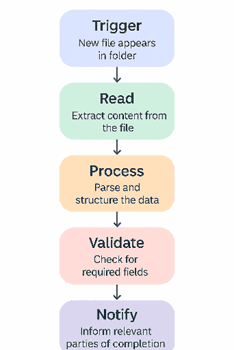
Figure 5.1 — Logical flow visualisation

This mental model gives you a roadmap. You'll know which nodes you need, in what order, and where decision points might occur.

Build Incrementally, Test Frequently

One of the most common mistakes newcomers make is building an entire complex workflow before testing it. This approach almost always leads to frustration when something inevitably doesn't work as expected, and you're left hunting through dozens of nodes trying to identify the problem.

Instead, adopt an incremental approach. Add one or two nodes, execute the workflow, and verify the output before moving forward. This methodical process might feel slower initially, but it's significantly faster overall because you catch issues immediately rather than debugging a completed workflow.

n8n makes this easy with its execution view, which shows you exactly what data is flowing through each node. After adding your trigger and first processing node, click "Execute Workflow" and examine the output. Does the data look as expected? Are the fields correctly named? Is the structure what you need for the next step? Only when you're satisfied should you add the next node.

Use Sample Data During Development

When building workflows that will eventually process real production data, it's worth creating a development version that works with sample data first. This approach allows you to experiment freely without worrying about triggering real-world consequences or consuming API rate limits.
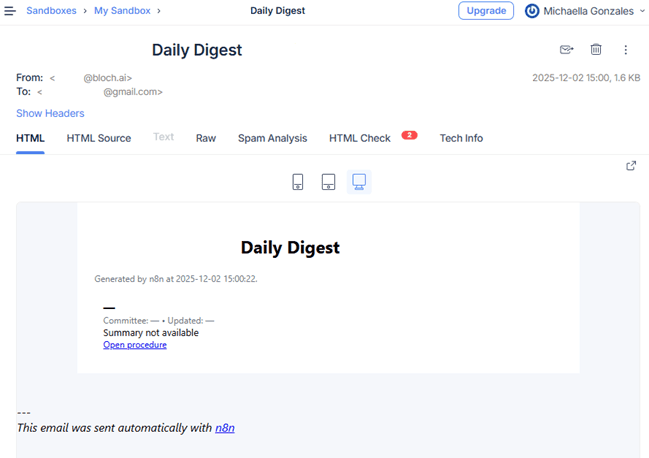
Figure  5.2 — Mailtrap as Email Sandbox for Testing

Many n8n nodes allow you to easily switch between test and production modes. For instance, when working with email, you might use a webhook to simulate incoming messages during development, then switch to the actual email trigger once everything's tested and working correctly.

Organising Workflows for Readability and Maintenance

A workflow that works perfectly today but becomes incomprehensible to you (or your colleagues) three months from now has limited long-term value. Organisation and clarity should be built into your workflows from the start, not added as an afterthought.

Jumpstarting Your Workflow with Ready-Made Templates

Utilising n8n templates is an effective way to accelerate the creation of your own workflows. Templates provide ready-made patterns that demonstrate how different nodes connect, how data moves, and how common tasks are structured. They offer a practical starting point for experiments, allowing you to adapt proven designs rather than beginning from a blank canvas.
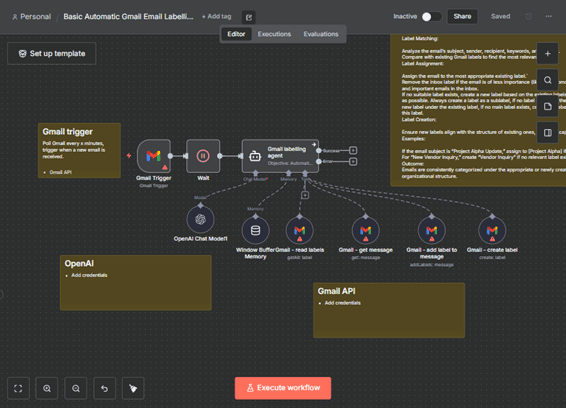
Figure 5.3 — Basic Automatic Gmail Email Labelling with OpenAI and Gmail API Template Sample

By studying and modifying templates, you gain confidence in workflow construction, discover new node combinations, and develop a deeper understanding of how to build efficient processes that meet your specific needs.

The Visual Layout Matters

n8n's canvas gives you complete freedom in how you arrange nodes, and this freedom should be used thoughtfully. Whilst there's no single "correct" way to lay out a workflow, certain conventions make workflows significantly easier to understand at a glance.
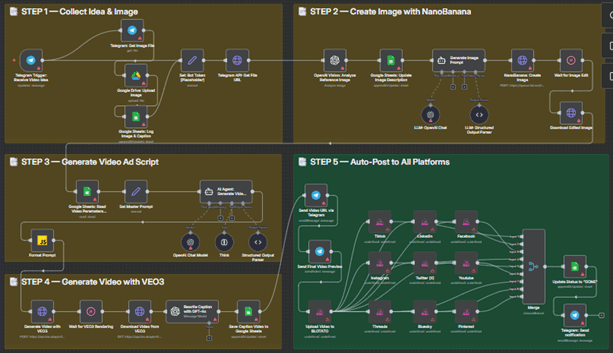
Figure 5.4 — Generate AI viral videos with NanoBanana & VEO3, shared on socials via Blotato

Visual flow and Comprehensive layout

Most practitioners find that left-to-right layouts work best, mirroring how we naturally read in English. Your trigger or starting point sits on the left, and the workflow progresses rightward through processing steps until reaching its conclusion or output on the right. This convention means anyone opening your workflow can immediately understand the flow of data without having to trace connections in unusual directions.

For workflows with conditional branching where different paths are taken based on certain conditions consider using vertical space to show alternatives. The main path continues horizontally, whilst alternative branches split off above or below. This visual separation makes it immediately clear that these are different execution paths.

Avoid creating unnecessarily long horizontal workflows that require constant scrolling. If your workflow extends too far to the right, it's often a signal that you should consider breaking it into smaller, more manageable pieces using sub-workflows (which we'll discuss shortly).

Spacing and Alignment

It might seem trivial, but consistent spacing between nodes significantly improves readability. n8n doesn't automatically snap nodes to a grid, which gives you flexibility but requires a bit of manual attention to keep things tidy. Take Figure 5.4 above as an example. Despite the complicated workflow, grouping them through distinct spaces complemented with features like sticky notes and labeling helps your eyes glide easier through the flow.

When nodes are haphazardly placed at varying distances and angles, the resulting visual chaos makes it difficult to focus on the workflow's logic. Your eye has to work harder to follow connections, and the overall structure becomes less immediately apparent.

A simple practice: aim for consistent horizontal spacing between sequential nodes (most people find that 2-3 node widths works well), and align nodes vertically when they're part of the same logical process. Many users find it helpful to periodically zoom out and assess the overall visual structure, making small adjustments to improve clarity.

Using Sticky Notes and Workflow Annotations

One of n8n's most underutilised features is the sticky note. These coloured annotation boxes allow you to add context, explanations, and structure to your workflows and they're invaluable for creating workflows that others (including your future self) can understand quickly.

When to Use Sticky Notes

Sticky notes serve several important purposes in workflow design:

Section Headers: Use sticky notes to divide your workflow into logical sections. For instance, you might have sections labelled "Data Retrieval", "Validation and Cleaning", "Processing", and "Output and Notifications". These headers act like chapter titles, immediately showing the workflow's high-level structure.

Complex Logic Explanations: When a particular section involves complicated conditional logic or non-obvious data transformations, a sticky note explaining the reasoning can save hours of head-scratching later. For example: "This branch handles cases where the date field is empty—we default to the file creation date instead."

Important Warnings or Reminders: If certain nodes have specific requirements or limitations, make them explicit. "Note: This API has a rate limit of 100 calls/hour—don't remove the delay node" could prevent a future colleague from inadvertently breaking the workflow.

Business Context: Sometimes the technical implementation makes sense, but the business reason isn't immediately obvious. "Client requested this unusual format to match their legacy system" provides valuable context that explains why something is done in a seemingly odd way.
Figure 5.5 — Different Sticky note colours for colour coding and identification

Colour Coding for Clarity

n8n's sticky notes come in various colours, and using these consistently across your workflows creates a visual language. You might use:

  • Yellow for section headers

  • Red for warnings or important notes

  • Blue for business context or requirements

  • Green for successful completion or positive outcomes

The specific colours matter less than using them consistently. When you (or anyone else) opens one of your workflows, the colour immediately signals the type of information before they've even read the text.

Naming Conventions That Scale

When you're building your first few workflows, the default node names like "HTTP Request" or "Set" seem perfectly adequate. However, as your workflow library grows, clear and descriptive naming becomes essential for maintainability.

Node Names Should Describe Actions

Instead of leaving nodes with their default names, rename them to describe what they actually do in your specific workflow.

Figure 5.6 — Good Naming conventions example

Compare these examples:

Default: "HTTP Request" Better: "Fetch Customer Data from CRM"

Default: "Set" Better: "Format Date Fields for Database"

Default: "IF" Better: "Check if Amount Exceeds Threshold"

The improved names tell you exactly what each node does without requiring you to open and inspect its configuration. When you're debugging a workflow or trying to modify it months later, this clarity is invaluable.

Workflow Names Should Be Descriptive and Searchable

As your collection of workflows grows, you'll increasingly rely on search to find what you need. Thoughtful workflow names make this much easier.

Rather than naming a workflow "Document Processing", consider "Process Invoice PDFs - Extract and Validate Data". The more descriptive name not only makes it easier to find but also immediately tells you what the workflow does and what type of documents it handles.

Consider including key terms that you'd naturally search for:

  • The type of data or documents being processed

  • The source and destination systems

  • The primary action or transformation

  • Any relevant business process names

For workflows that run on schedules, consider including the frequency in the name: "Daily Report - Sales Summary Email" makes it immediately clear how often this workflow executes.

Consistency Across Related Workflows

When you have multiple workflows that are part of a larger process or system, consistent naming helps show their relationships. For instance:

  • "Customer Onboarding - Step 1: Data Collection"

  • "Customer Onboarding - Step 2: Validation and Verification"

  • "Customer Onboarding - Step 3: Account Creation"

This naming scheme immediately shows that these workflows are related and indicates their sequence.

Modular Workflow Design: When to Split, When to Combine

One of the key decisions in workflow design is determining the appropriate scope for a single workflow. Should you create one large workflow that handles everything, or multiple smaller workflows that work together?

The answer, as with many design decisions, is "it depends"—but understanding the trade-offs helps you make informed choices.

The Case for Smaller, Focused Workflows

Breaking complex processes into smaller workflows offers several advantages:

Maintainability: A workflow that does one thing well is easier to understand, test, and modify than a sprawling workflow that tries to do everything. When you need to change how invoices are processed, you'd rather update a focused "Invoice Processing" workflow than hunt through a massive "Handle All Financial Documents" workflow.

Reusability: Smaller workflows can often be reused in different contexts. A workflow that "Validates Email Addresses" might be useful in several different business processes. Rather than recreating this logic multiple times, you can call the same workflow from different places.

Parallel Development: When multiple people are building automation solutions, smaller workflows reduce conflicts. Two colleagues can work on different workflows simultaneously without stepping on each other's toes.

Debugging: When something goes wrong, it's much easier to identify and fix issues in a workflow with 10 nodes than one with 100. The error is in a more contained space, and the logic is easier to follow.

The Case for Larger, Integrated Workflows

However, splitting everything into tiny workflows isn't always the answer either:

Reduced Complexity: Sometimes the overhead of managing multiple interconnected workflows exceeds the benefits of separation. If you have five workflows that always run in sequence and never independently, combining them might actually be simpler.

Performance: Each time you call an external workflow (using the Execute Workflow node), there's a small performance overhead. For processes that need to run very frequently or very quickly, keeping related steps in a single workflow can improve execution speed.

Data Flow: When data needs to flow through multiple steps, keeping them in one workflow means the data is readily available at each stage. Splitting into multiple workflows requires explicitly passing data between them, which adds configuration overhead.

Finding the Balance

A practical guideline: create separate workflows when a process:

  • Could logically run independently

  • Might be reused in different contexts

  • Represents a distinct business function

  • Would benefit from independent scheduling or triggering

  • Is complex enough that separation aids comprehension

Keep processes in a single workflow when:

  • The steps always run together in sequence

  • Data needs to flow seamlessly between all steps

  • The combined process is still comprehensible at a glance

  • Performance is critical

  • The overhead of splitting outweighs the benefits

Error Handling Best Practices

Nothing derails workflow reliability faster than poor error handling. When something goes wrong—and in automation, something will eventually go wrong—your workflow should fail gracefully and informatively rather than simply stopping with a cryptic error message.

Plan for Failure from the Start

The best time to add error handling is during initial workflow development, not after something's gone wrong in production. As you build each section of your workflow, ask yourself: "What could go wrong here, and what should happen if it does?"

Common failure points include:

  • API calls that timeout or return errors

  • Files that don't exist or can't be read

  • Data in unexpected formats

  • Required fields that are empty or invalid

  • Rate limits being exceeded

  • Authentication failures

For each potential failure, decide on the appropriate response. Sometimes you'll want to retry the operation. Other times, you'll need to alert someone. Occasionally, you might want to log the error and continue processing other items.

Using the Error Trigger Node

n8n provides a powerful error handling mechanism through the Error Trigger node. This special node activates only when an error occurs elsewhere in your workflow, allowing you to define custom error handling logic.
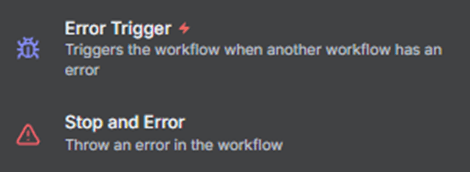
Figure 5.5 — Error Trigger and Stop and Error Nodes

A typical error handling pattern might look like this:

  1. Your main workflow processes data

  2. If any node fails, the Error Trigger activates

  3. The error details are captured

  4. A notification is sent (via email, Slack, or another channel)

  5. The error is logged for later review

  6. Optionally, the workflow attempts recovery actions

The Error Trigger node receives detailed information about what went wrong, including which node failed and what the error message was. This information can be used to send informative notifications rather than generic "something went wrong" messages.

Implementing Retry Logic

For operations that might fail temporarily—such as API calls that timeout or services that are momentarily unavailable—implementing retry logic can significantly improve reliability.

Rather than immediately failing when an HTTP request times out, you might want to wait a few seconds and try again. If it fails a second time, wait a bit longer and try once more. Only after several attempts should the workflow truly give up and trigger your error handling.

This retry-with-backoff pattern is particularly important when working with external services that might experience brief periods of high load or maintenance.

Graceful Degradation

Sometimes the best error handling isn't to stop the workflow entirely but to continue with reduced functionality. For instance, if you're processing a batch of 100 items and one fails, you might want to:

  1. Log the error for that specific item

  2. Continue processing the remaining 99 items

  3. Send a summary at the end showing 99 successes and 1 failure

This approach, called graceful degradation, ensures that one problematic item doesn't prevent all other items from being processed.

Testing and Debugging Strategies

Even well-designed workflows sometimes behave unexpectedly. Having effective testing and debugging strategies makes the difference between spending five minutes identifying an issue and losing hours to frustration.

The Power of Manual Execution

During development, n8n's manual execution feature is your best friend. Rather than waiting for your trigger condition to occur naturally (which might be once per day or when a specific file arrives), you can execute the workflow on demand with test data.

This immediate feedback loop is invaluable. Make a change, click execute, see the result. Make another adjustment, execute again, verify the improvement. This iterative process lets you rapidly refine your workflow.

Examining Node Outputs

After executing a workflow, clicking on any node shows you exactly what data that node produced. This visibility is crucial for understanding how data flows and transforms through your workflow.

Pay particular attention to:

Data Structure: Is the JSON structure what you expected? Are fields nested differently than you anticipated? Understanding the exact structure of your data is essential for accessing it correctly in subsequent nodes.

Data Types: Is a field that should be a number actually a string? Are dates in the format you need? Many workflow issues stem from data type mismatches.

Missing or Unexpected Fields: Are all the fields you need present? Are there extra fields you weren't expecting? Missing fields often indicate problems with earlier processing steps.

Array vs. Single Item: Does the node output multiple items (an array) or a single item? This distinction matters for how subsequent nodes will process the data.

Using the Logs

n8n maintains execution logs that show you the history of workflow runs, including successes, failures, and detailed timing information. These logs are invaluable for:

  • Identifying patterns in failures (does the workflow always fail at the same time of day?)

  • Understanding performance characteristics (which nodes are slowest?)

  • Verifying that scheduled workflows are running as expected

  • Diagnosing intermittent issues that are hard to reproduce manually

Get into the habit of checking the logs regularly, not just when something's obviously broken. Proactive monitoring often reveals issues before they become serious problems.

Version Control and Workflow Documentation

As your workflow collection grows and evolves, keeping track of changes becomes increasingly important. n8n doesn't have built-in version control like you might find in software development tools, but there are strategies for managing workflow versions effectively.

Export Your Workflows Regularly

n8n allows you to export workflows as JSON files. Whilst this might seem like a simple feature, it's actually quite powerful for version control. By regularly exporting your workflows and storing them in a systematic way, you create a history of changes.
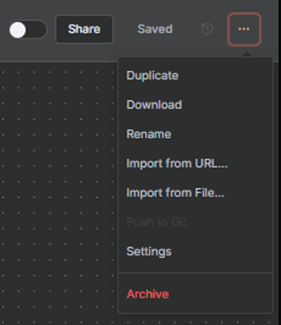
Figure 5.6— Download workflow access via the upper-right ellipsis button

Consider establishing a routine:

  • Export workflows after significant changes

  • Store exports in a dated folder structure

  • Include a brief note about what changed

  • Keep exports in a shared location accessible to your team

Some teams go further by storing these exports in proper version control systems like Git. This approach provides more sophisticated tracking of changes, the ability to see exactly what changed between versions, and the capability to roll back to previous versions if needed.

Documenting Your Workflows

Documentation shouldn't be an afterthought. The most effective workflow documentation is built into the workflow itself through:

Sticky notes explaining complex sections and business logic Descriptive node names that make the workflow's purpose clear Workflow descriptions (available in the workflow settings) that explain the overall purpose, triggers, and expected outcomes README-style sticky notes at the beginning of complex workflows that provide an overview

For workflows that will be maintained by others or that represent critical business processes, consider creating separate documentation that covers:

  • The business process the workflow supports

  • Dependencies on external systems

  • Configuration requirements

  • How to modify common settings

  • Troubleshooting common issues

  • Contact information for the workflow owner

This documentation needn't be elaborate—a simple text document stored alongside your workflow exports is often sufficient.

Learning from Failures

When a workflow fails or behaves unexpectedly, resist the temptation to simply fix it and move on. Take a moment to understand why the failure occurred and what you can learn from it:

  • Was the error handling inadequate?

  • Were there assumptions about data that turned out to be wrong?

  • Did external service behaviour change unexpectedly?

  • Was the workflow's logic flawed?

Documenting these learnings—even briefly—helps you avoid similar issues in future workflows. Many teams maintain a simple log of "lessons learned" that grows into a valuable knowledge base over time.

5. Workflow Creation Best Practices

Building effective workflows in n8n is as much an art as it is a science. Whilst the platform makes automation accessible, the difference between a functional workflow and an exceptional one often lies in how thoughtfully it's constructed. This chapter explores practical strategies for creating workflows that are not only powerful but also maintainable, scalable, and easy to understand. Whether you're reviewing them months later or sharing them with colleagues.

Building Your First Workflow: A Practical Approach

When you're staring at n8n's blank canvas for the first time, it's tempting to dive straight in and start connecting nodes. However, taking a moment to plan your approach will save considerable time and frustration later.

Think of workflow creation like planning a journey. You wouldn't simply start driving and hope to reach your destination, you'd first identify where you're going, consider the best route, and anticipate any obstacles along the way. The same principle applies here.

Start with the End in Mind

Before adding your first node, clearly define what you're trying to achieve. Ask yourself:

  • What data am I starting with, and where does it live?

  • What transformation or action needs to happen?

  • Where should the results end up?

  • What should happen if something goes wrong?

Let's consider a practical example. Suppose you need to monitor a shared folder for new documents, extract key information from those documents, and update a database with the findings. Rather than immediately adding a folder trigger node, take a moment to map out the logical flow:

  1. Trigger: New file appears in folder

  2. Read: Extract content from the file

  3. Process: Parse and structure the data

  4. Validate: Check for required fields

  5. Write: Update the database

  6. Notify: Inform relevant parties of completion

Figure 5.1 — Logical flow visualisation

This mental model gives you a roadmap. You'll know which nodes you need, in what order, and where decision points might occur.

Build Incrementally, Test Frequently

One of the most common mistakes newcomers make is building an entire complex workflow before testing it. This approach almost always leads to frustration when something inevitably doesn't work as expected, and you're left hunting through dozens of nodes trying to identify the problem.

Instead, adopt an incremental approach. Add one or two nodes, execute the workflow, and verify the output before moving forward. This methodical process might feel slower initially, but it's significantly faster overall because you catch issues immediately rather than debugging a completed workflow.

n8n makes this easy with its execution view, which shows you exactly what data is flowing through each node. After adding your trigger and first processing node, click "Execute Workflow" and examine the output. Does the data look as expected? Are the fields correctly named? Is the structure what you need for the next step? Only when you're satisfied should you add the next node.

Use Sample Data During Development

When building workflows that will eventually process real production data, it's worth creating a development version that works with sample data first. This approach allows you to experiment freely without worrying about triggering real-world consequences or consuming API rate limits.

Figure  5.2 — Mailtrap as Email Sandbox for Testing

Many n8n nodes allow you to easily switch between test and production modes. For instance, when working with email, you might use a webhook to simulate incoming messages during development, then switch to the actual email trigger once everything's tested and working correctly.

Organising Workflows for Readability and Maintenance

A workflow that works perfectly today but becomes incomprehensible to you (or your colleagues) three months from now has limited long-term value. Organisation and clarity should be built into your workflows from the start, not added as an afterthought.

Jumpstarting Your Workflow with Ready-Made Templates

Utilising n8n templates is an effective way to accelerate the creation of your own workflows. Templates provide ready-made patterns that demonstrate how different nodes connect, how data moves, and how common tasks are structured. They offer a practical starting point for experiments, allowing you to adapt proven designs rather than beginning from a blank canvas.

Figure 5.3 — Basic Automatic Gmail Email Labelling with OpenAI and Gmail API Template Sample

By studying and modifying templates, you gain confidence in workflow construction, discover new node combinations, and develop a deeper understanding of how to build efficient processes that meet your specific needs.

The Visual Layout Matters

n8n's canvas gives you complete freedom in how you arrange nodes, and this freedom should be used thoughtfully. Whilst there's no single "correct" way to lay out a workflow, certain conventions make workflows significantly easier to understand at a glance.

Figure 5.4 — Generate AI viral videos with NanoBanana & VEO3, shared on socials via Blotato

Visual flow and Comprehensive layout

Most practitioners find that left-to-right layouts work best, mirroring how we naturally read in English. Your trigger or starting point sits on the left, and the workflow progresses rightward through processing steps until reaching its conclusion or output on the right. This convention means anyone opening your workflow can immediately understand the flow of data without having to trace connections in unusual directions.

For workflows with conditional branching where different paths are taken based on certain conditions consider using vertical space to show alternatives. The main path continues horizontally, whilst alternative branches split off above or below. This visual separation makes it immediately clear that these are different execution paths.

Avoid creating unnecessarily long horizontal workflows that require constant scrolling. If your workflow extends too far to the right, it's often a signal that you should consider breaking it into smaller, more manageable pieces using sub-workflows (which we'll discuss shortly).

Spacing and Alignment

It might seem trivial, but consistent spacing between nodes significantly improves readability. n8n doesn't automatically snap nodes to a grid, which gives you flexibility but requires a bit of manual attention to keep things tidy. Take Figure 5.4 above as an example. Despite the complicated workflow, grouping them through distinct spaces complemented with features like sticky notes and labeling helps your eyes glide easier through the flow.

When nodes are haphazardly placed at varying distances and angles, the resulting visual chaos makes it difficult to focus on the workflow's logic. Your eye has to work harder to follow connections, and the overall structure becomes less immediately apparent.

A simple practice: aim for consistent horizontal spacing between sequential nodes (most people find that 2-3 node widths works well), and align nodes vertically when they're part of the same logical process. Many users find it helpful to periodically zoom out and assess the overall visual structure, making small adjustments to improve clarity.

Using Sticky Notes and Workflow Annotations

One of n8n's most underutilised features is the sticky note. These coloured annotation boxes allow you to add context, explanations, and structure to your workflows and they're invaluable for creating workflows that others (including your future self) can understand quickly.

When to Use Sticky Notes

Sticky notes serve several important purposes in workflow design:

Section Headers: Use sticky notes to divide your workflow into logical sections. For instance, you might have sections labelled "Data Retrieval", "Validation and Cleaning", "Processing", and "Output and Notifications". These headers act like chapter titles, immediately showing the workflow's high-level structure.

Complex Logic Explanations: When a particular section involves complicated conditional logic or non-obvious data transformations, a sticky note explaining the reasoning can save hours of head-scratching later. For example: "This branch handles cases where the date field is empty—we default to the file creation date instead."

Important Warnings or Reminders: If certain nodes have specific requirements or limitations, make them explicit. "Note: This API has a rate limit of 100 calls/hour—don't remove the delay node" could prevent a future colleague from inadvertently breaking the workflow.

Business Context: Sometimes the technical implementation makes sense, but the business reason isn't immediately obvious. "Client requested this unusual format to match their legacy system" provides valuable context that explains why something is done in a seemingly odd way.

Figure 5.5 — Different Sticky note colours for colour coding and identification

Colour Coding for Clarity

n8n's sticky notes come in various colours, and using these consistently across your workflows creates a visual language. You might use:

  • Yellow for section headers

  • Red for warnings or important notes

  • Blue for business context or requirements

  • Green for successful completion or positive outcomes

The specific colours matter less than using them consistently. When you (or anyone else) opens one of your workflows, the colour immediately signals the type of information before they've even read the text.

Naming Conventions That Scale

When you're building your first few workflows, the default node names like "HTTP Request" or "Set" seem perfectly adequate. However, as your workflow library grows, clear and descriptive naming becomes essential for maintainability.

Node Names Should Describe Actions

Instead of leaving nodes with their default names, rename them to describe what they actually do in your specific workflow.

Figure 5.6 — Good Naming conventions example

Compare these examples:

Default: "HTTP Request" Better: "Fetch Customer Data from CRM"

Default: "Set" Better: "Format Date Fields for Database"

Default: "IF" Better: "Check if Amount Exceeds Threshold"

The improved names tell you exactly what each node does without requiring you to open and inspect its configuration. When you're debugging a workflow or trying to modify it months later, this clarity is invaluable.

Workflow Names Should Be Descriptive and Searchable

As your collection of workflows grows, you'll increasingly rely on search to find what you need. Thoughtful workflow names make this much easier.

Rather than naming a workflow "Document Processing", consider "Process Invoice PDFs - Extract and Validate Data". The more descriptive name not only makes it easier to find but also immediately tells you what the workflow does and what type of documents it handles.

Consider including key terms that you'd naturally search for:

  • The type of data or documents being processed

  • The source and destination systems

  • The primary action or transformation

  • Any relevant business process names

For workflows that run on schedules, consider including the frequency in the name: "Daily Report - Sales Summary Email" makes it immediately clear how often this workflow executes.

Consistency Across Related Workflows

When you have multiple workflows that are part of a larger process or system, consistent naming helps show their relationships. For instance:

  • "Customer Onboarding - Step 1: Data Collection"

  • "Customer Onboarding - Step 2: Validation and Verification"

  • "Customer Onboarding - Step 3: Account Creation"

This naming scheme immediately shows that these workflows are related and indicates their sequence.

Modular Workflow Design: When to Split, When to Combine

One of the key decisions in workflow design is determining the appropriate scope for a single workflow. Should you create one large workflow that handles everything, or multiple smaller workflows that work together?

The answer, as with many design decisions, is "it depends"—but understanding the trade-offs helps you make informed choices.

The Case for Smaller, Focused Workflows

Breaking complex processes into smaller workflows offers several advantages:

Maintainability: A workflow that does one thing well is easier to understand, test, and modify than a sprawling workflow that tries to do everything. When you need to change how invoices are processed, you'd rather update a focused "Invoice Processing" workflow than hunt through a massive "Handle All Financial Documents" workflow.

Reusability: Smaller workflows can often be reused in different contexts. A workflow that "Validates Email Addresses" might be useful in several different business processes. Rather than recreating this logic multiple times, you can call the same workflow from different places.

Parallel Development: When multiple people are building automation solutions, smaller workflows reduce conflicts. Two colleagues can work on different workflows simultaneously without stepping on each other's toes.

Debugging: When something goes wrong, it's much easier to identify and fix issues in a workflow with 10 nodes than one with 100. The error is in a more contained space, and the logic is easier to follow.

The Case for Larger, Integrated Workflows

However, splitting everything into tiny workflows isn't always the answer either:

Reduced Complexity: Sometimes the overhead of managing multiple interconnected workflows exceeds the benefits of separation. If you have five workflows that always run in sequence and never independently, combining them might actually be simpler.

Performance: Each time you call an external workflow (using the Execute Workflow node), there's a small performance overhead. For processes that need to run very frequently or very quickly, keeping related steps in a single workflow can improve execution speed.

Data Flow: When data needs to flow through multiple steps, keeping them in one workflow means the data is readily available at each stage. Splitting into multiple workflows requires explicitly passing data between them, which adds configuration overhead.

Finding the Balance

A practical guideline: create separate workflows when a process:

  • Could logically run independently

  • Might be reused in different contexts

  • Represents a distinct business function

  • Would benefit from independent scheduling or triggering

  • Is complex enough that separation aids comprehension

Keep processes in a single workflow when:

  • The steps always run together in sequence

  • Data needs to flow seamlessly between all steps

  • The combined process is still comprehensible at a glance

  • Performance is critical

  • The overhead of splitting outweighs the benefits

Error Handling Best Practices

Nothing derails workflow reliability faster than poor error handling. When something goes wrong—and in automation, something will eventually go wrong—your workflow should fail gracefully and informatively rather than simply stopping with a cryptic error message.

Plan for Failure from the Start

The best time to add error handling is during initial workflow development, not after something's gone wrong in production. As you build each section of your workflow, ask yourself: "What could go wrong here, and what should happen if it does?"

Common failure points include:

  • API calls that timeout or return errors

  • Files that don't exist or can't be read

  • Data in unexpected formats

  • Required fields that are empty or invalid

  • Rate limits being exceeded

  • Authentication failures

For each potential failure, decide on the appropriate response. Sometimes you'll want to retry the operation. Other times, you'll need to alert someone. Occasionally, you might want to log the error and continue processing other items.

Using the Error Trigger Node

n8n provides a powerful error handling mechanism through the Error Trigger node. This special node activates only when an error occurs elsewhere in your workflow, allowing you to define custom error handling logic.

Figure 5.5 — Error Trigger and Stop and Error Nodes

A typical error handling pattern might look like this:

  1. Your main workflow processes data

  2. If any node fails, the Error Trigger activates

  3. The error details are captured

  4. A notification is sent (via email, Slack, or another channel)

  5. The error is logged for later review

  6. Optionally, the workflow attempts recovery actions

The Error Trigger node receives detailed information about what went wrong, including which node failed and what the error message was. This information can be used to send informative notifications rather than generic "something went wrong" messages.

Implementing Retry Logic

For operations that might fail temporarily—such as API calls that timeout or services that are momentarily unavailable—implementing retry logic can significantly improve reliability.

Rather than immediately failing when an HTTP request times out, you might want to wait a few seconds and try again. If it fails a second time, wait a bit longer and try once more. Only after several attempts should the workflow truly give up and trigger your error handling.

This retry-with-backoff pattern is particularly important when working with external services that might experience brief periods of high load or maintenance.

Graceful Degradation

Sometimes the best error handling isn't to stop the workflow entirely but to continue with reduced functionality. For instance, if you're processing a batch of 100 items and one fails, you might want to:

  1. Log the error for that specific item

  2. Continue processing the remaining 99 items

  3. Send a summary at the end showing 99 successes and 1 failure

This approach, called graceful degradation, ensures that one problematic item doesn't prevent all other items from being processed.

Testing and Debugging Strategies

Even well-designed workflows sometimes behave unexpectedly. Having effective testing and debugging strategies makes the difference between spending five minutes identifying an issue and losing hours to frustration.

The Power of Manual Execution

During development, n8n's manual execution feature is your best friend. Rather than waiting for your trigger condition to occur naturally (which might be once per day or when a specific file arrives), you can execute the workflow on demand with test data.

This immediate feedback loop is invaluable. Make a change, click execute, see the result. Make another adjustment, execute again, verify the improvement. This iterative process lets you rapidly refine your workflow.

Examining Node Outputs

After executing a workflow, clicking on any node shows you exactly what data that node produced. This visibility is crucial for understanding how data flows and transforms through your workflow.

Pay particular attention to:

Data Structure: Is the JSON structure what you expected? Are fields nested differently than you anticipated? Understanding the exact structure of your data is essential for accessing it correctly in subsequent nodes.

Data Types: Is a field that should be a number actually a string? Are dates in the format you need? Many workflow issues stem from data type mismatches.

Missing or Unexpected Fields: Are all the fields you need present? Are there extra fields you weren't expecting? Missing fields often indicate problems with earlier processing steps.

Array vs. Single Item: Does the node output multiple items (an array) or a single item? This distinction matters for how subsequent nodes will process the data.

Using the Logs

n8n maintains execution logs that show you the history of workflow runs, including successes, failures, and detailed timing information. These logs are invaluable for:

  • Identifying patterns in failures (does the workflow always fail at the same time of day?)

  • Understanding performance characteristics (which nodes are slowest?)

  • Verifying that scheduled workflows are running as expected

  • Diagnosing intermittent issues that are hard to reproduce manually

Get into the habit of checking the logs regularly, not just when something's obviously broken. Proactive monitoring often reveals issues before they become serious problems.

Version Control and Workflow Documentation

As your workflow collection grows and evolves, keeping track of changes becomes increasingly important. n8n doesn't have built-in version control like you might find in software development tools, but there are strategies for managing workflow versions effectively.

Export Your Workflows Regularly

n8n allows you to export workflows as JSON files. Whilst this might seem like a simple feature, it's actually quite powerful for version control. By regularly exporting your workflows and storing them in a systematic way, you create a history of changes.

Figure 5.6— Download workflow access via the upper-right ellipsis button

Consider establishing a routine:

  • Export workflows after significant changes

  • Store exports in a dated folder structure

  • Include a brief note about what changed

  • Keep exports in a shared location accessible to your team

Some teams go further by storing these exports in proper version control systems like Git. This approach provides more sophisticated tracking of changes, the ability to see exactly what changed between versions, and the capability to roll back to previous versions if needed.

Documenting Your Workflows

Documentation shouldn't be an afterthought. The most effective workflow documentation is built into the workflow itself through:

Sticky notes explaining complex sections and business logic Descriptive node names that make the workflow's purpose clear Workflow descriptions (available in the workflow settings) that explain the overall purpose, triggers, and expected outcomes README-style sticky notes at the beginning of complex workflows that provide an overview

For workflows that will be maintained by others or that represent critical business processes, consider creating separate documentation that covers:

  • The business process the workflow supports

  • Dependencies on external systems

  • Configuration requirements

  • How to modify common settings

  • Troubleshooting common issues

  • Contact information for the workflow owner

This documentation needn't be elaborate—a simple text document stored alongside your workflow exports is often sufficient.

Learning from Failures

When a workflow fails or behaves unexpectedly, resist the temptation to simply fix it and move on. Take a moment to understand why the failure occurred and what you can learn from it:

  • Was the error handling inadequate?

  • Were there assumptions about data that turned out to be wrong?

  • Did external service behaviour change unexpectedly?

  • Was the workflow's logic flawed?

Documenting these learnings—even briefly—helps you avoid similar issues in future workflows. Many teams maintain a simple log of "lessons learned" that grows into a valuable knowledge base over time.

5. Workflow Creation Best Practices

Building effective workflows in n8n is as much an art as it is a science. Whilst the platform makes automation accessible, the difference between a functional workflow and an exceptional one often lies in how thoughtfully it's constructed. This chapter explores practical strategies for creating workflows that are not only powerful but also maintainable, scalable, and easy to understand. Whether you're reviewing them months later or sharing them with colleagues.

Building Your First Workflow: A Practical Approach

When you're staring at n8n's blank canvas for the first time, it's tempting to dive straight in and start connecting nodes. However, taking a moment to plan your approach will save considerable time and frustration later.

Think of workflow creation like planning a journey. You wouldn't simply start driving and hope to reach your destination, you'd first identify where you're going, consider the best route, and anticipate any obstacles along the way. The same principle applies here.

Start with the End in Mind

Before adding your first node, clearly define what you're trying to achieve. Ask yourself:

  • What data am I starting with, and where does it live?

  • What transformation or action needs to happen?

  • Where should the results end up?

  • What should happen if something goes wrong?

Let's consider a practical example. Suppose you need to monitor a shared folder for new documents, extract key information from those documents, and update a database with the findings. Rather than immediately adding a folder trigger node, take a moment to map out the logical flow:

  1. Trigger: New file appears in folder

  2. Read: Extract content from the file

  3. Process: Parse and structure the data

  4. Validate: Check for required fields

  5. Write: Update the database

  6. Notify: Inform relevant parties of completion

Figure 5.1 — Logical flow visualisation

This mental model gives you a roadmap. You'll know which nodes you need, in what order, and where decision points might occur.

Build Incrementally, Test Frequently

One of the most common mistakes newcomers make is building an entire complex workflow before testing it. This approach almost always leads to frustration when something inevitably doesn't work as expected, and you're left hunting through dozens of nodes trying to identify the problem.

Instead, adopt an incremental approach. Add one or two nodes, execute the workflow, and verify the output before moving forward. This methodical process might feel slower initially, but it's significantly faster overall because you catch issues immediately rather than debugging a completed workflow.

n8n makes this easy with its execution view, which shows you exactly what data is flowing through each node. After adding your trigger and first processing node, click "Execute Workflow" and examine the output. Does the data look as expected? Are the fields correctly named? Is the structure what you need for the next step? Only when you're satisfied should you add the next node.

Use Sample Data During Development

When building workflows that will eventually process real production data, it's worth creating a development version that works with sample data first. This approach allows you to experiment freely without worrying about triggering real-world consequences or consuming API rate limits.

Figure  5.2 — Mailtrap as Email Sandbox for Testing

Many n8n nodes allow you to easily switch between test and production modes. For instance, when working with email, you might use a webhook to simulate incoming messages during development, then switch to the actual email trigger once everything's tested and working correctly.

Organising Workflows for Readability and Maintenance

A workflow that works perfectly today but becomes incomprehensible to you (or your colleagues) three months from now has limited long-term value. Organisation and clarity should be built into your workflows from the start, not added as an afterthought.

Jumpstarting Your Workflow with Ready-Made Templates

Utilising n8n templates is an effective way to accelerate the creation of your own workflows. Templates provide ready-made patterns that demonstrate how different nodes connect, how data moves, and how common tasks are structured. They offer a practical starting point for experiments, allowing you to adapt proven designs rather than beginning from a blank canvas.

Figure 5.3 — Basic Automatic Gmail Email Labelling with OpenAI and Gmail API Template Sample

By studying and modifying templates, you gain confidence in workflow construction, discover new node combinations, and develop a deeper understanding of how to build efficient processes that meet your specific needs.

The Visual Layout Matters

n8n's canvas gives you complete freedom in how you arrange nodes, and this freedom should be used thoughtfully. Whilst there's no single "correct" way to lay out a workflow, certain conventions make workflows significantly easier to understand at a glance.

Figure 5.4 — Generate AI viral videos with NanoBanana & VEO3, shared on socials via Blotato

Visual flow and Comprehensive layout

Most practitioners find that left-to-right layouts work best, mirroring how we naturally read in English. Your trigger or starting point sits on the left, and the workflow progresses rightward through processing steps until reaching its conclusion or output on the right. This convention means anyone opening your workflow can immediately understand the flow of data without having to trace connections in unusual directions.

For workflows with conditional branching where different paths are taken based on certain conditions consider using vertical space to show alternatives. The main path continues horizontally, whilst alternative branches split off above or below. This visual separation makes it immediately clear that these are different execution paths.

Avoid creating unnecessarily long horizontal workflows that require constant scrolling. If your workflow extends too far to the right, it's often a signal that you should consider breaking it into smaller, more manageable pieces using sub-workflows (which we'll discuss shortly).

Spacing and Alignment

It might seem trivial, but consistent spacing between nodes significantly improves readability. n8n doesn't automatically snap nodes to a grid, which gives you flexibility but requires a bit of manual attention to keep things tidy. Take Figure 5.4 above as an example. Despite the complicated workflow, grouping them through distinct spaces complemented with features like sticky notes and labeling helps your eyes glide easier through the flow.

When nodes are haphazardly placed at varying distances and angles, the resulting visual chaos makes it difficult to focus on the workflow's logic. Your eye has to work harder to follow connections, and the overall structure becomes less immediately apparent.

A simple practice: aim for consistent horizontal spacing between sequential nodes (most people find that 2-3 node widths works well), and align nodes vertically when they're part of the same logical process. Many users find it helpful to periodically zoom out and assess the overall visual structure, making small adjustments to improve clarity.

Using Sticky Notes and Workflow Annotations

One of n8n's most underutilised features is the sticky note. These coloured annotation boxes allow you to add context, explanations, and structure to your workflows and they're invaluable for creating workflows that others (including your future self) can understand quickly.

When to Use Sticky Notes

Sticky notes serve several important purposes in workflow design:

Section Headers: Use sticky notes to divide your workflow into logical sections. For instance, you might have sections labelled "Data Retrieval", "Validation and Cleaning", "Processing", and "Output and Notifications". These headers act like chapter titles, immediately showing the workflow's high-level structure.

Complex Logic Explanations: When a particular section involves complicated conditional logic or non-obvious data transformations, a sticky note explaining the reasoning can save hours of head-scratching later. For example: "This branch handles cases where the date field is empty—we default to the file creation date instead."

Important Warnings or Reminders: If certain nodes have specific requirements or limitations, make them explicit. "Note: This API has a rate limit of 100 calls/hour—don't remove the delay node" could prevent a future colleague from inadvertently breaking the workflow.

Business Context: Sometimes the technical implementation makes sense, but the business reason isn't immediately obvious. "Client requested this unusual format to match their legacy system" provides valuable context that explains why something is done in a seemingly odd way.

Figure 5.5 — Different Sticky note colours for colour coding and identification

Colour Coding for Clarity

n8n's sticky notes come in various colours, and using these consistently across your workflows creates a visual language. You might use:

  • Yellow for section headers

  • Red for warnings or important notes

  • Blue for business context or requirements

  • Green for successful completion or positive outcomes

The specific colours matter less than using them consistently. When you (or anyone else) opens one of your workflows, the colour immediately signals the type of information before they've even read the text.

Naming Conventions That Scale

When you're building your first few workflows, the default node names like "HTTP Request" or "Set" seem perfectly adequate. However, as your workflow library grows, clear and descriptive naming becomes essential for maintainability.

Node Names Should Describe Actions

Instead of leaving nodes with their default names, rename them to describe what they actually do in your specific workflow.

Figure 5.6 — Good Naming conventions example

Compare these examples:

Default: "HTTP Request" Better: "Fetch Customer Data from CRM"

Default: "Set" Better: "Format Date Fields for Database"

Default: "IF" Better: "Check if Amount Exceeds Threshold"

The improved names tell you exactly what each node does without requiring you to open and inspect its configuration. When you're debugging a workflow or trying to modify it months later, this clarity is invaluable.

Workflow Names Should Be Descriptive and Searchable

As your collection of workflows grows, you'll increasingly rely on search to find what you need. Thoughtful workflow names make this much easier.

Rather than naming a workflow "Document Processing", consider "Process Invoice PDFs - Extract and Validate Data". The more descriptive name not only makes it easier to find but also immediately tells you what the workflow does and what type of documents it handles.

Consider including key terms that you'd naturally search for:

  • The type of data or documents being processed

  • The source and destination systems

  • The primary action or transformation

  • Any relevant business process names

For workflows that run on schedules, consider including the frequency in the name: "Daily Report - Sales Summary Email" makes it immediately clear how often this workflow executes.

Consistency Across Related Workflows

When you have multiple workflows that are part of a larger process or system, consistent naming helps show their relationships. For instance:

  • "Customer Onboarding - Step 1: Data Collection"

  • "Customer Onboarding - Step 2: Validation and Verification"

  • "Customer Onboarding - Step 3: Account Creation"

This naming scheme immediately shows that these workflows are related and indicates their sequence.

Modular Workflow Design: When to Split, When to Combine

One of the key decisions in workflow design is determining the appropriate scope for a single workflow. Should you create one large workflow that handles everything, or multiple smaller workflows that work together?

The answer, as with many design decisions, is "it depends"—but understanding the trade-offs helps you make informed choices.

The Case for Smaller, Focused Workflows

Breaking complex processes into smaller workflows offers several advantages:

Maintainability: A workflow that does one thing well is easier to understand, test, and modify than a sprawling workflow that tries to do everything. When you need to change how invoices are processed, you'd rather update a focused "Invoice Processing" workflow than hunt through a massive "Handle All Financial Documents" workflow.

Reusability: Smaller workflows can often be reused in different contexts. A workflow that "Validates Email Addresses" might be useful in several different business processes. Rather than recreating this logic multiple times, you can call the same workflow from different places.

Parallel Development: When multiple people are building automation solutions, smaller workflows reduce conflicts. Two colleagues can work on different workflows simultaneously without stepping on each other's toes.

Debugging: When something goes wrong, it's much easier to identify and fix issues in a workflow with 10 nodes than one with 100. The error is in a more contained space, and the logic is easier to follow.

The Case for Larger, Integrated Workflows

However, splitting everything into tiny workflows isn't always the answer either:

Reduced Complexity: Sometimes the overhead of managing multiple interconnected workflows exceeds the benefits of separation. If you have five workflows that always run in sequence and never independently, combining them might actually be simpler.

Performance: Each time you call an external workflow (using the Execute Workflow node), there's a small performance overhead. For processes that need to run very frequently or very quickly, keeping related steps in a single workflow can improve execution speed.

Data Flow: When data needs to flow through multiple steps, keeping them in one workflow means the data is readily available at each stage. Splitting into multiple workflows requires explicitly passing data between them, which adds configuration overhead.

Finding the Balance

A practical guideline: create separate workflows when a process:

  • Could logically run independently

  • Might be reused in different contexts

  • Represents a distinct business function

  • Would benefit from independent scheduling or triggering

  • Is complex enough that separation aids comprehension

Keep processes in a single workflow when:

  • The steps always run together in sequence

  • Data needs to flow seamlessly between all steps

  • The combined process is still comprehensible at a glance

  • Performance is critical

  • The overhead of splitting outweighs the benefits

Error Handling Best Practices

Nothing derails workflow reliability faster than poor error handling. When something goes wrong—and in automation, something will eventually go wrong—your workflow should fail gracefully and informatively rather than simply stopping with a cryptic error message.

Plan for Failure from the Start

The best time to add error handling is during initial workflow development, not after something's gone wrong in production. As you build each section of your workflow, ask yourself: "What could go wrong here, and what should happen if it does?"

Common failure points include:

  • API calls that timeout or return errors

  • Files that don't exist or can't be read

  • Data in unexpected formats

  • Required fields that are empty or invalid

  • Rate limits being exceeded

  • Authentication failures

For each potential failure, decide on the appropriate response. Sometimes you'll want to retry the operation. Other times, you'll need to alert someone. Occasionally, you might want to log the error and continue processing other items.

Using the Error Trigger Node

n8n provides a powerful error handling mechanism through the Error Trigger node. This special node activates only when an error occurs elsewhere in your workflow, allowing you to define custom error handling logic.

Figure 5.5 — Error Trigger and Stop and Error Nodes

A typical error handling pattern might look like this:

  1. Your main workflow processes data

  2. If any node fails, the Error Trigger activates

  3. The error details are captured

  4. A notification is sent (via email, Slack, or another channel)

  5. The error is logged for later review

  6. Optionally, the workflow attempts recovery actions

The Error Trigger node receives detailed information about what went wrong, including which node failed and what the error message was. This information can be used to send informative notifications rather than generic "something went wrong" messages.

Implementing Retry Logic

For operations that might fail temporarily—such as API calls that timeout or services that are momentarily unavailable—implementing retry logic can significantly improve reliability.

Rather than immediately failing when an HTTP request times out, you might want to wait a few seconds and try again. If it fails a second time, wait a bit longer and try once more. Only after several attempts should the workflow truly give up and trigger your error handling.

This retry-with-backoff pattern is particularly important when working with external services that might experience brief periods of high load or maintenance.

Graceful Degradation

Sometimes the best error handling isn't to stop the workflow entirely but to continue with reduced functionality. For instance, if you're processing a batch of 100 items and one fails, you might want to:

  1. Log the error for that specific item

  2. Continue processing the remaining 99 items

  3. Send a summary at the end showing 99 successes and 1 failure

This approach, called graceful degradation, ensures that one problematic item doesn't prevent all other items from being processed.

Testing and Debugging Strategies

Even well-designed workflows sometimes behave unexpectedly. Having effective testing and debugging strategies makes the difference between spending five minutes identifying an issue and losing hours to frustration.

The Power of Manual Execution

During development, n8n's manual execution feature is your best friend. Rather than waiting for your trigger condition to occur naturally (which might be once per day or when a specific file arrives), you can execute the workflow on demand with test data.

This immediate feedback loop is invaluable. Make a change, click execute, see the result. Make another adjustment, execute again, verify the improvement. This iterative process lets you rapidly refine your workflow.

Examining Node Outputs

After executing a workflow, clicking on any node shows you exactly what data that node produced. This visibility is crucial for understanding how data flows and transforms through your workflow.

Pay particular attention to:

Data Structure: Is the JSON structure what you expected? Are fields nested differently than you anticipated? Understanding the exact structure of your data is essential for accessing it correctly in subsequent nodes.

Data Types: Is a field that should be a number actually a string? Are dates in the format you need? Many workflow issues stem from data type mismatches.

Missing or Unexpected Fields: Are all the fields you need present? Are there extra fields you weren't expecting? Missing fields often indicate problems with earlier processing steps.

Array vs. Single Item: Does the node output multiple items (an array) or a single item? This distinction matters for how subsequent nodes will process the data.

Using the Logs

n8n maintains execution logs that show you the history of workflow runs, including successes, failures, and detailed timing information. These logs are invaluable for:

  • Identifying patterns in failures (does the workflow always fail at the same time of day?)

  • Understanding performance characteristics (which nodes are slowest?)

  • Verifying that scheduled workflows are running as expected

  • Diagnosing intermittent issues that are hard to reproduce manually

Get into the habit of checking the logs regularly, not just when something's obviously broken. Proactive monitoring often reveals issues before they become serious problems.

Version Control and Workflow Documentation

As your workflow collection grows and evolves, keeping track of changes becomes increasingly important. n8n doesn't have built-in version control like you might find in software development tools, but there are strategies for managing workflow versions effectively.

Export Your Workflows Regularly

n8n allows you to export workflows as JSON files. Whilst this might seem like a simple feature, it's actually quite powerful for version control. By regularly exporting your workflows and storing them in a systematic way, you create a history of changes.

Figure 5.6— Download workflow access via the upper-right ellipsis button

Consider establishing a routine:

  • Export workflows after significant changes

  • Store exports in a dated folder structure

  • Include a brief note about what changed

  • Keep exports in a shared location accessible to your team

Some teams go further by storing these exports in proper version control systems like Git. This approach provides more sophisticated tracking of changes, the ability to see exactly what changed between versions, and the capability to roll back to previous versions if needed.

Documenting Your Workflows

Documentation shouldn't be an afterthought. The most effective workflow documentation is built into the workflow itself through:

Sticky notes explaining complex sections and business logic Descriptive node names that make the workflow's purpose clear Workflow descriptions (available in the workflow settings) that explain the overall purpose, triggers, and expected outcomes README-style sticky notes at the beginning of complex workflows that provide an overview

For workflows that will be maintained by others or that represent critical business processes, consider creating separate documentation that covers:

  • The business process the workflow supports

  • Dependencies on external systems

  • Configuration requirements

  • How to modify common settings

  • Troubleshooting common issues

  • Contact information for the workflow owner

This documentation needn't be elaborate—a simple text document stored alongside your workflow exports is often sufficient.

Learning from Failures

When a workflow fails or behaves unexpectedly, resist the temptation to simply fix it and move on. Take a moment to understand why the failure occurred and what you can learn from it:

  • Was the error handling inadequate?

  • Were there assumptions about data that turned out to be wrong?

  • Did external service behaviour change unexpectedly?

  • Was the workflow's logic flawed?

Documenting these learnings—even briefly—helps you avoid similar issues in future workflows. Many teams maintain a simple log of "lessons learned" that grows into a valuable knowledge base over time.

6. How Data Moves in n8n: Connections, Items, and Structure

Understanding how data flows through n8n workflows is fundamental to building effective automation. Unlike traditional programming where you explicitly manage data structures and variable passing, n8n handles much of this complexity automatically but knowing what's happening beneath the surface transforms you from someone who can follow examples to someone who can solve novel problems confidently.

This chapter demystifies n8n's data model, exploring how information moves between nodes, how it's structured, and why these details matter for building robust workflows.

Understanding the n8n Data Model

At its heart, n8n operates on a simple but powerful concept: data flows through a sequence of nodes, with each node receiving input, performing some operation, and producing output. This pipeline model feels intuitive once you've built a few workflows, but understanding the underlying structure helps you work more effectively.

The Flow Metaphor

Think of your workflow as a series of processing stations on an assembly line. Raw materials (your source data) enter at one end, and each station (node) performs a specific operation—transforming, filtering, enriching, or routing the data. The output from one station becomes the input to the next.

This metaphor holds remarkably well in n8n, with one important distinction: unlike a physical assembly line where items are processed one at a time, n8n often processes multiple items simultaneously, maintaining them as a collection that flows together through your workflow.

Connections: The Data Highways

The lines connecting nodes in your workflow aren't merely visual—they represent actual data flow. When you draw a connection from one node to another, you're establishing a pathway for data to travel.

In n8n, connections come in two primary varieties:

  • Main connections (shown as solid lines) carry your actual data—the items being processed by your workflow. This is the primary data stream, and it's what most of your workflow design focuses on.

  • Secondary connections (used in specific nodes) allow nodes to receive reference data or configuration without being part of the main processing stream. For instance, a node might use the main connection for the data it's processing whilst receiving lookup values through a secondary connection.

Understanding this distinction matters when you're building complex workflows that need to merge data from multiple sources or when you're working with nodes that can accept multiple inputs.

Items: The Building Blocks of Data Flow

In n8n, the fundamental unit of data is an "item". Understanding items—what they are, how they're structured, and how they flow through your workflow—is essential for mastering n8n.

What Is an Item?

An item is a single record or data object flowing through your workflow. If you're processing customer records, each customer is an item. If you're handling files, each file is an item. If you're working with API responses, each record in the response is typically an item.

Crucially, n8n workflows process collections of items, not just individual pieces of data. Even if your workflow starts with a single trigger event, that event creates one item, and subsequent nodes operate on this collection (which happens to contain just one item).

This distinction might seem academic, but it has practical implications. When a node outputs data, it outputs an array of items—even if that array contains only one item. Understanding this structure helps you correctly reference data in subsequent nodes.

Item Structure

Each item in n8n has a consistent structure. At its most basic, an item contains:

  • JSON Data The actual information, stored in JSON (JavaScript Object Notation) format. This might include fields like name, email, amount, date—whatever data your workflow is processing.

  • Binary Data (optional) For items that represent files or other non-text data, n8n can also carry binary content. An item might have JSON metadata about a file (filename, size, type) alongside the actual file content in binary form.

  • Item Index Although not directly visible, n8n tracks the position of each item in the collection. This becomes important in certain operations where you need to reference specific items or where order matters.

Let's look at a concrete example. Suppose your workflow retrieves customer records from a database. The output might look like this:
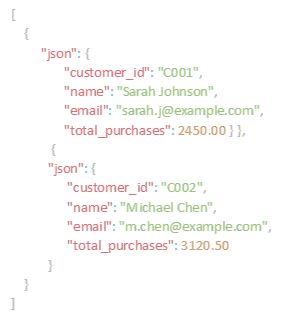
This is a collection of two items, each containing JSON data with customer information. The surrounding array brackets indicate that these are multiple items in a collection, whilst the structure within each item's "json" field contains the actual customer data.

JSON Structure in n8n: What You Need to Know

JSON (JavaScript Object Notation) is the language n8n speaks. Whilst you don't need to become a JSON expert, understanding its basic structure makes working with data in n8n significantly easier.

JSON Basics

JSON represents data using a few simple structures:

Objects are collections of key-value pairs, enclosed in curly braces. Keys are always strings, and values can be various types:
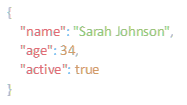
Arrays are ordered lists of values, enclosed in square brackets:

Values can be:

  • Strings (text in quotes): "hello"

  • Numbers: 42 or 3.14

  • Booleans: true or false

  • Null: null

  • Other objects or arrays (creating nested structures)

Nested Structures

Real-world data often involves nested structures—objects within objects, arrays of objects, or objects containing arrays. For instance:
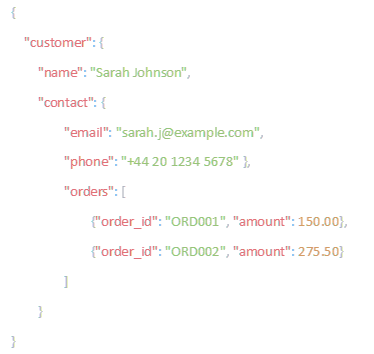
This structure represents a customer object containing a nested contact object and an array of order objects. Understanding how to navigate these nested structures is crucial for accessing the specific data you need in your workflows.

Accessing Nested Data

In n8n, you reference data using dot notation or bracket notation. For the structure above:

  • customer.name accesses "Sarah Johnson"

  • customer.contact.email accesses the email address

  • customer.orders[0].amount accesses the amount from the first order (150.00)

The bracket notation is particularly useful when field names contain spaces or special characters, or when you're accessing array elements by index.

Why This Matters in n8n

When you're configuring nodes in n8n, you'll frequently need to reference data from previous nodes. Understanding JSON structure helps you:

  • Know how to access nested fields

  • Recognise when you're working with an array versus a single value

  • Understand error messages that reference field paths

  • Structure your own data correctly in Set nodes

Input and Output: How Nodes Pass Data

Every node in n8n (except trigger nodes, which initiate workflows) receives input data, processes it in some way, and produces output data. Understanding this input-output relationship is key to building workflows that do what you expect.

The Input Data Structure

When a node executes, it receives all items from the previous node as an array. Even if the previous node output just one item, the receiving node gets an array containing that single item.

This consistency is actually quite helpful—it means nodes can be written to always expect an array of items, simplifying their internal logic. However, it's something you need to keep in mind when working with expressions or when debugging unexpected behaviour.

How Nodes Process Items

Different nodes handle their input items differently:

Item-by-Item Processing: Many nodes process each item independently. For instance, the HTTP Request node makes one request per input item, the Set node transforms each item's data structure, and the Function node runs its code once for each item. The output is typically the same number of items as the input, each transformed according to the node's operation.

Aggregation: Some nodes combine multiple input items into fewer output items. The Aggregate node might combine all input items into a single summary item. The Merge node combines items from multiple sources.

Generation: A few nodes produce more items than they receive. The Split Out node can take one item and produce multiple items from it, perhaps by splitting a text field into separate items for each line.

Filtering: Nodes like the IF node or Filter node might reduce the number of items, passing through only those that meet certain criteria.

Understanding which category a node falls into helps you predict how many items will emerge from it—crucial information when you're designing the rest of your workflow.

Output Data Structure

A node's output maintains the same basic structure as its input—an array of items, each containing JSON data (and potentially binary data). However, the content of that JSON data is typically different, reflecting whatever transformation or enrichment the node performed.

For instance, an HTTP Request node might receive items with just a customer ID field but output items containing the full customer record retrieved from an API. The structure changed, but it's still an array of items.

Multiple Items vs. Single Items: When It Matters

One of the subtler aspects of n8n's data model is the distinction between workflows that process single items versus those that process batches of items. Understanding this distinction helps you avoid common pitfalls.

Single-Item Workflows

Many workflows begin with a trigger that creates a single item, perhaps a webhook receives one request, or a file monitor detects one new file. This single item flows through your workflow, being transformed by each node.
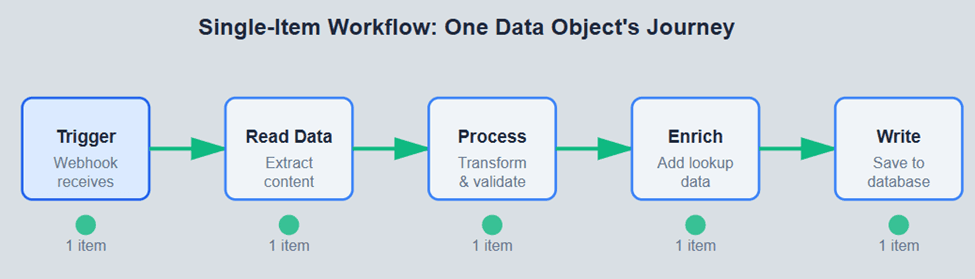
Figure 6.1 — Single-Iterm Workflow: One Data Object’s Journey

In single-item workflows, life is relatively straightforward. Each node processes its one input item and produces one output item. You're essentially following a single data object through its transformation journey.

Batch Processing Workflows

Other workflows inherently deal with multiple items—perhaps you're retrieving all records from a database query, processing all files in a folder, or handling multiple webhook events that occurred during a scheduled batch run.
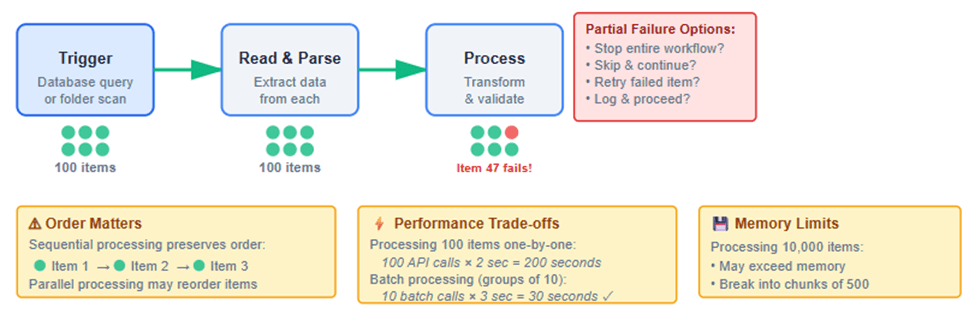
Figure 6.2 —Batch Processing Workflow: Multiple Items with Considerations

Batch processing introduces considerations that don't exist in single-item scenarios:

Order Matters (Sometimes): If your items need to be processed in a specific sequence, you'll need to ensure they maintain that order throughout your workflow. Certain operations, like some API calls made in parallel, might not preserve order.

Partial Failures: When processing 100 items, what happens if item 47 fails? Do you want to stop the entire workflow, skip that item and continue with the others, or retry just that item?

Performance: Processing items one at a time can be slow when you have many of them. Some nodes offer batch operations that process multiple items more efficiently.

Memory Usage: A workflow processing thousands of items might encounter memory limitations, requiring you to break the processing into smaller chunks.

Switching Between Single and Multiple

Sometimes you need to convert between these modes. The Item Lists node can combine multiple items into a single item containing an array, whilst the Split Out node does the reverse—taking an item containing an array and splitting it into multiple separate items.
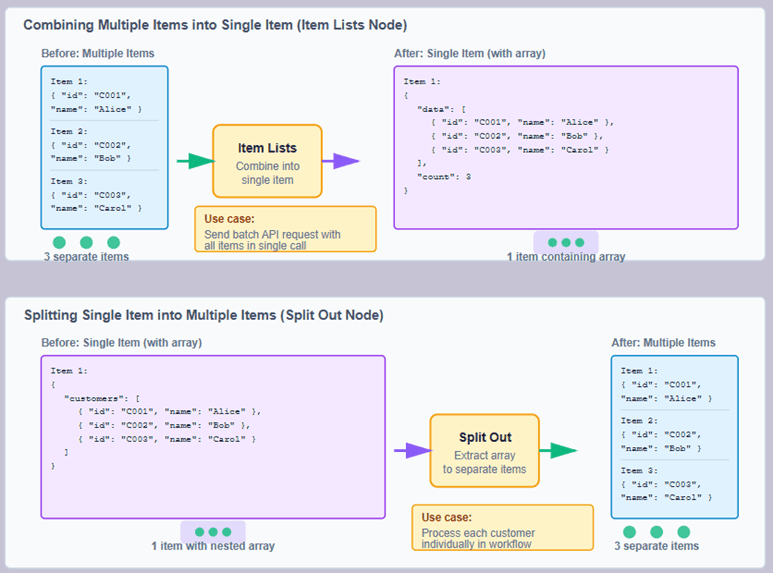
Figure 6.3 — Switching Between Single and Multiple Items

These conversions are useful when you need to batch operations for efficiency or when an API requires you to send data in a specific format.

Data Transformation Along the Pipeline

As data flows through your workflow, it's continuously transformed. Understanding the types of transformations available and when to apply them is central to effective workflow design.

Structural Transformations

Often, you need to change the structure of your data without necessarily changing its content. Perhaps an API expects fields to be named differently, or you need to nest or unnest data fields.

The Set node is your primary tool for structural transformation. It allows you to:

  • Rename fields

  • Nest fields within objects

  • Extract fields from nested objects

  • Combine multiple fields into one

  • Split one field into multiple fields

  • Reorder fields (though field order usually doesn't matter in JSON)

For example, you might receive data with fields first_name and last_name but need to combine them into a single full_name field, or vice versa.

Value Transformations

Other transformations change the actual values whilst maintaining structure:

  • Converting text to uppercase or lowercase

  • Formatting dates from one format to another

  • Calculating new values from existing ones (like computing a total from price and quantity)

  • Extracting portions of text (like domain names from email addresses)

  • Converting between data types (strings to numbers, etc.)

These transformations often happen in Set nodes using expressions, or in Function nodes when the transformation is complex.

Enrichment

Enrichment means adding data to your items from external sources. For instance:

  • Starting with a customer ID and retrieving full customer details from a database

  • Taking a product code and looking up current pricing

  • Converting IP addresses to geographical locations

  • Expanding abbreviations to full names based on a lookup table

Enrichment typically involves additional API calls or database queries, using data in your current items as lookup keys.

Filtering and Selection

Not all data that enters your workflow needs to flow through to the end. Filtering operations remove items that don't meet certain criteria:

  • Keeping only high-value transactions

  • Excluding already-processed records

  • Selecting items that match specific patterns

  • Removing duplicates

The IF node handles simple conditional filtering, whilst the Filter node offers more sophisticated options for complex criteria.

Expressions and Data References

Throughout this chapter, we've referenced accessing data from previous nodes. n8n's expression system is what makes this possible, and understanding it unlocks much of n8n's power.

The Expression Syntax

In n8n, expressions are enclosed in double curly braces: {{ expression }}. Within these braces, you can reference data from previous nodes, use built-in functions, and perform calculations.

The most common expression references data from the previous node: {{ $json.fieldname }} accesses the fieldname field from the previous node's JSON data.

For data from specific nodes (rather than just the previous one), you use: {{ $node["Node Name"].json.fieldname }}. This allows you to reference data from any earlier node in your workflow, not just the immediately previous one.

Working with Items

When a node processes multiple items, expressions have access to each item in turn. The expression {{ $json.customer_name }} returns the customer name for the current item being processed.

Sometimes you need to reference all items collectively rather than the current item. The $items variable provides access to all items, allowing expressions like {{ $items.length }} to count how many items are being processed.

Functions and Transformations

n8n's expression system includes numerous built-in functions for manipulating data:

  • Text functions: {{ $json.email.toLowerCase() }} converts email to lowercase

  • Math functions: {{ Math.round($json.amount * 1.2) }} calculates a 20% markup

  • Date functions: {{ DateTime.now().toFormat('yyyy-MM-dd') }} gets today's date in a specific format

  • Array functions: {{ $json.tags.join(', ') }} combines array elements into a comma-separated string

The expression editor in n8n provides suggestions and documentation for available functions, making it easier to discover what's possible.

When to Use Expressions vs. Function Nodes

For simple transformations—accessing fields, basic calculations, simple text manipulation—expressions in Set nodes are usually the most straightforward approach. They're visual, easy to modify, and don't require programming knowledge beyond understanding the expression syntax.

For complex logic—multiple conditional branches, intricate calculations, operations that need to loop over arrays—Function nodes provide more power. They let you write JavaScript code that can implement sophisticated transformations that would be awkward or impossible with expressions alone.

The boundary between these approaches isn't sharp, and you'll develop intuition about which tool fits each situation as you gain experience.

Common Data Flow Patterns

Certain data flow patterns appear repeatedly across different workflows. Recognising these patterns helps you design workflows more quickly and understand others' workflows more easily.

Linear Transformation Pipeline

The simplest pattern: data enters, passes through a series of transformation nodes, and exits. Each node performs one specific transformation, and the nodes execute in strict sequence.

This pattern works well for straightforward processes: retrieve data, clean it, transform it, write it somewhere. It's easy to understand, easy to debug, and easy to modify.

Conditional Branching

Data flows down different paths based on conditions. The IF node evaluates each item and routes it to different branches based on whether conditions are met.

A common variant involves having different processing logic for different types of items—perhaps handling successful vs. failed API responses differently, or routing urgent vs. routine items to different notification channels.

After branching, you might merge the paths back together, or they might remain separate and write to different destinations.

Enrichment with Lookups

Items flow through the workflow, and at certain points, additional data is retrieved to enrich them. This might involve:

  1. Main data flow continues forward

  2. A parallel branch uses data from items to perform lookups

  3. Results are merged back into the main flow

  4. Processing continues with the enriched data

This pattern is common when you start with minimal data (like IDs or codes) and need to retrieve full details.

Batch Collection and Processing

Multiple items are collected over time or from multiple sources, then processed together. For instance:

  1. Items arrive individually throughout the day

  2. They're accumulated in a list or database

  3. A scheduled trigger runs at the end of the day

  4. All accumulated items are retrieved and processed as a batch

  5. The accumulation is cleared, ready for the next day

This pattern is useful when downstream systems prefer batch operations or when processing needs to happen at specific times rather than continuously.

Fan-Out, Fan-In

One input item is split into multiple items for parallel processing, then results are aggregated back together. For example:

  1. Receive a list of customer IDs in a single item

  2. Split into separate items, one per customer

  3. Process each customer (perhaps making API calls)

  4. Aggregate results back into a summary

This pattern balances the efficiency of batch input with the need for item-by-item processing.

Loop with Accumulation

Items are processed one at a time, with each iteration potentially affecting how subsequent items are processed. Perhaps you're tracking a running total, checking for sequential patterns, or comparing each item against previous ones.

This pattern requires maintaining state across iterations, often using workflow variables or external storage.
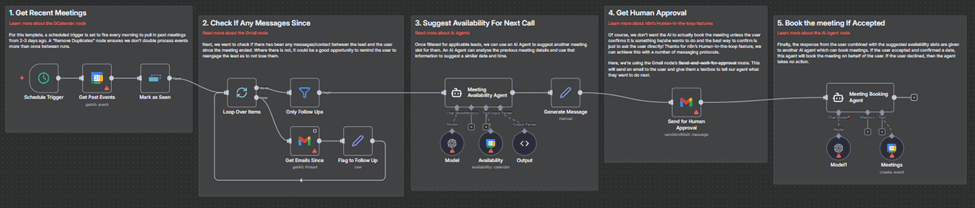
Figure 6.4 — Automatic Reminders For Follow-ups with AI and Human in the loop Gmail

Understanding how data moves through n8n—the structure of items, how nodes process them, how to reference and transform data, and common flow patterns—provides the foundation for building sophisticated workflows. This knowledge transforms n8n from a tool you can use by following examples into a platform where you can confidently implement your own solutions to novel problems.

As you build more workflows, these concepts will become second nature. You'll instinctively know how to structure your data, which nodes to use for different transformations, and how to debug issues when data doesn't flow as expected. This fluency is what separates occasional users from practitioners who leverage n8n's full potential.

6. How Data Moves in n8n: Connections, Items, and Structure

Understanding how data flows through n8n workflows is fundamental to building effective automation. Unlike traditional programming where you explicitly manage data structures and variable passing, n8n handles much of this complexity automatically but knowing what's happening beneath the surface transforms you from someone who can follow examples to someone who can solve novel problems confidently.

This chapter demystifies n8n's data model, exploring how information moves between nodes, how it's structured, and why these details matter for building robust workflows.

Understanding the n8n Data Model

At its heart, n8n operates on a simple but powerful concept: data flows through a sequence of nodes, with each node receiving input, performing some operation, and producing output. This pipeline model feels intuitive once you've built a few workflows, but understanding the underlying structure helps you work more effectively.

The Flow Metaphor

Think of your workflow as a series of processing stations on an assembly line. Raw materials (your source data) enter at one end, and each station (node) performs a specific operation—transforming, filtering, enriching, or routing the data. The output from one station becomes the input to the next.

This metaphor holds remarkably well in n8n, with one important distinction: unlike a physical assembly line where items are processed one at a time, n8n often processes multiple items simultaneously, maintaining them as a collection that flows together through your workflow.

Connections: The Data Highways

The lines connecting nodes in your workflow aren't merely visual—they represent actual data flow. When you draw a connection from one node to another, you're establishing a pathway for data to travel.

In n8n, connections come in two primary varieties:

  • Main connections (shown as solid lines) carry your actual data—the items being processed by your workflow. This is the primary data stream, and it's what most of your workflow design focuses on.

  • Secondary connections (used in specific nodes) allow nodes to receive reference data or configuration without being part of the main processing stream. For instance, a node might use the main connection for the data it's processing whilst receiving lookup values through a secondary connection.

Understanding this distinction matters when you're building complex workflows that need to merge data from multiple sources or when you're working with nodes that can accept multiple inputs.

Items: The Building Blocks of Data Flow

In n8n, the fundamental unit of data is an "item". Understanding items—what they are, how they're structured, and how they flow through your workflow—is essential for mastering n8n.

What Is an Item?

An item is a single record or data object flowing through your workflow. If you're processing customer records, each customer is an item. If you're handling files, each file is an item. If you're working with API responses, each record in the response is typically an item.

Crucially, n8n workflows process collections of items, not just individual pieces of data. Even if your workflow starts with a single trigger event, that event creates one item, and subsequent nodes operate on this collection (which happens to contain just one item).

This distinction might seem academic, but it has practical implications. When a node outputs data, it outputs an array of items—even if that array contains only one item. Understanding this structure helps you correctly reference data in subsequent nodes.

Item Structure

Each item in n8n has a consistent structure. At its most basic, an item contains:

  • JSON Data The actual information, stored in JSON (JavaScript Object Notation) format. This might include fields like name, email, amount, date—whatever data your workflow is processing.

  • Binary Data (optional) For items that represent files or other non-text data, n8n can also carry binary content. An item might have JSON metadata about a file (filename, size, type) alongside the actual file content in binary form.

  • Item Index Although not directly visible, n8n tracks the position of each item in the collection. This becomes important in certain operations where you need to reference specific items or where order matters.

Let's look at a concrete example. Suppose your workflow retrieves customer records from a database. The output might look like this:

This is a collection of two items, each containing JSON data with customer information. The surrounding array brackets indicate that these are multiple items in a collection, whilst the structure within each item's "json" field contains the actual customer data.

JSON Structure in n8n: What You Need to Know

JSON (JavaScript Object Notation) is the language n8n speaks. Whilst you don't need to become a JSON expert, understanding its basic structure makes working with data in n8n significantly easier.

JSON Basics

JSON represents data using a few simple structures:

Objects are collections of key-value pairs, enclosed in curly braces. Keys are always strings, and values can be various types:

Arrays are ordered lists of values, enclosed in square brackets:

Values can be:

  • Strings (text in quotes): "hello"

  • Numbers: 42 or 3.14

  • Booleans: true or false

  • Null: null

  • Other objects or arrays (creating nested structures)

Nested Structures

Real-world data often involves nested structures—objects within objects, arrays of objects, or objects containing arrays. For instance:

This structure represents a customer object containing a nested contact object and an array of order objects. Understanding how to navigate these nested structures is crucial for accessing the specific data you need in your workflows.

Accessing Nested Data

In n8n, you reference data using dot notation or bracket notation. For the structure above:

  • customer.name accesses "Sarah Johnson"

  • customer.contact.email accesses the email address

  • customer.orders[0].amount accesses the amount from the first order (150.00)

The bracket notation is particularly useful when field names contain spaces or special characters, or when you're accessing array elements by index.

Why This Matters in n8n

When you're configuring nodes in n8n, you'll frequently need to reference data from previous nodes. Understanding JSON structure helps you:

  • Know how to access nested fields

  • Recognise when you're working with an array versus a single value

  • Understand error messages that reference field paths

  • Structure your own data correctly in Set nodes

Input and Output: How Nodes Pass Data

Every node in n8n (except trigger nodes, which initiate workflows) receives input data, processes it in some way, and produces output data. Understanding this input-output relationship is key to building workflows that do what you expect.

The Input Data Structure

When a node executes, it receives all items from the previous node as an array. Even if the previous node output just one item, the receiving node gets an array containing that single item.

This consistency is actually quite helpful—it means nodes can be written to always expect an array of items, simplifying their internal logic. However, it's something you need to keep in mind when working with expressions or when debugging unexpected behaviour.

How Nodes Process Items

Different nodes handle their input items differently:

Item-by-Item Processing: Many nodes process each item independently. For instance, the HTTP Request node makes one request per input item, the Set node transforms each item's data structure, and the Function node runs its code once for each item. The output is typically the same number of items as the input, each transformed according to the node's operation.

Aggregation: Some nodes combine multiple input items into fewer output items. The Aggregate node might combine all input items into a single summary item. The Merge node combines items from multiple sources.

Generation: A few nodes produce more items than they receive. The Split Out node can take one item and produce multiple items from it, perhaps by splitting a text field into separate items for each line.

Filtering: Nodes like the IF node or Filter node might reduce the number of items, passing through only those that meet certain criteria.

Understanding which category a node falls into helps you predict how many items will emerge from it—crucial information when you're designing the rest of your workflow.

Output Data Structure

A node's output maintains the same basic structure as its input—an array of items, each containing JSON data (and potentially binary data). However, the content of that JSON data is typically different, reflecting whatever transformation or enrichment the node performed.

For instance, an HTTP Request node might receive items with just a customer ID field but output items containing the full customer record retrieved from an API. The structure changed, but it's still an array of items.

Multiple Items vs. Single Items: When It Matters

One of the subtler aspects of n8n's data model is the distinction between workflows that process single items versus those that process batches of items. Understanding this distinction helps you avoid common pitfalls.

Single-Item Workflows

Many workflows begin with a trigger that creates a single item, perhaps a webhook receives one request, or a file monitor detects one new file. This single item flows through your workflow, being transformed by each node.

Figure 6.1 — Single-Iterm Workflow: One Data Object’s Journey

In single-item workflows, life is relatively straightforward. Each node processes its one input item and produces one output item. You're essentially following a single data object through its transformation journey.

Batch Processing Workflows

Other workflows inherently deal with multiple items—perhaps you're retrieving all records from a database query, processing all files in a folder, or handling multiple webhook events that occurred during a scheduled batch run.

Figure 6.2 —Batch Processing Workflow: Multiple Items with Considerations

Batch processing introduces considerations that don't exist in single-item scenarios:

Order Matters (Sometimes): If your items need to be processed in a specific sequence, you'll need to ensure they maintain that order throughout your workflow. Certain operations, like some API calls made in parallel, might not preserve order.

Partial Failures: When processing 100 items, what happens if item 47 fails? Do you want to stop the entire workflow, skip that item and continue with the others, or retry just that item?

Performance: Processing items one at a time can be slow when you have many of them. Some nodes offer batch operations that process multiple items more efficiently.

Memory Usage: A workflow processing thousands of items might encounter memory limitations, requiring you to break the processing into smaller chunks.

Switching Between Single and Multiple

Sometimes you need to convert between these modes. The Item Lists node can combine multiple items into a single item containing an array, whilst the Split Out node does the reverse—taking an item containing an array and splitting it into multiple separate items.

Figure 6.3 — Switching Between Single and Multiple Items

These conversions are useful when you need to batch operations for efficiency or when an API requires you to send data in a specific format.

Data Transformation Along the Pipeline

As data flows through your workflow, it's continuously transformed. Understanding the types of transformations available and when to apply them is central to effective workflow design.

Structural Transformations

Often, you need to change the structure of your data without necessarily changing its content. Perhaps an API expects fields to be named differently, or you need to nest or unnest data fields.

The Set node is your primary tool for structural transformation. It allows you to:

  • Rename fields

  • Nest fields within objects

  • Extract fields from nested objects

  • Combine multiple fields into one

  • Split one field into multiple fields

  • Reorder fields (though field order usually doesn't matter in JSON)

For example, you might receive data with fields first_name and last_name but need to combine them into a single full_name field, or vice versa.

Value Transformations

Other transformations change the actual values whilst maintaining structure:

  • Converting text to uppercase or lowercase

  • Formatting dates from one format to another

  • Calculating new values from existing ones (like computing a total from price and quantity)

  • Extracting portions of text (like domain names from email addresses)

  • Converting between data types (strings to numbers, etc.)

These transformations often happen in Set nodes using expressions, or in Function nodes when the transformation is complex.

Enrichment

Enrichment means adding data to your items from external sources. For instance:

  • Starting with a customer ID and retrieving full customer details from a database

  • Taking a product code and looking up current pricing

  • Converting IP addresses to geographical locations

  • Expanding abbreviations to full names based on a lookup table

Enrichment typically involves additional API calls or database queries, using data in your current items as lookup keys.

Filtering and Selection

Not all data that enters your workflow needs to flow through to the end. Filtering operations remove items that don't meet certain criteria:

  • Keeping only high-value transactions

  • Excluding already-processed records

  • Selecting items that match specific patterns

  • Removing duplicates

The IF node handles simple conditional filtering, whilst the Filter node offers more sophisticated options for complex criteria.

Expressions and Data References

Throughout this chapter, we've referenced accessing data from previous nodes. n8n's expression system is what makes this possible, and understanding it unlocks much of n8n's power.

The Expression Syntax

In n8n, expressions are enclosed in double curly braces: {{ expression }}. Within these braces, you can reference data from previous nodes, use built-in functions, and perform calculations.

The most common expression references data from the previous node: {{ $json.fieldname }} accesses the fieldname field from the previous node's JSON data.

For data from specific nodes (rather than just the previous one), you use: {{ $node["Node Name"].json.fieldname }}. This allows you to reference data from any earlier node in your workflow, not just the immediately previous one.

Working with Items

When a node processes multiple items, expressions have access to each item in turn. The expression {{ $json.customer_name }} returns the customer name for the current item being processed.

Sometimes you need to reference all items collectively rather than the current item. The $items variable provides access to all items, allowing expressions like {{ $items.length }} to count how many items are being processed.

Functions and Transformations

n8n's expression system includes numerous built-in functions for manipulating data:

  • Text functions: {{ $json.email.toLowerCase() }} converts email to lowercase

  • Math functions: {{ Math.round($json.amount * 1.2) }} calculates a 20% markup

  • Date functions: {{ DateTime.now().toFormat('yyyy-MM-dd') }} gets today's date in a specific format

  • Array functions: {{ $json.tags.join(', ') }} combines array elements into a comma-separated string

The expression editor in n8n provides suggestions and documentation for available functions, making it easier to discover what's possible.

When to Use Expressions vs. Function Nodes

For simple transformations—accessing fields, basic calculations, simple text manipulation—expressions in Set nodes are usually the most straightforward approach. They're visual, easy to modify, and don't require programming knowledge beyond understanding the expression syntax.

For complex logic—multiple conditional branches, intricate calculations, operations that need to loop over arrays—Function nodes provide more power. They let you write JavaScript code that can implement sophisticated transformations that would be awkward or impossible with expressions alone.

The boundary between these approaches isn't sharp, and you'll develop intuition about which tool fits each situation as you gain experience.

Common Data Flow Patterns

Certain data flow patterns appear repeatedly across different workflows. Recognising these patterns helps you design workflows more quickly and understand others' workflows more easily.

Linear Transformation Pipeline

The simplest pattern: data enters, passes through a series of transformation nodes, and exits. Each node performs one specific transformation, and the nodes execute in strict sequence.

This pattern works well for straightforward processes: retrieve data, clean it, transform it, write it somewhere. It's easy to understand, easy to debug, and easy to modify.

Conditional Branching

Data flows down different paths based on conditions. The IF node evaluates each item and routes it to different branches based on whether conditions are met.

A common variant involves having different processing logic for different types of items—perhaps handling successful vs. failed API responses differently, or routing urgent vs. routine items to different notification channels.

After branching, you might merge the paths back together, or they might remain separate and write to different destinations.

Enrichment with Lookups

Items flow through the workflow, and at certain points, additional data is retrieved to enrich them. This might involve:

  1. Main data flow continues forward

  2. A parallel branch uses data from items to perform lookups

  3. Results are merged back into the main flow

  4. Processing continues with the enriched data

This pattern is common when you start with minimal data (like IDs or codes) and need to retrieve full details.

Batch Collection and Processing

Multiple items are collected over time or from multiple sources, then processed together. For instance:

  1. Items arrive individually throughout the day

  2. They're accumulated in a list or database

  3. A scheduled trigger runs at the end of the day

  4. All accumulated items are retrieved and processed as a batch

  5. The accumulation is cleared, ready for the next day

This pattern is useful when downstream systems prefer batch operations or when processing needs to happen at specific times rather than continuously.

Fan-Out, Fan-In

One input item is split into multiple items for parallel processing, then results are aggregated back together. For example:

  1. Receive a list of customer IDs in a single item

  2. Split into separate items, one per customer

  3. Process each customer (perhaps making API calls)

  4. Aggregate results back into a summary

This pattern balances the efficiency of batch input with the need for item-by-item processing.

Loop with Accumulation

Items are processed one at a time, with each iteration potentially affecting how subsequent items are processed. Perhaps you're tracking a running total, checking for sequential patterns, or comparing each item against previous ones.

This pattern requires maintaining state across iterations, often using workflow variables or external storage.

Figure 6.4 — Automatic Reminders For Follow-ups with AI and Human in the loop Gmail

Understanding how data moves through n8n—the structure of items, how nodes process them, how to reference and transform data, and common flow patterns—provides the foundation for building sophisticated workflows. This knowledge transforms n8n from a tool you can use by following examples into a platform where you can confidently implement your own solutions to novel problems.

As you build more workflows, these concepts will become second nature. You'll instinctively know how to structure your data, which nodes to use for different transformations, and how to debug issues when data doesn't flow as expected. This fluency is what separates occasional users from practitioners who leverage n8n's full potential.

6. How Data Moves in n8n: Connections, Items, and Structure

Understanding how data flows through n8n workflows is fundamental to building effective automation. Unlike traditional programming where you explicitly manage data structures and variable passing, n8n handles much of this complexity automatically but knowing what's happening beneath the surface transforms you from someone who can follow examples to someone who can solve novel problems confidently.

This chapter demystifies n8n's data model, exploring how information moves between nodes, how it's structured, and why these details matter for building robust workflows.

Understanding the n8n Data Model

At its heart, n8n operates on a simple but powerful concept: data flows through a sequence of nodes, with each node receiving input, performing some operation, and producing output. This pipeline model feels intuitive once you've built a few workflows, but understanding the underlying structure helps you work more effectively.

The Flow Metaphor

Think of your workflow as a series of processing stations on an assembly line. Raw materials (your source data) enter at one end, and each station (node) performs a specific operation—transforming, filtering, enriching, or routing the data. The output from one station becomes the input to the next.

This metaphor holds remarkably well in n8n, with one important distinction: unlike a physical assembly line where items are processed one at a time, n8n often processes multiple items simultaneously, maintaining them as a collection that flows together through your workflow.

Connections: The Data Highways

The lines connecting nodes in your workflow aren't merely visual—they represent actual data flow. When you draw a connection from one node to another, you're establishing a pathway for data to travel.

In n8n, connections come in two primary varieties:

  • Main connections (shown as solid lines) carry your actual data—the items being processed by your workflow. This is the primary data stream, and it's what most of your workflow design focuses on.

  • Secondary connections (used in specific nodes) allow nodes to receive reference data or configuration without being part of the main processing stream. For instance, a node might use the main connection for the data it's processing whilst receiving lookup values through a secondary connection.

Understanding this distinction matters when you're building complex workflows that need to merge data from multiple sources or when you're working with nodes that can accept multiple inputs.

Items: The Building Blocks of Data Flow

In n8n, the fundamental unit of data is an "item". Understanding items—what they are, how they're structured, and how they flow through your workflow—is essential for mastering n8n.

What Is an Item?

An item is a single record or data object flowing through your workflow. If you're processing customer records, each customer is an item. If you're handling files, each file is an item. If you're working with API responses, each record in the response is typically an item.

Crucially, n8n workflows process collections of items, not just individual pieces of data. Even if your workflow starts with a single trigger event, that event creates one item, and subsequent nodes operate on this collection (which happens to contain just one item).

This distinction might seem academic, but it has practical implications. When a node outputs data, it outputs an array of items—even if that array contains only one item. Understanding this structure helps you correctly reference data in subsequent nodes.

Item Structure

Each item in n8n has a consistent structure. At its most basic, an item contains:

  • JSON Data The actual information, stored in JSON (JavaScript Object Notation) format. This might include fields like name, email, amount, date—whatever data your workflow is processing.

  • Binary Data (optional) For items that represent files or other non-text data, n8n can also carry binary content. An item might have JSON metadata about a file (filename, size, type) alongside the actual file content in binary form.

  • Item Index Although not directly visible, n8n tracks the position of each item in the collection. This becomes important in certain operations where you need to reference specific items or where order matters.

Let's look at a concrete example. Suppose your workflow retrieves customer records from a database. The output might look like this:

This is a collection of two items, each containing JSON data with customer information. The surrounding array brackets indicate that these are multiple items in a collection, whilst the structure within each item's "json" field contains the actual customer data.

JSON Structure in n8n: What You Need to Know

JSON (JavaScript Object Notation) is the language n8n speaks. Whilst you don't need to become a JSON expert, understanding its basic structure makes working with data in n8n significantly easier.

JSON Basics

JSON represents data using a few simple structures:

Objects are collections of key-value pairs, enclosed in curly braces. Keys are always strings, and values can be various types:

Arrays are ordered lists of values, enclosed in square brackets:

Values can be:

  • Strings (text in quotes): "hello"

  • Numbers: 42 or 3.14

  • Booleans: true or false

  • Null: null

  • Other objects or arrays (creating nested structures)

Nested Structures

Real-world data often involves nested structures—objects within objects, arrays of objects, or objects containing arrays. For instance:

This structure represents a customer object containing a nested contact object and an array of order objects. Understanding how to navigate these nested structures is crucial for accessing the specific data you need in your workflows.

Accessing Nested Data

In n8n, you reference data using dot notation or bracket notation. For the structure above:

  • customer.name accesses "Sarah Johnson"

  • customer.contact.email accesses the email address

  • customer.orders[0].amount accesses the amount from the first order (150.00)

The bracket notation is particularly useful when field names contain spaces or special characters, or when you're accessing array elements by index.

Why This Matters in n8n

When you're configuring nodes in n8n, you'll frequently need to reference data from previous nodes. Understanding JSON structure helps you:

  • Know how to access nested fields

  • Recognise when you're working with an array versus a single value

  • Understand error messages that reference field paths

  • Structure your own data correctly in Set nodes

Input and Output: How Nodes Pass Data

Every node in n8n (except trigger nodes, which initiate workflows) receives input data, processes it in some way, and produces output data. Understanding this input-output relationship is key to building workflows that do what you expect.

The Input Data Structure

When a node executes, it receives all items from the previous node as an array. Even if the previous node output just one item, the receiving node gets an array containing that single item.

This consistency is actually quite helpful—it means nodes can be written to always expect an array of items, simplifying their internal logic. However, it's something you need to keep in mind when working with expressions or when debugging unexpected behaviour.

How Nodes Process Items

Different nodes handle their input items differently:

Item-by-Item Processing: Many nodes process each item independently. For instance, the HTTP Request node makes one request per input item, the Set node transforms each item's data structure, and the Function node runs its code once for each item. The output is typically the same number of items as the input, each transformed according to the node's operation.

Aggregation: Some nodes combine multiple input items into fewer output items. The Aggregate node might combine all input items into a single summary item. The Merge node combines items from multiple sources.

Generation: A few nodes produce more items than they receive. The Split Out node can take one item and produce multiple items from it, perhaps by splitting a text field into separate items for each line.

Filtering: Nodes like the IF node or Filter node might reduce the number of items, passing through only those that meet certain criteria.

Understanding which category a node falls into helps you predict how many items will emerge from it—crucial information when you're designing the rest of your workflow.

Output Data Structure

A node's output maintains the same basic structure as its input—an array of items, each containing JSON data (and potentially binary data). However, the content of that JSON data is typically different, reflecting whatever transformation or enrichment the node performed.

For instance, an HTTP Request node might receive items with just a customer ID field but output items containing the full customer record retrieved from an API. The structure changed, but it's still an array of items.

Multiple Items vs. Single Items: When It Matters

One of the subtler aspects of n8n's data model is the distinction between workflows that process single items versus those that process batches of items. Understanding this distinction helps you avoid common pitfalls.

Single-Item Workflows

Many workflows begin with a trigger that creates a single item, perhaps a webhook receives one request, or a file monitor detects one new file. This single item flows through your workflow, being transformed by each node.

Figure 6.1 — Single-Iterm Workflow: One Data Object’s Journey

In single-item workflows, life is relatively straightforward. Each node processes its one input item and produces one output item. You're essentially following a single data object through its transformation journey.

Batch Processing Workflows

Other workflows inherently deal with multiple items—perhaps you're retrieving all records from a database query, processing all files in a folder, or handling multiple webhook events that occurred during a scheduled batch run.

Figure 6.2 —Batch Processing Workflow: Multiple Items with Considerations

Batch processing introduces considerations that don't exist in single-item scenarios:

Order Matters (Sometimes): If your items need to be processed in a specific sequence, you'll need to ensure they maintain that order throughout your workflow. Certain operations, like some API calls made in parallel, might not preserve order.

Partial Failures: When processing 100 items, what happens if item 47 fails? Do you want to stop the entire workflow, skip that item and continue with the others, or retry just that item?

Performance: Processing items one at a time can be slow when you have many of them. Some nodes offer batch operations that process multiple items more efficiently.

Memory Usage: A workflow processing thousands of items might encounter memory limitations, requiring you to break the processing into smaller chunks.

Switching Between Single and Multiple

Sometimes you need to convert between these modes. The Item Lists node can combine multiple items into a single item containing an array, whilst the Split Out node does the reverse—taking an item containing an array and splitting it into multiple separate items.

Figure 6.3 — Switching Between Single and Multiple Items

These conversions are useful when you need to batch operations for efficiency or when an API requires you to send data in a specific format.

Data Transformation Along the Pipeline

As data flows through your workflow, it's continuously transformed. Understanding the types of transformations available and when to apply them is central to effective workflow design.

Structural Transformations

Often, you need to change the structure of your data without necessarily changing its content. Perhaps an API expects fields to be named differently, or you need to nest or unnest data fields.

The Set node is your primary tool for structural transformation. It allows you to:

  • Rename fields

  • Nest fields within objects

  • Extract fields from nested objects

  • Combine multiple fields into one

  • Split one field into multiple fields

  • Reorder fields (though field order usually doesn't matter in JSON)

For example, you might receive data with fields first_name and last_name but need to combine them into a single full_name field, or vice versa.

Value Transformations

Other transformations change the actual values whilst maintaining structure:

  • Converting text to uppercase or lowercase

  • Formatting dates from one format to another

  • Calculating new values from existing ones (like computing a total from price and quantity)

  • Extracting portions of text (like domain names from email addresses)

  • Converting between data types (strings to numbers, etc.)

These transformations often happen in Set nodes using expressions, or in Function nodes when the transformation is complex.

Enrichment

Enrichment means adding data to your items from external sources. For instance:

  • Starting with a customer ID and retrieving full customer details from a database

  • Taking a product code and looking up current pricing

  • Converting IP addresses to geographical locations

  • Expanding abbreviations to full names based on a lookup table

Enrichment typically involves additional API calls or database queries, using data in your current items as lookup keys.

Filtering and Selection

Not all data that enters your workflow needs to flow through to the end. Filtering operations remove items that don't meet certain criteria:

  • Keeping only high-value transactions

  • Excluding already-processed records

  • Selecting items that match specific patterns

  • Removing duplicates

The IF node handles simple conditional filtering, whilst the Filter node offers more sophisticated options for complex criteria.

Expressions and Data References

Throughout this chapter, we've referenced accessing data from previous nodes. n8n's expression system is what makes this possible, and understanding it unlocks much of n8n's power.

The Expression Syntax

In n8n, expressions are enclosed in double curly braces: {{ expression }}. Within these braces, you can reference data from previous nodes, use built-in functions, and perform calculations.

The most common expression references data from the previous node: {{ $json.fieldname }} accesses the fieldname field from the previous node's JSON data.

For data from specific nodes (rather than just the previous one), you use: {{ $node["Node Name"].json.fieldname }}. This allows you to reference data from any earlier node in your workflow, not just the immediately previous one.

Working with Items

When a node processes multiple items, expressions have access to each item in turn. The expression {{ $json.customer_name }} returns the customer name for the current item being processed.

Sometimes you need to reference all items collectively rather than the current item. The $items variable provides access to all items, allowing expressions like {{ $items.length }} to count how many items are being processed.

Functions and Transformations

n8n's expression system includes numerous built-in functions for manipulating data:

  • Text functions: {{ $json.email.toLowerCase() }} converts email to lowercase

  • Math functions: {{ Math.round($json.amount * 1.2) }} calculates a 20% markup

  • Date functions: {{ DateTime.now().toFormat('yyyy-MM-dd') }} gets today's date in a specific format

  • Array functions: {{ $json.tags.join(', ') }} combines array elements into a comma-separated string

The expression editor in n8n provides suggestions and documentation for available functions, making it easier to discover what's possible.

When to Use Expressions vs. Function Nodes

For simple transformations—accessing fields, basic calculations, simple text manipulation—expressions in Set nodes are usually the most straightforward approach. They're visual, easy to modify, and don't require programming knowledge beyond understanding the expression syntax.

For complex logic—multiple conditional branches, intricate calculations, operations that need to loop over arrays—Function nodes provide more power. They let you write JavaScript code that can implement sophisticated transformations that would be awkward or impossible with expressions alone.

The boundary between these approaches isn't sharp, and you'll develop intuition about which tool fits each situation as you gain experience.

Common Data Flow Patterns

Certain data flow patterns appear repeatedly across different workflows. Recognising these patterns helps you design workflows more quickly and understand others' workflows more easily.

Linear Transformation Pipeline

The simplest pattern: data enters, passes through a series of transformation nodes, and exits. Each node performs one specific transformation, and the nodes execute in strict sequence.

This pattern works well for straightforward processes: retrieve data, clean it, transform it, write it somewhere. It's easy to understand, easy to debug, and easy to modify.

Conditional Branching

Data flows down different paths based on conditions. The IF node evaluates each item and routes it to different branches based on whether conditions are met.

A common variant involves having different processing logic for different types of items—perhaps handling successful vs. failed API responses differently, or routing urgent vs. routine items to different notification channels.

After branching, you might merge the paths back together, or they might remain separate and write to different destinations.

Enrichment with Lookups

Items flow through the workflow, and at certain points, additional data is retrieved to enrich them. This might involve:

  1. Main data flow continues forward

  2. A parallel branch uses data from items to perform lookups

  3. Results are merged back into the main flow

  4. Processing continues with the enriched data

This pattern is common when you start with minimal data (like IDs or codes) and need to retrieve full details.

Batch Collection and Processing

Multiple items are collected over time or from multiple sources, then processed together. For instance:

  1. Items arrive individually throughout the day

  2. They're accumulated in a list or database

  3. A scheduled trigger runs at the end of the day

  4. All accumulated items are retrieved and processed as a batch

  5. The accumulation is cleared, ready for the next day

This pattern is useful when downstream systems prefer batch operations or when processing needs to happen at specific times rather than continuously.

Fan-Out, Fan-In

One input item is split into multiple items for parallel processing, then results are aggregated back together. For example:

  1. Receive a list of customer IDs in a single item

  2. Split into separate items, one per customer

  3. Process each customer (perhaps making API calls)

  4. Aggregate results back into a summary

This pattern balances the efficiency of batch input with the need for item-by-item processing.

Loop with Accumulation

Items are processed one at a time, with each iteration potentially affecting how subsequent items are processed. Perhaps you're tracking a running total, checking for sequential patterns, or comparing each item against previous ones.

This pattern requires maintaining state across iterations, often using workflow variables or external storage.

Figure 6.4 — Automatic Reminders For Follow-ups with AI and Human in the loop Gmail

Understanding how data moves through n8n—the structure of items, how nodes process them, how to reference and transform data, and common flow patterns—provides the foundation for building sophisticated workflows. This knowledge transforms n8n from a tool you can use by following examples into a platform where you can confidently implement your own solutions to novel problems.

As you build more workflows, these concepts will become second nature. You'll instinctively know how to structure your data, which nodes to use for different transformations, and how to debug issues when data doesn't flow as expected. This fluency is what separates occasional users from practitioners who leverage n8n's full potential.

7. Keyboard Shortcuts

As workflows grow in size and complexity, even small improvements in navigation and speed can make a significant difference. Keyboard shortcuts help reduce friction, streamline repetitive actions, and keep your focus on the logic of the workflow rather than navigating the interface. Much like in analytical platforms or coding environments, shortcuts in n8n become an essential part of working efficiently. For teams building agentic workflows, retrieval pipelines, or multi-branch logic, these shortcuts are particularly valuable. They allow you to move quickly across the canvas, test steps repeatedly, adjust views with precision, and maintain a smooth development rhythm. The table below summarises the most useful shortcuts, especially those that support daily development and debugging.

Action

Shortcut

Description

Zoom In

+

Increases magnification on the canvas, useful when configuring or inspecting detailed nodes.

Zoom Out

-

Decreases magnification to provide a wider view of the workflow.

Fit to Screen

1

Automatically adjusts the canvas view so the entire workflow fits within the window. Helpful when reviewing large or branching automations.

Toggle Grid or Snap Behaviour

Shift + Alt + T

Turns the grid and alignment snapping on or off. This assists with neat arrangement of nodes.

Select Multiple Nodes

Shift + Click

Allows you to select several nodes at once for moving or grouping.

Copy Node(s)

Ctrl + C (Windows/Linux) or Cmd + C (Mac)

Copies the selected node or group of nodes.

Paste Node(s)

Ctrl + V (Windows/Linux) or Cmd + V (Mac)

Pastes copied nodes onto the canvas.

Delete Node

Delete

Removes the selected node from the workflow.

Rename Node

Double-click Node Title

Quickly renames a node for clarity and documentation.

Undo

Ctrl + Z or Cmd + Z

Reverses your most recent change. Useful during rapid editing.

Redo

Ctrl + Shift + Z or Cmd + Shift + Z

Restores a reversed change.

Execute the Active Node

Ctrl + Enter or Cmd + Enter

Runs only the highlighted node, ideal for testing individual steps in RAG pipelines or agent logic.

Quick Add Node Menu

+ (on right menu) or click the plus icon

Opens the node selection panel to insert a new step.

Canvas Panning

Click and drag

Moves the view across the workflow canvas. Useful in large multi-branch workflows.

Figure 7.1 — n8n Keyboard Shortcuts for Faster Workflow Building

Why Shortcuts Matter in Agentic and RAG Workflows When developing workflows that involve retrieval, validation, and multi-step reasoning, you will often need to zoom in to inspect a node’s details, zoom out to view the logic structure, and run individual steps repeatedly. Using shortcuts reduces interruptions in your thinking. It allows you to debug reasoning failures, examine retrieved context, refine prompts, or reorganise branches more fluidly.

Shortcuts also support collaborative environments, where clarity and speed are important. A well-arranged workflow built with efficient navigation tends to be easier for others to review and understand. This is particularly important in audit and compliance functions, where traceability and documentation matter as much as the automation itself.

Building a Faster Workflow Mindset Shortcuts do not replace good workflow design, but they complement it. As you become more comfortable with them, building workflows becomes more natural and less mechanical. Tasks such as aligning nodes, rearranging branches, and testing logic begin to flow smoothly.

If you are working with larger retrieval structures, multi-branch agent chains, or data-intensive workflows, adopting shortcuts early on will help keep your development environment organised and your pace efficient.

7. Keyboard Shortcuts

As workflows grow in size and complexity, even small improvements in navigation and speed can make a significant difference. Keyboard shortcuts help reduce friction, streamline repetitive actions, and keep your focus on the logic of the workflow rather than navigating the interface. Much like in analytical platforms or coding environments, shortcuts in n8n become an essential part of working efficiently. For teams building agentic workflows, retrieval pipelines, or multi-branch logic, these shortcuts are particularly valuable. They allow you to move quickly across the canvas, test steps repeatedly, adjust views with precision, and maintain a smooth development rhythm. The table below summarises the most useful shortcuts, especially those that support daily development and debugging.

Action

Shortcut

Description

Zoom In

+

Increases magnification on the canvas, useful when configuring or inspecting detailed nodes.

Zoom Out

-

Decreases magnification to provide a wider view of the workflow.

Fit to Screen

1

Automatically adjusts the canvas view so the entire workflow fits within the window. Helpful when reviewing large or branching automations.

Toggle Grid or Snap Behaviour

Shift + Alt + T

Turns the grid and alignment snapping on or off. This assists with neat arrangement of nodes.

Select Multiple Nodes

Shift + Click

Allows you to select several nodes at once for moving or grouping.

Copy Node(s)

Ctrl + C (Windows/Linux) or Cmd + C (Mac)

Copies the selected node or group of nodes.

Paste Node(s)

Ctrl + V (Windows/Linux) or Cmd + V (Mac)

Pastes copied nodes onto the canvas.

Delete Node

Delete

Removes the selected node from the workflow.

Rename Node

Double-click Node Title

Quickly renames a node for clarity and documentation.

Undo

Ctrl + Z or Cmd + Z

Reverses your most recent change. Useful during rapid editing.

Redo

Ctrl + Shift + Z or Cmd + Shift + Z

Restores a reversed change.

Execute the Active Node

Ctrl + Enter or Cmd + Enter

Runs only the highlighted node, ideal for testing individual steps in RAG pipelines or agent logic.

Quick Add Node Menu

+ (on right menu) or click the plus icon

Opens the node selection panel to insert a new step.

Canvas Panning

Click and drag

Moves the view across the workflow canvas. Useful in large multi-branch workflows.

Figure 7.1 — n8n Keyboard Shortcuts for Faster Workflow Building

Why Shortcuts Matter in Agentic and RAG Workflows When developing workflows that involve retrieval, validation, and multi-step reasoning, you will often need to zoom in to inspect a node’s details, zoom out to view the logic structure, and run individual steps repeatedly. Using shortcuts reduces interruptions in your thinking. It allows you to debug reasoning failures, examine retrieved context, refine prompts, or reorganise branches more fluidly.

Shortcuts also support collaborative environments, where clarity and speed are important. A well-arranged workflow built with efficient navigation tends to be easier for others to review and understand. This is particularly important in audit and compliance functions, where traceability and documentation matter as much as the automation itself.

Building a Faster Workflow Mindset Shortcuts do not replace good workflow design, but they complement it. As you become more comfortable with them, building workflows becomes more natural and less mechanical. Tasks such as aligning nodes, rearranging branches, and testing logic begin to flow smoothly.

If you are working with larger retrieval structures, multi-branch agent chains, or data-intensive workflows, adopting shortcuts early on will help keep your development environment organised and your pace efficient.

7. Keyboard Shortcuts

As workflows grow in size and complexity, even small improvements in navigation and speed can make a significant difference. Keyboard shortcuts help reduce friction, streamline repetitive actions, and keep your focus on the logic of the workflow rather than navigating the interface. Much like in analytical platforms or coding environments, shortcuts in n8n become an essential part of working efficiently. For teams building agentic workflows, retrieval pipelines, or multi-branch logic, these shortcuts are particularly valuable. They allow you to move quickly across the canvas, test steps repeatedly, adjust views with precision, and maintain a smooth development rhythm. The table below summarises the most useful shortcuts, especially those that support daily development and debugging.

Action

Shortcut

Description

Zoom In

+

Increases magnification on the canvas, useful when configuring or inspecting detailed nodes.

Zoom Out

-

Decreases magnification to provide a wider view of the workflow.

Fit to Screen

1

Automatically adjusts the canvas view so the entire workflow fits within the window. Helpful when reviewing large or branching automations.

Toggle Grid or Snap Behaviour

Shift + Alt + T

Turns the grid and alignment snapping on or off. This assists with neat arrangement of nodes.

Select Multiple Nodes

Shift + Click

Allows you to select several nodes at once for moving or grouping.

Copy Node(s)

Ctrl + C (Windows/Linux) or Cmd + C (Mac)

Copies the selected node or group of nodes.

Paste Node(s)

Ctrl + V (Windows/Linux) or Cmd + V (Mac)

Pastes copied nodes onto the canvas.

Delete Node

Delete

Removes the selected node from the workflow.

Rename Node

Double-click Node Title

Quickly renames a node for clarity and documentation.

Undo

Ctrl + Z or Cmd + Z

Reverses your most recent change. Useful during rapid editing.

Redo

Ctrl + Shift + Z or Cmd + Shift + Z

Restores a reversed change.

Execute the Active Node

Ctrl + Enter or Cmd + Enter

Runs only the highlighted node, ideal for testing individual steps in RAG pipelines or agent logic.

Quick Add Node Menu

+ (on right menu) or click the plus icon

Opens the node selection panel to insert a new step.

Canvas Panning

Click and drag

Moves the view across the workflow canvas. Useful in large multi-branch workflows.

Figure 7.1 — n8n Keyboard Shortcuts for Faster Workflow Building

Why Shortcuts Matter in Agentic and RAG Workflows When developing workflows that involve retrieval, validation, and multi-step reasoning, you will often need to zoom in to inspect a node’s details, zoom out to view the logic structure, and run individual steps repeatedly. Using shortcuts reduces interruptions in your thinking. It allows you to debug reasoning failures, examine retrieved context, refine prompts, or reorganise branches more fluidly.

Shortcuts also support collaborative environments, where clarity and speed are important. A well-arranged workflow built with efficient navigation tends to be easier for others to review and understand. This is particularly important in audit and compliance functions, where traceability and documentation matter as much as the automation itself.

Building a Faster Workflow Mindset Shortcuts do not replace good workflow design, but they complement it. As you become more comfortable with them, building workflows becomes more natural and less mechanical. Tasks such as aligning nodes, rearranging branches, and testing logic begin to flow smoothly.

If you are working with larger retrieval structures, multi-branch agent chains, or data-intensive workflows, adopting shortcuts early on will help keep your development environment organised and your pace efficient.

Continue Learning

Explore more guides, tools, and insights to advance your journey and build lasting capability across your business.

Join Our Mailing List

Join Our Mailing List

Join Our Mailing List

The Innovation Experts

Get in Touch

The Innovation Experts

Get in Touch

The Innovation Experts

Get in Touch